> For the complete documentation index, see [llms.txt](https://docs.kognitos.com/llms.txt). Markdown versions of documentation pages are available by appending `.md` to page URLs; this page is available as [Markdown](https://docs.kognitos.com/guides/platform/integrations/sharepoint.md).
# Microsoft SharePoint
Overview of the Microsoft SharePoint integration.
{% hint style="info" %}
The following documentation is for **Microsoft SharePoint v2.16.2**.
{% endhint %}
## Overview
Microsoft SharePoint offers enterprise content management and collaboration platform for document sharing and team sites. This integration enables automated document workflows, content management, and team collaboration processes. Enhance organizational knowledge sharing and streamline document management.
## Setup
The following integrations need to be connected to your Kognitos workspace:
* **Microsoft SharePoint**
* **Microsoft Office 365**
{% hint style="info" %}
Note: The **Microsoft SharePoint** integration depends on **Microsoft Office 365** for core Microsoft capabilities.
{% endhint %}
### Steps
Follow these steps to connect the integration in Kognitos:
{% stepper %}
{% step %}
#### Navigate
Using the left navigation menu, go to **Integrations** → **Explore Integrations**.
{% endstep %}
{% step %}
#### Find
Search for the integration and click on it.
{% endstep %}
{% step %}
#### Connect
Click on **Connect** to add a connection to the integration.
{% endstep %}
{% step %}
#### Configure
Add a name for the connection. You'll be prompted for [**authentication**](#authentication) details if needed. Then, click on **Connect**.
{% endstep %}
{% endstepper %}
### Credentials & Permissions
To use the Microsoft SharePoint integration, you need to create an app registration in Microsoft Entra ID (formerly Azure AD) to obtain **credentials** and configure the appropriate **permissions**.
{% stepper %}
{% step %}
**Sign in to the Azure Portal**
Navigate to [**portal.azure.com**](https://azure.microsoft.com/en-us/get-started/azure-portal) with an account that has permissions to manage applications. From the main dashboard, select **Microsoft Entra ID** *(under **Azure Services**)*.
{% endstep %}
{% step %}
**Create a New App Registration**
1. Click on + Add and select **App registration**.
2. Enter a **Name** for the app. For example: "Kognitos SharePoint Integration".
3. Under **Supported account types**, choose "Accounts in this organizational directory only".
4. Leave the **Redirect URI** field blank.
5. Click on Register to create the app.
{% endstep %}
{% step %}
**Capture the Client ID and Tenant ID**
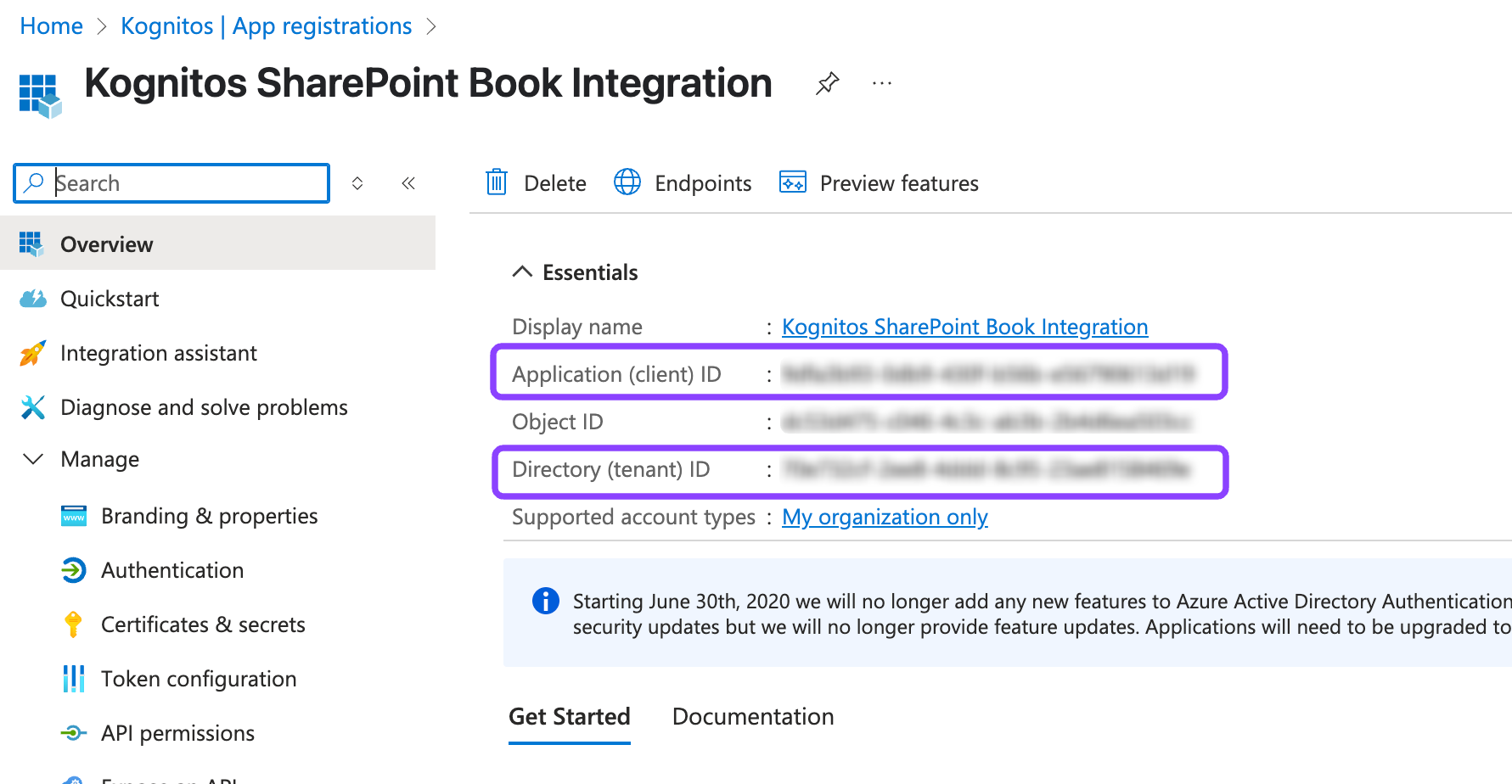
After creating the app, you'll land on its **Overview** page. Copy the **Application (client) ID** and **Directory (tenant) ID** from this page.
{% endstep %}
{% step %}
**Generate a Client Secret**
1. Click on Manage on the left.
2. Select API Permissions from the dropdown menu.
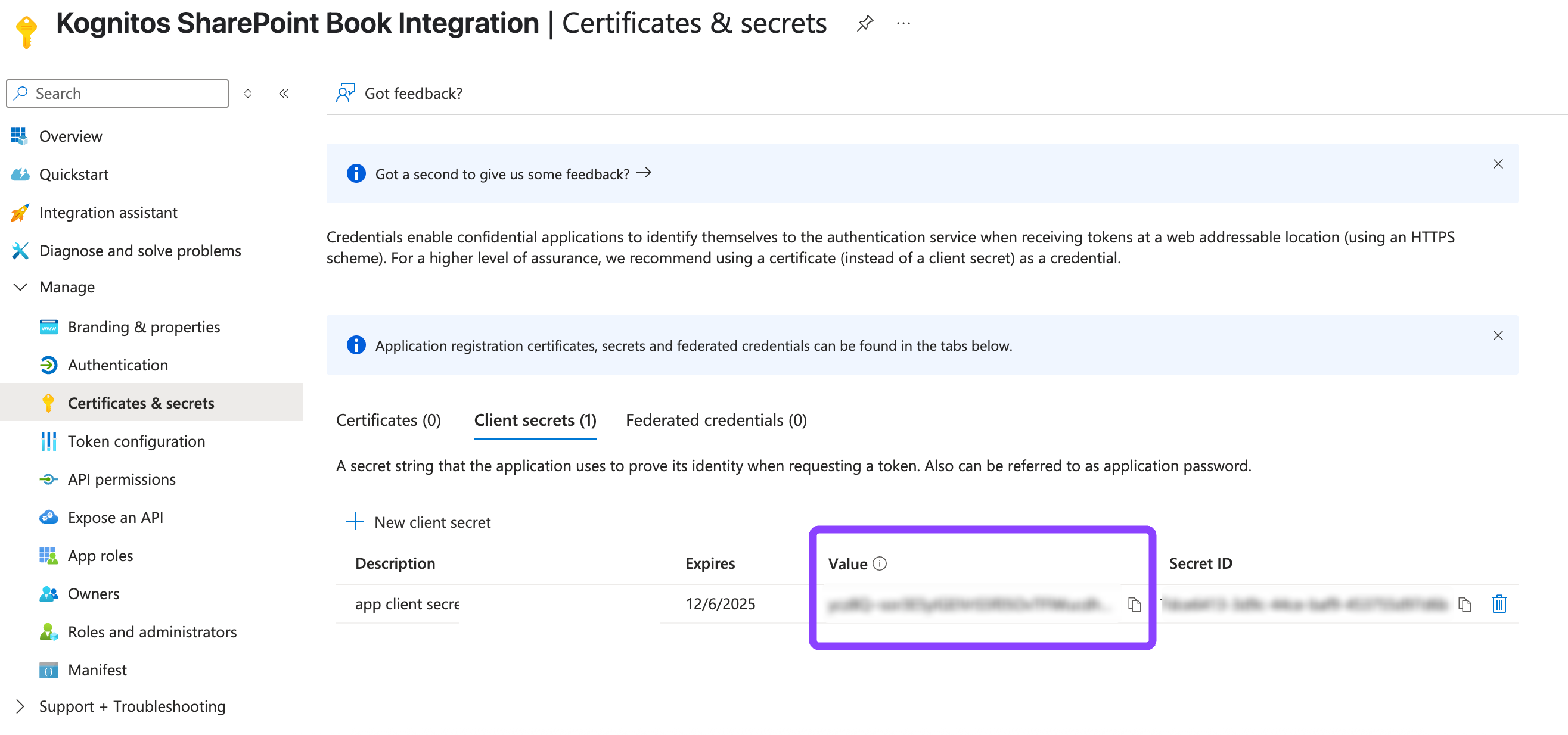
3. Under **Client Secrets**, click on + New client secret.
4. Enter a description for the secret and choose an expiration period.
5. Click **Add**. Copy the Secret's **Value** as your **Client Secret**.
{% hint style="warning" %}
Client secret values cannot be viewed except immediately after creation. Be sure to save the secret when it is created before leaving the page!
{% endhint %}
{% endstep %}
{% step %}
**Assign API Permissions**
1. In the app registration page, click on **Manage** in the left navigation.
2. Select **API Permissions** from the dropdown menu.
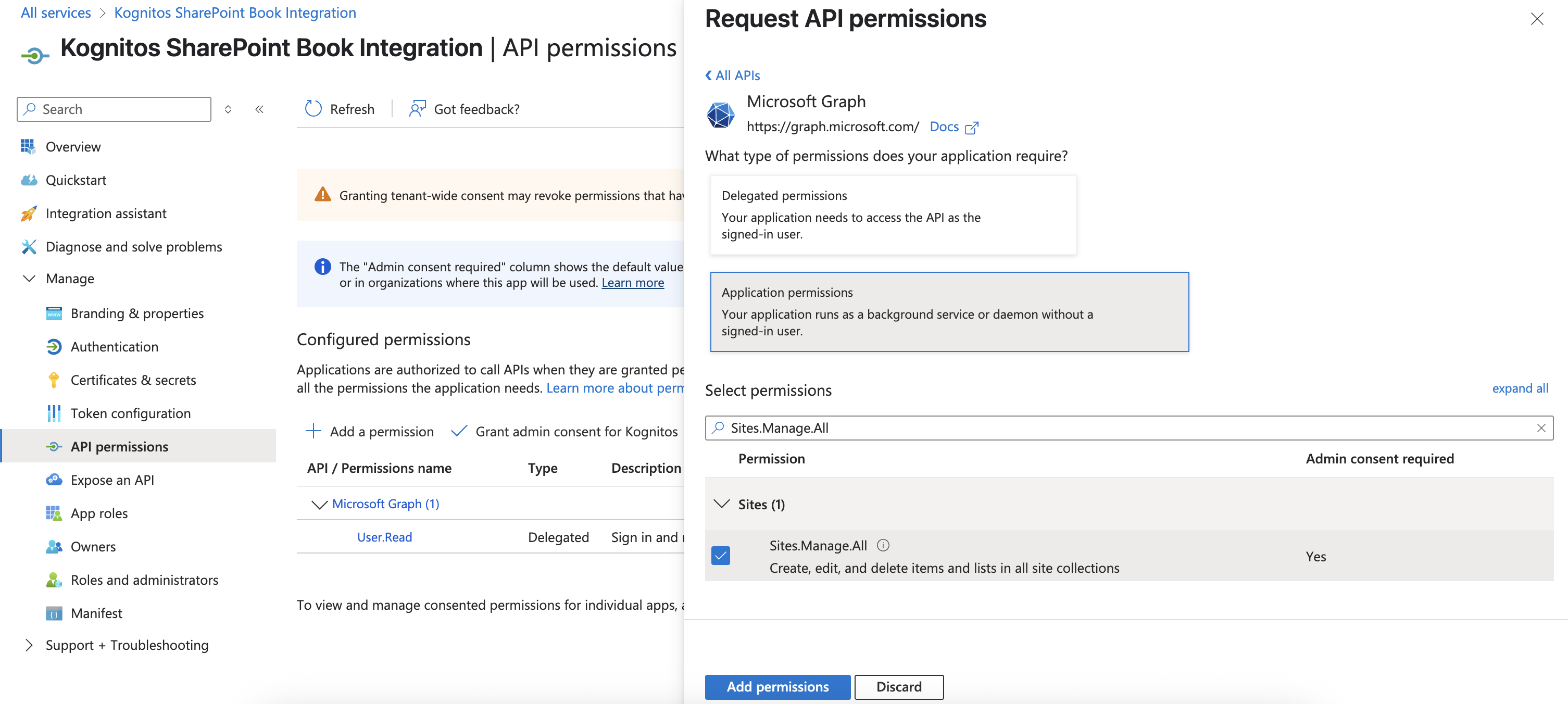
3. Click on **+ Add a permission**, then select **Microsoft Graph**.
4. Choose **Application permissions**, as the integration will access SharePoint without a signed-in user.
5. Choose **one** of the following permission options:
1. **Option A - Least Privileged** *(Recommended for security-sensitive environments)*
1. Search for and select the following permission: **Sites.Selected**
2. Click **Add permissions**.
3. Grant the application access to specific SharePoint sites:
1. Retrieve the SharePoint Site ID:
1. Log in to SharePoint and open the target site.
2. Append `/_api/site/id` to the site URL.
3. From the response, copy the value under **Edm.Guid** (this is the Site ID).
2. Using an account or application with elevated SharePoint permissions, run the following Microsoft Graph API request to authorize the app for that site:
```
POST https://graph.microsoft.com/v1.0/sites/{siteId}/permissions
Content-Type: application/json
{
"roles": ["FullControl"],
"grantedToIdentities": [{
"application": {
"id": "",
"displayName": ""
}
}]
}
```
3. Repeat this process for each SharePoint site the application needs to access.
2. **Option B - Broad Access: Permissions to All SharePoint Sites**
1. Search for and select the following permissions:
1. **Sites.Read.All**
2. **Sites.ReadWrite.All**
3. **Sites.Manage.All**
4. **Sites.FullControl.All**
2. Click **Add permissions**.
{% endstep %}
{% step %}
**Grant Admin Consent**
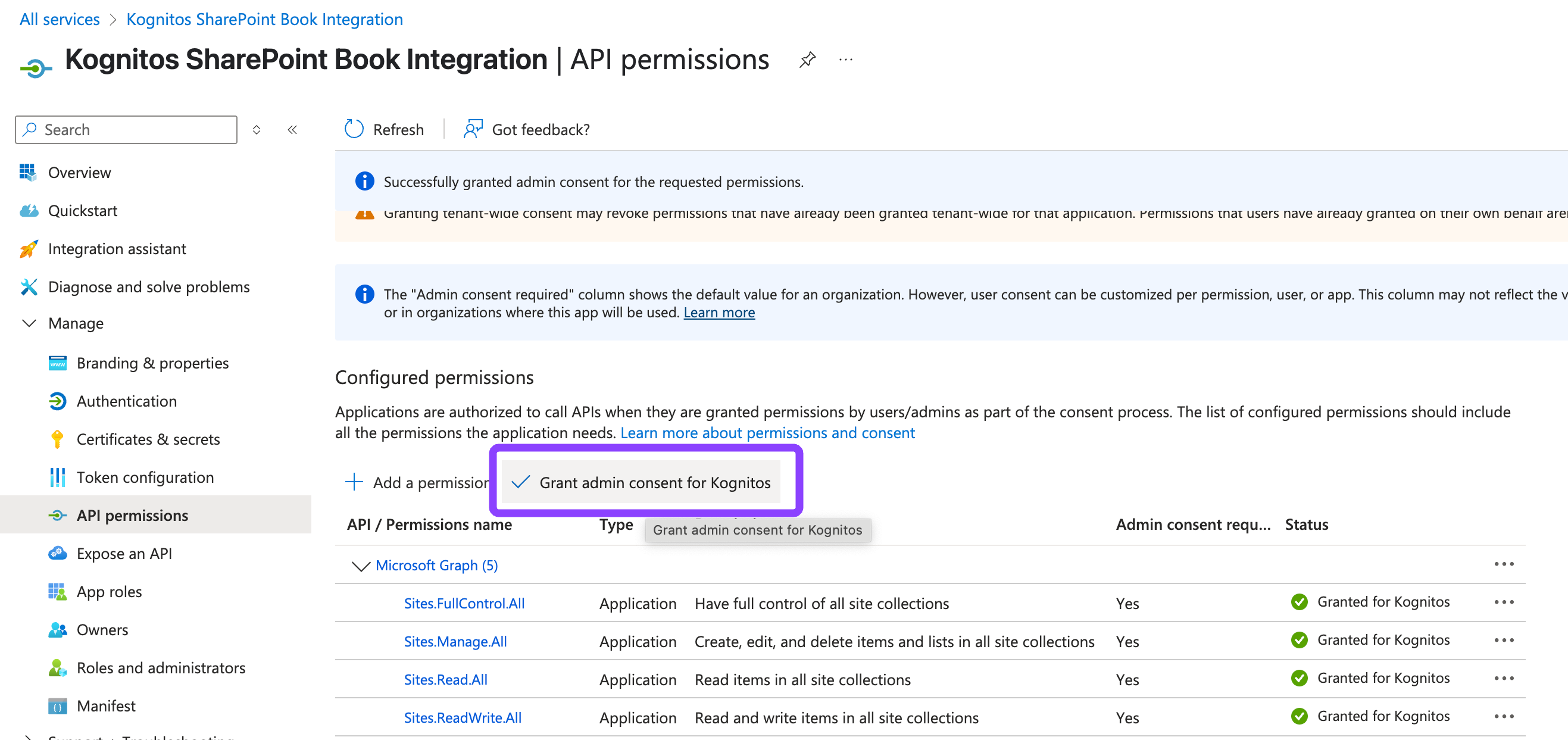
On the **API permissions** screen, click on Grant admin consent for \[Your Organization Name] button, then select **Yes**. This authorizes the application to use the permissions you assigned across your organization.
{% endstep %}
{% endstepper %}
## Authentication
Use one of the following authentication methods to connect this integration in Kognitos. Each method has its own configuration requirements.
### Connect using Client ID, Client Secret and Tenant ID
Connect to the Microsoft Graph API using the provided client credentials.
| Label | Description | Type |
| ------------- | ------------------------------------------------------------ | ----------- |
| Client ID | The client ID of the application registered in Azure AD. | `text` |
| Client Secret | The client secret of the application registered in Azure AD. | `sensitive` |
| Tenant ID | The tenant ID of the Azure AD directory. | `text` |
### Connect using Client ID, Certificate and Tenant ID
Connect to the Microsoft Graph API using certificate credentials.
| Label | Description | Type |
| ----------- | ------------------------------------------------------------------------------------- | ----------- |
| Client ID | The client ID of the application registered in Azure AD. | `text` |
| Certificate | PEM-encoded X.509 certificate string containing both the certificate and private key. | `sensitive` |
| Tenant ID | The tenant ID of the Azure AD directory. | `text` |
### Connect using Client ID, Certificate, Private Key and Tenant ID
Connect to the Microsoft Graph API using certificate and private key.
| Label | Description | Type |
| ----------- | -------------------------------------------------------- | ----------- |
| Client ID | The client ID of the application registered in Azure AD. | `text` |
| Certificate | PEM-encoded certificate string. | `sensitive` |
| Private Key | PEM-encoded private key string. | `sensitive` |
| Tenant ID | The tenant ID of the Azure AD directory. | `text` |
## Actions
The following actions are available in the **Microsoft SharePoint** integration:
### 1. Add a column to a slist
Adds a column to a given SharePoint list using the Microsoft Graph API.
### 2. Add an item to a slist
Adds an item to a given SharePoint list using the Microsoft Graph API.
### 3. Copy an item to a folder
Copies an item (folder or file) to a given folder using the Microsoft Graph API.
### 4. Create a folder in a document library
Creates a new folder at the root of the given SharePoint document library using the Microsoft Graph API.
### 5. Create a folder in another folder
Creates a new folder at the given SharePoint document library item using the Microsoft Graph API.
### 6. Create a list in a sharepoint site
Creates a new list in a given SharePoint site using the Microsoft Graph API.
### 7. Delete a column from a list
Deletes a column from a given SharePoint list using the Microsoft Graph API.
### 8. Delete a slist
Deletes a list in a given SharePoint site using the Microsoft Graph API.
### 9. Delete an item
Deletes an item (folder or file) within a given SharePoint document library using the Microsoft Graph API.
### 10. Delete an item from list
Deletes one or many items in a given SharePoint list using the Microsoft Graph API.
### 11. Download a file
Downloads a file from a given SharePoint document library using the Microsoft Graph API.
### 12. Edit an item
Edits an item in a given SharePoint list using the Microsoft Graph API.
### 13. Get a folder's items
Retrieves all child items from the specified document library folder using the Microsoft Graph API.
### 14. Get a folder at a path
Retrieves the root folder of a given SharePoint document library using the Microsoft Graph API.
### 15. Get a root folder from a document library
Retrieves the root folder of a given SharePoint document library using the Microsoft Graph API.
### 16. Get some items from a document library
Retrieves all items within a given SharePoint document library using the Microsoft Graph API.
### 17. Get some site's document libraries
Retrieves all document libraries within a given SharePoint site using the Microsoft Graph API.
### 18. Get some sites from sharepoint
Get SharePoint sites accessible via the Microsoft Graph API.
### 19. Get some slist's items
Retrieves all items within a given SharePoint list using the Microsoft Graph API.
### 20. Move an item to a folder
Moves an item (folder or file) to a given folder using the Microsoft Graph API.
### 21. Rename a slist
Renames a list in a given SharePoint site using the Microsoft Graph API.
### 22. Rename a column in a list
Edits a column in a given SharePoint list using the Microsoft Graph API.
### 23. Rename an item to a name
Renames a folder or a file using the Microsoft Graph API.
### 24. Retrieve a document library at a url
Retrieves a SharePoint document library by its web URL using the Microsoft Graph API.
### 25. Retrieve a file at a url
Retrieves a SharePoint file by its web URL using the Microsoft Graph API.
### 26. Retrieve a folder at a url
Retrieves a SharePoint folder by its web URL using the Microsoft Graph API.
### 27. Retrieve a site at a url
Retrieves a SharePoint site by its web URL using the Microsoft Graph API.
### 28. Retrieve a slist at a url
Retrieves a SharePoint list by its web URL using the Microsoft Graph API.
### 29. Retrieve a slist as a table
Retrieve a sharepoint list as a table.
### 30. Retrieve some column definitions from a slist
Retrieves the column definitions of a given SharePoint list using the Microsoft Graph API.
### 31. Retrieve some site's lists
Retrieves all lists within a given SharePoint site using the Microsoft Graph API.
### 32. Retrieve some site's subsites
Retrieves all subsites within a given SharePoint site using the Microsoft Graph API.
### 33. Upload a file to a folder and get the file reference
Uploads a file to a given SharePoint document library using the Microsoft Graph API.
## Concepts
### Sharepoint list
A SharePoint list is a structured collection of data within a SharePoint site. It provides a way to organize and manage information in a tabular format, with columns representing different data fields and rows containing specific data entries.Lists are commonly used for tasks like tracking project progress, managing contacts, or storing custom data.
| Field Name | Description | Type |
| -------------------------- | ---------------------------------------- | ---------------- |
| [`columns`](#list-of-text) | The columns of the list. | `list of text` |
| `created_date_time` | The date and time the list was created. | `datetime` |
| `display_name` | The display name of the list. | `text` |
| `id` | The unique identifier for the list. | `text` |
| `name` | The name of the list. | `text` |
| `web_url` | The URL of the list. | `text` |
| `site_id` | The id of the site this list belongs to. | `text` |
| `description` | The description of the list. | `optional[text]` |
### Sharepoint list item
A SharePoint list item represents an individual entry within a SharePoint list. It contains specific data values corresponding to the columns defined in the list. List items are used to store and manage structured data within a SharePoint list, enabling efficient organization and retrieval of information.
| Field Name | Description | Type |
| ---------- | ---------------------------------------- | ------ |
| `id` | The unique identifier for the list item. | `text` |
| `list_id` | The id of the list this item belongs to. | `text` |
| `site_id` | The id of the site this item belongs to. | `text` |
| `fields` | The fields of the list item. | `json` |
| `web_url` | The URL of the list item. | `text` |
### Sharepoint file reference
A Sharepoint File Reference is a reference to a file in a SharePoint document library.
| Field Name | Description | Type |
| ----------------------------------------------------------------- | ------------------------------------------------------------------------------------------------------------------------------------ | ------------------- |
| `id` | The unique identifier for the document library. | `optional[text]` |
| `name` | The name of the document library. | `optional[text]` |
| `web_url` | URL that either displays the resource in the browser (for Office file formats), or is a direct link to the file (for other formats). | `optional[text]` |
| [`parent_reference`](#parent_reference-sharepoint-file-reference) | Parent information, if the item has a parent. | `optional[json]` |
| `is_folder` | Boolean flag indicating whenever this item is a folder or not. | `optional[boolean]` |
| `file_name` | The name of the file. Same as name. | `optional[text]` |
| `e_tag` | Version-specific entity tag. Combined with id, uniquely identifies a file version (useful for deduplicating trigger events). | `optional[text]` |
### Sharepoint folder reference
A Sharepoint Folder Reference is a reference to a folder in a SharePoint document library.
| Field Name | Description | Type |
| ------------------------------------------------------------------- | ------------------------------------------------------------------------------------------------------------------------------------ | ------------------- |
| `id` | The unique identifier for the document library. | `optional[text]` |
| `name` | The name of the document library. | `optional[text]` |
| `web_url` | URL that either displays the resource in the browser (for Office file formats), or is a direct link to the file (for other formats). | `optional[text]` |
| [`parent_reference`](#parent_reference-sharepoint-folder-reference) | Parent information, if the item has a parent. | `optional[json]` |
| `is_folder` | Boolean flag indicating whenever this item is a folder or not. | `optional[boolean]` |
| `folder_name` | The name of the folder. Same as name. | `optional[text]` |
### Sharepoint site
A SharePoint site is a versatile web-based platform within Microsoft SharePoint designed for team collaboration,document management, and content sharing. It provides a centralized space where users can store and manage documents with version control, organize information in lists, create and publish web pages, and control permissions for different users.
| Field Name | Description | Type |
| ------------------ | ----------------------------------------------------------------------------------------------------------------------------------------------- | ------------------- |
| `id` | The unique identifier for the site. Read-only. | `text` |
| `name` | The name of the site. Read-write. | `optional[text]` |
| `display_name` | The full title for the site. Read-only. | `optional[text]` |
| `web_url` | URL that either displays the resource in the browser (for Office file formats), or is a direct link to the file (for other formats). Read-only. | `optional[text]` |
| `is_personal_site` | Identifies whether the site is personal or not. Read-only. | `optional[boolean]` |
| `description` | Provides a user-visible description of the site. Optional. | `optional[text]` |
### Sharepoint document library
A SharePoint Document Library is a specialized storage location within a SharePoint site designed for storing, organizing,and managing documents. It supports advanced document management features such as version control, metadata tagging, and workflow automation, making it ideal for team collaboration and enterprise content management.
| Field Name | Description | Type |
| ------------- | -------------------------------------------------------------------------------------------------------------------------------------------------------------------------------------------------------------------------- | ---------------- |
| `id` | The unique identifier for the document library. Read-only. | `text` |
| `drive_type` | Describes the type of drive represented by this resource. OneDrive personal drives will return personal. OneDrive for Business will return business. SharePoint document libraries will return documentLibrary. Read-only. | `optional[text]` |
| `name` | The name of the document library. Read-write. | `optional[text]` |
| `web_url` | URL that either displays the resource in the browser (for Office file formats), or is a direct link to the file (for other formats). Read-only. | `optional[text]` |
| `description` | Provides a user-visible description of the document library. Optional. | `optional[text]` |
### Sharepoint list column
A SharePoint list column definition represents the configuration and properties of a column within a SharePoint list.
| Field Name | Description | Type |
| -------------------------- | ------------------------------------------- | ---------------- |
| `id` | The unique identifier for the column. | `text` |
| `type` | The type of the column. | `text` |
| `list_id` | The id of the list this column belongs to. | `text` |
| `site_id` | The id of the site this column belongs to. | `text` |
| `general_definition` | The general definition of the column. | `json` |
| `type_specific_definition` | The type specific definition of the column. | `optional[json]` |
#### Concept attribute specifications
**parent\_reference (sharepoint file reference)**
| Name | Type |
| ---------- | ---------------- |
| `id` | `optional[text]` |
| `drive_id` | `optional[text]` |
**parent\_reference (sharepoint folder reference)**
| Name | Type |
| ---------- | ---------------- |
| `id` | `optional[text]` |
| `drive_id` | `optional[text]` |