> For the complete documentation index, see [llms.txt](https://docs.kognitos.com/llms.txt). Markdown versions of documentation pages are available by appending `.md` to page URLs; this page is available as [Markdown](https://docs.kognitos.com/guides/getting-started/quick-start.md).
# Quick Start
Get up and running with Kognitos in just a few minutes.
## Overview
Ready to see Kognitos in action? In the next few minutes, you'll create your first automation by describing a task in plain English. No code — just conversation.
## Logging In
Get started by logging into your account.
{% hint style="success" %}
**New Here?** Check out the [**Onboarding**](/guides/getting-started/onboarding.md) guide to create and set up your account.
{% endhint %}
How do I log into Kognitos? 💡
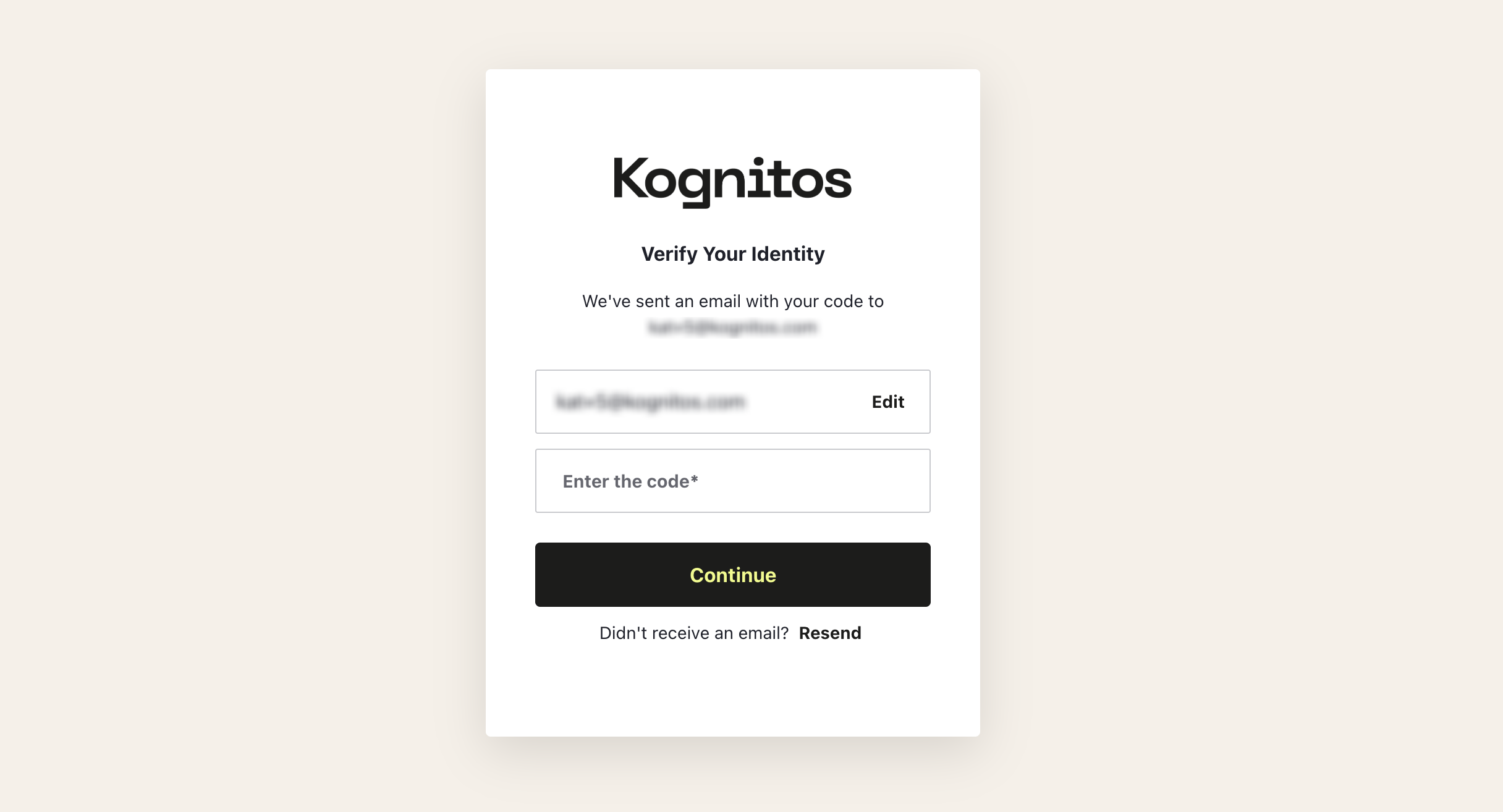
1. Navigate to [**app.us-1.kognitos.com**](https://app.us-1.kognitos.com/)**.**
2. Enter your **email** *or* select **Continue with Google** .
3. Check your inbox for an email from **Kognitos** with the subject line *"Login to Kognitos"*. The email will contain a 6-digit verification code.
4. Copy the code and enter it into Kognitos, then click **Continue** to verify your identity.
{% hint style="info" %}
See [**Onboarding**](/guides/getting-started/onboarding.md) for more details.
{% endhint %}
## Your First Draft
Let's create your first draft. In Kognitos, an **automation** is a workflow that handles a specific business task and always starts as a **draft**, allowing you to build and test safely.
{% stepper %}
{% step %}
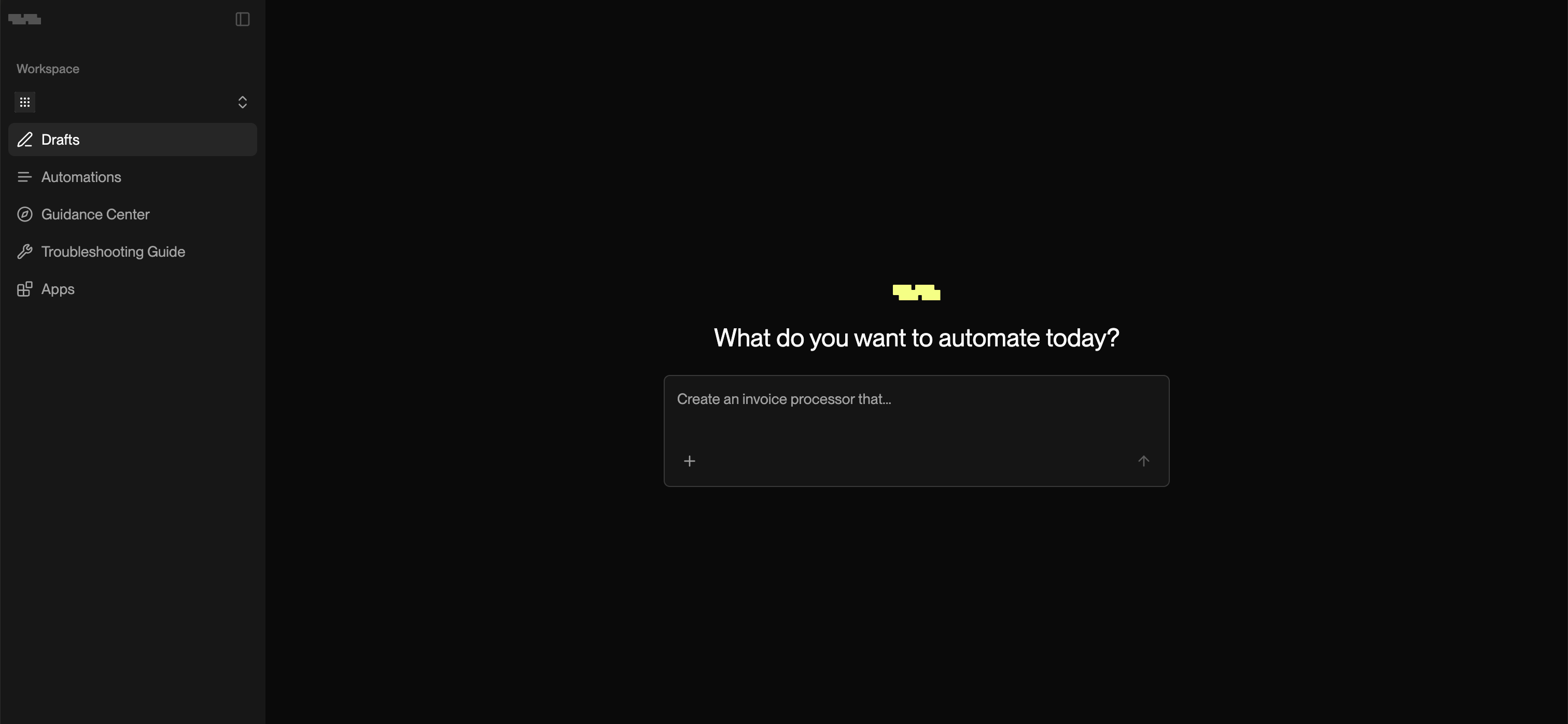
#### **Navigate to Drafts**
Click on **Drafts** in the left navigation menu. You'll see a prompt waiting for your instructions.
{% endstep %}
{% step %}
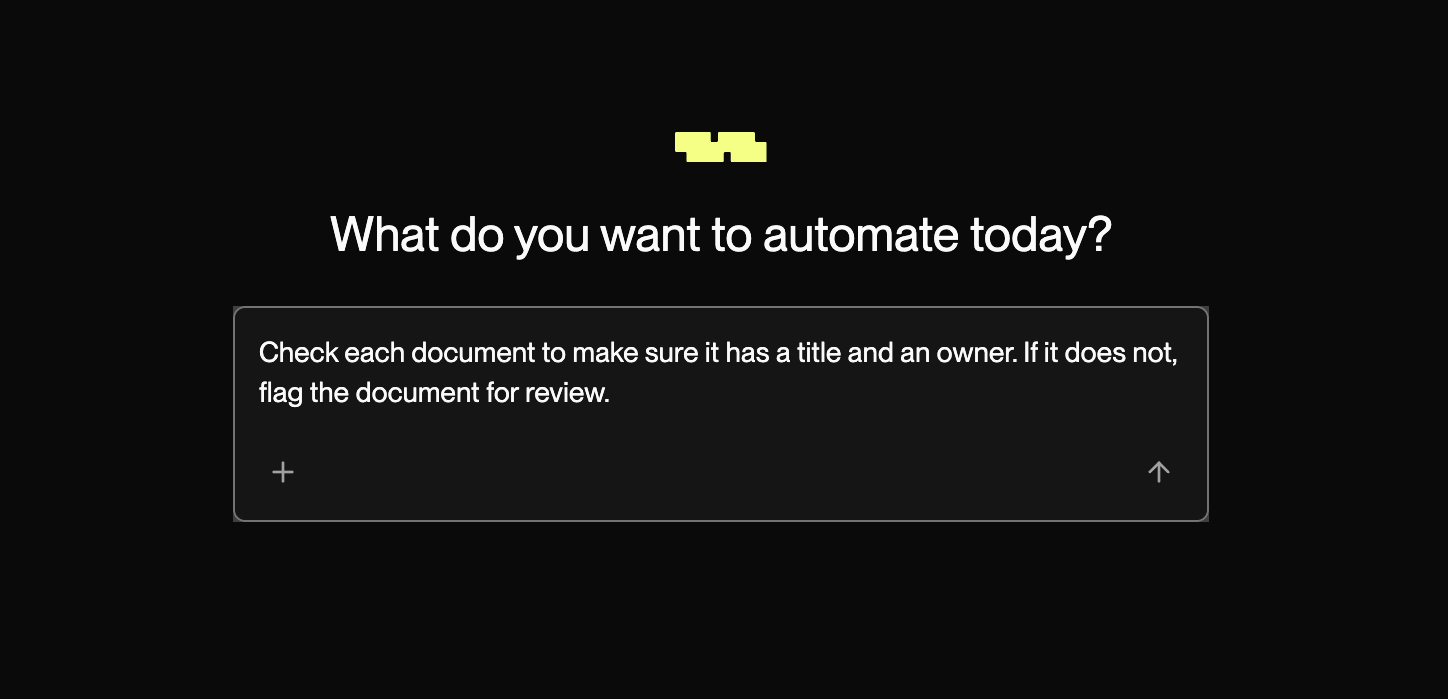
#### **Describe Your Task**
Describe what you want to automate in plain English. You can be as detailed or high-level as you like. You'll refine it together with Kognitos.
{% hint style="success" %}
Have an SOP, process document, or workflow description? Click the **+** button to upload it directly. Kognitos will read your file and generate a starting point for your automation.
{% endhint %}
{% endstep %}
{% step %}
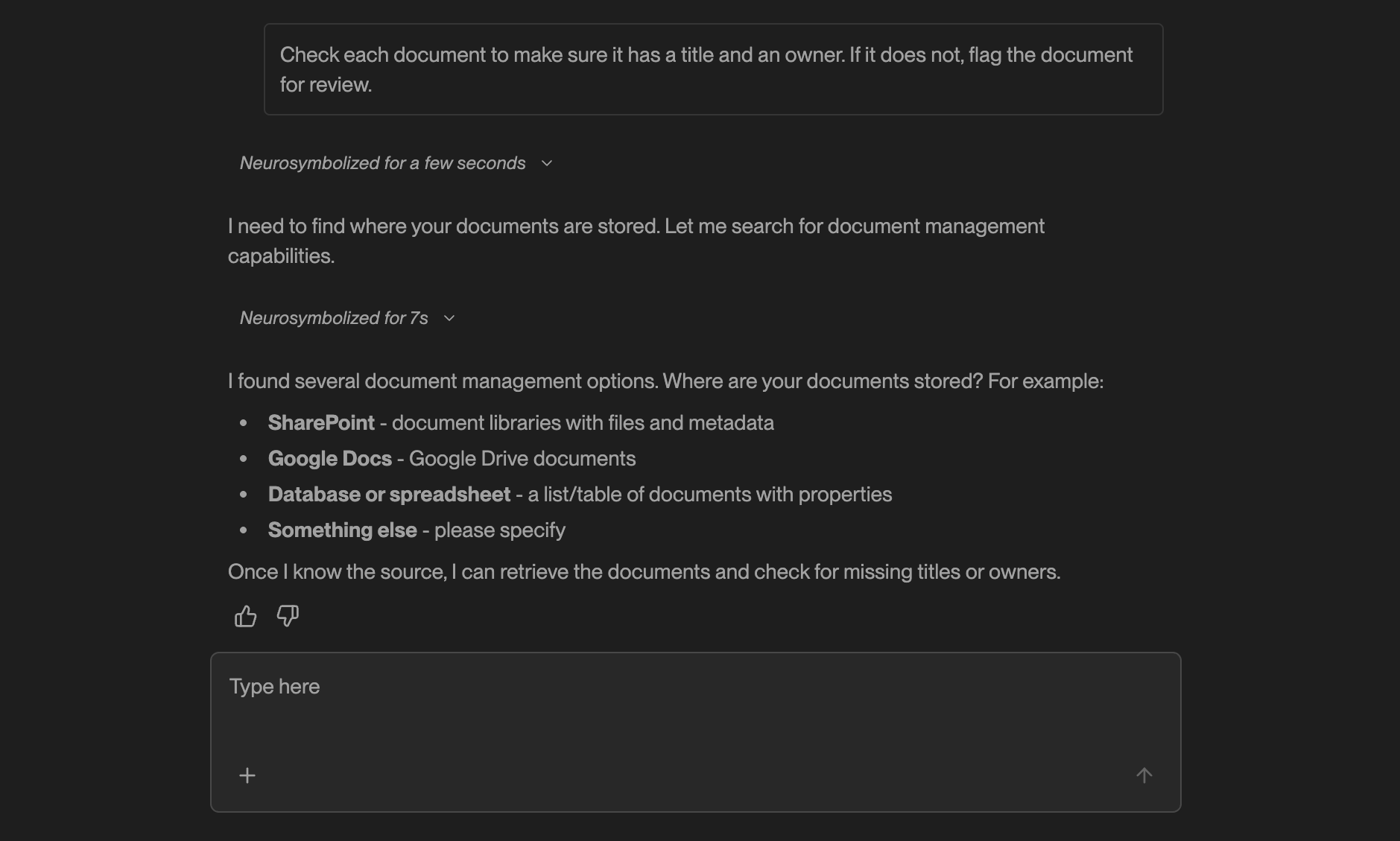
#### **Refine**
Kognitos will chat with you to understand exactly what you want to automate. It'll ask clarifying questions about your process, help you connect any tools you need, and make sure it has all the details to build your automation correctly.
**You might see questions like:**
* "Where are your documents stored?"
* "What format are the invoices in — PDF or CSV?"
* "Should the $500 threshold include or exclude tax?"
{% hint style="success" %}
**Think of this as Kognitos gathering everything it needs to get started:** the details of your process, access to your tools, and clarity on any decisions the automation needs to make.
{% endhint %}
{% endstep %}
{% step %}
#### **Review**
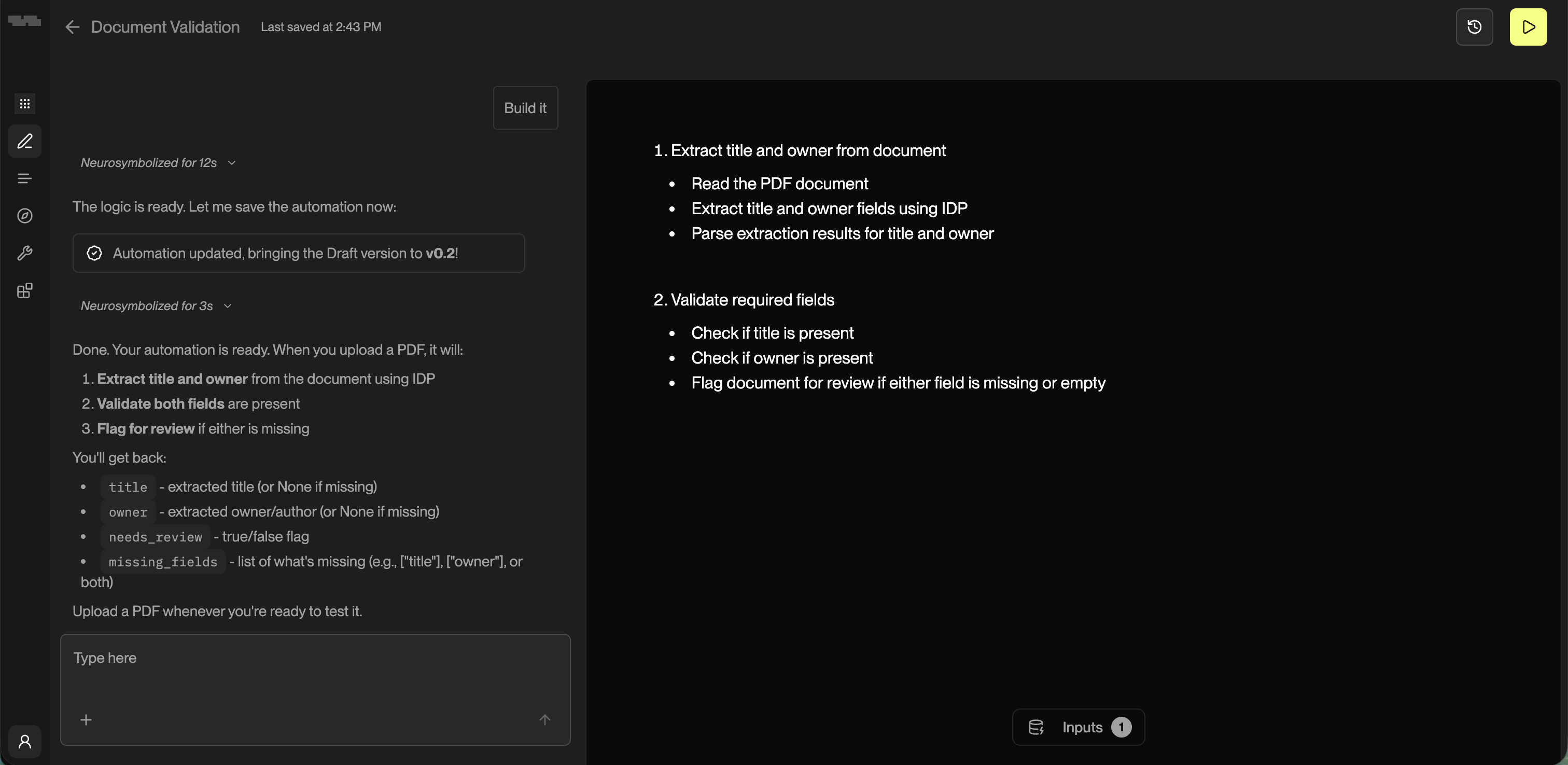
Once Kognitos understands your task and has everything it needs to proceed, it will generate the automation steps. Review the workflow to make sure it matches your expectations. You can edit continue the conversation to make adjustments as needed.
{% endstep %}
{% step %}
#### **Add Inputs**
Once you've reviewed the automation document, run and test it by providing inputs. **Inputs** are pieces of information your automation needs at the start of (or during) a run. They can come from you, the Kognitos platform, or external systems. For example:
* A folder path where documents are stored
* A date range for processing invoices
* A recipient email address
How to Add Inputs? 🔢
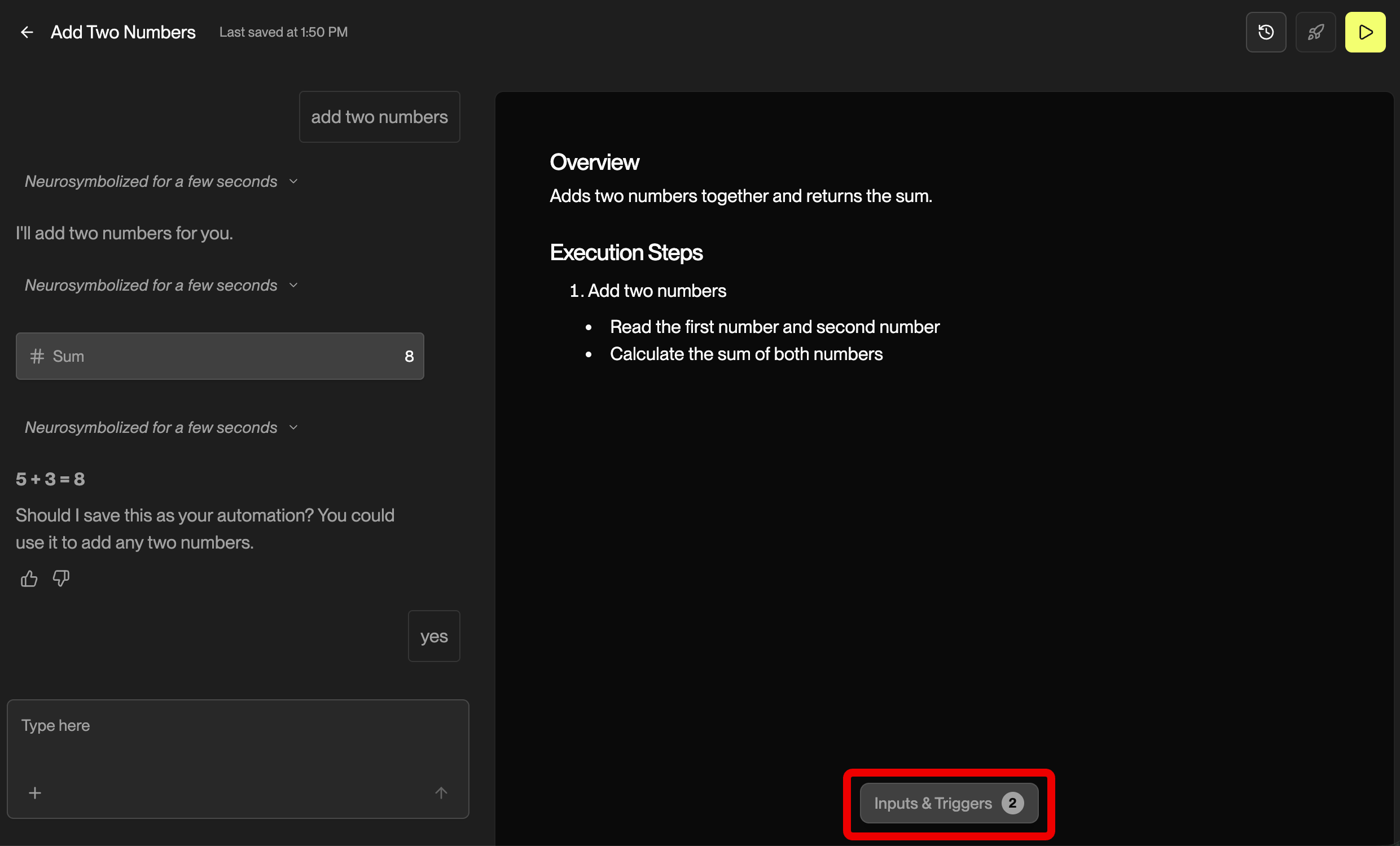
1. Click the **Inputs & Triggers** button at the bottom of the workflow document.
2. Review the detected inputs — the system automatically found them from your instructions.
3. Add in any required values:
1. **Text fields** *(names, numbers, references)*
2. **File uploads** *(PDFs, Excel files, images)*
3. **Dates, times, or selections from dropdowns**
4. Click **Save** to save your inputs.
{% hint style="danger" %}
If you click ▶️ to **run** the draft without providing inputs first, you'll see the **Almost There - Add Inputs First** screen prompting you to add them.
{% endhint %}
{% endstep %}
{% step %}
#### **Run**
Click on the ▶️ button in the top-right to execute your workflow.
After the run completes, you can:
* **Review** the outputs
* **Back to edit** the automation if needed
* **Run again** to re-execute
* **Publish** the draft to turn it into an automation
* **Chat** with the **Run Assistant** for further questions or clarifications
{% endstep %}
{% endstepper %}
## What's Next?
Now that you've created your first automation, you're ready to explore more:
* [**Learn how automations work**](/guides/getting-started/fundamentals.md) — understand the foundational concepts
* [**Publish**](/guides/platform/automations.md) — move your automated workflow into production
---
# Agent Instructions
This documentation is published with GitBook. GitBook is the documentation platform designed so that both humans and AI agents can read, navigate, and reason over technical content effectively. Learn more at gitbook.com.
## Querying This Documentation
If you need additional information that is not directly available in this page, you can query the documentation by asking a question.
Perform an HTTP GET request on the following URL with the `ask` and `goal` query parameters:
```
GET https://docs.kognitos.com/guides/getting-started/quick-start.md?ask=&goal=
```
`ask` is the immediate question: it should be specific, self-contained, and written in natural language.
`goal` is what the user is ultimately trying to achieve, the reason they need the answer. Sharing it helps GitBook give you a better, more relevant answer. A goal is most helpful when it describes the outcome the user wants rather than restating the question. For example, with `ask=how do I create an API token`, a goal like `automate deployments from our CI pipeline` lets GitBook tailor the answer to that use case.
The response will contain a direct answer to the question and relevant excerpts and sources from the documentation.
Use this mechanism when the answer is not explicitly present in the current page, you need clarification or additional context, or you want to retrieve related documentation sections.