> For the complete documentation index, see [llms.txt](https://docs.kognitos.com/llms.txt). Markdown versions of documentation pages are available by appending `.md` to page URLs; this page is available as [Markdown](https://docs.kognitos.com/guides/platform/integrations.md).
# Integrations
Learn how to extend your automation functionality with integrations.
## Overview
**Integrations** enable Kognitos to work with specific tools, platforms, services, or objects. Each integration provides specific [**actions**](#actions) that can extend your automation capabilities, such as "create a ticket", "extract data from a PDF", or "update a record".
## Library
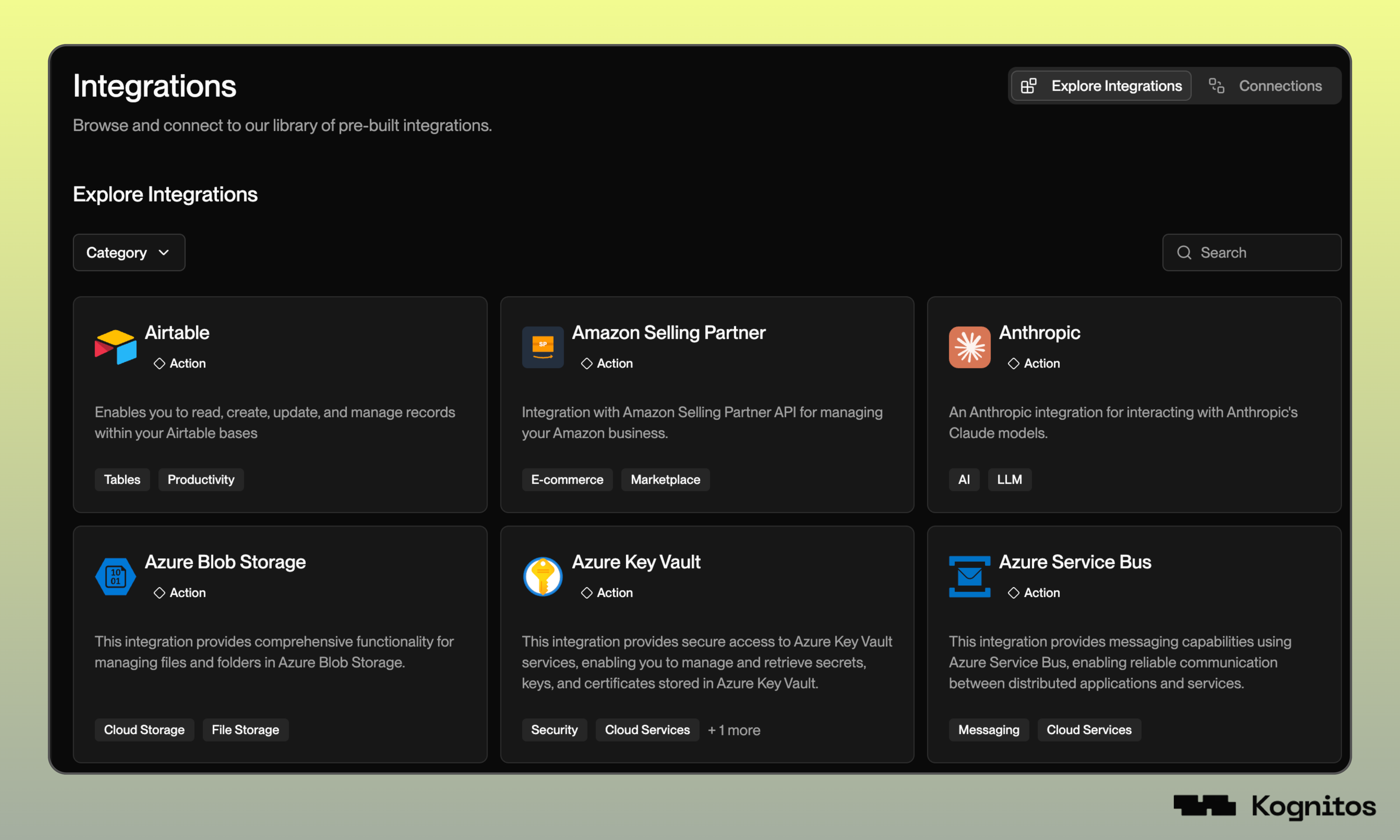
To see all available integrations, go to **Integrations → Explore Integrations**.
Within this view, you can:
* **Browse** the full catalog alphabetically
* **Filter** by category *(Accounting, Business Productivity, Collaboration, etc.)*
* **Search** directly by integration name
Click into any integration to view more details.
## How Integrations Work
An **integration** is a collection of related actions that work with specific tools, platforms, services, or objects. They can extend your automation capabilities by enabling Kognitos to interact with different systems and perform specialized tasks.
Integrations serve different purposes depending on their design. Some integrations can connect to external platforms like [**Salesforce**](/guides/platform/integrations/salesforce.md), [**Microsoft Excel**](/guides/platform/integrations/excel.md), or [**SAP**](/guides/platform/integrations/sap.md). Other integrations, such as [**Intelligent Document Processing**](/guides/platform/integrations/idp.md), enable you to extract and analyze information from various document types.
When you describe a task, Kognitos automatically identifies the required integrations and prompts you to connect them if they're not already available in your workspace. For example:
> **Example Instruction:**
>
> Read invoice data from the Excel file in our shared drive, validate each invoice against our Salesforce accounts, and email a summary to .
>
> **What Kognitos identifies:**
>
> * **Google Drive** integration for file access
> * **Salesforce** integration for account validation
> * **Gmail** integration for sending email
You can also connect integrations from the [**library**](#integrations-library) at any time.
## Connections
A **connection** is a configured link between Kognitos and an external system or service. It stores authentication credentials *(such as API keys, tokens, or login details)*, environment settings, and version information that an integration needs to interact with that system. Connections are secure and reusable across multiple automations.
### Management
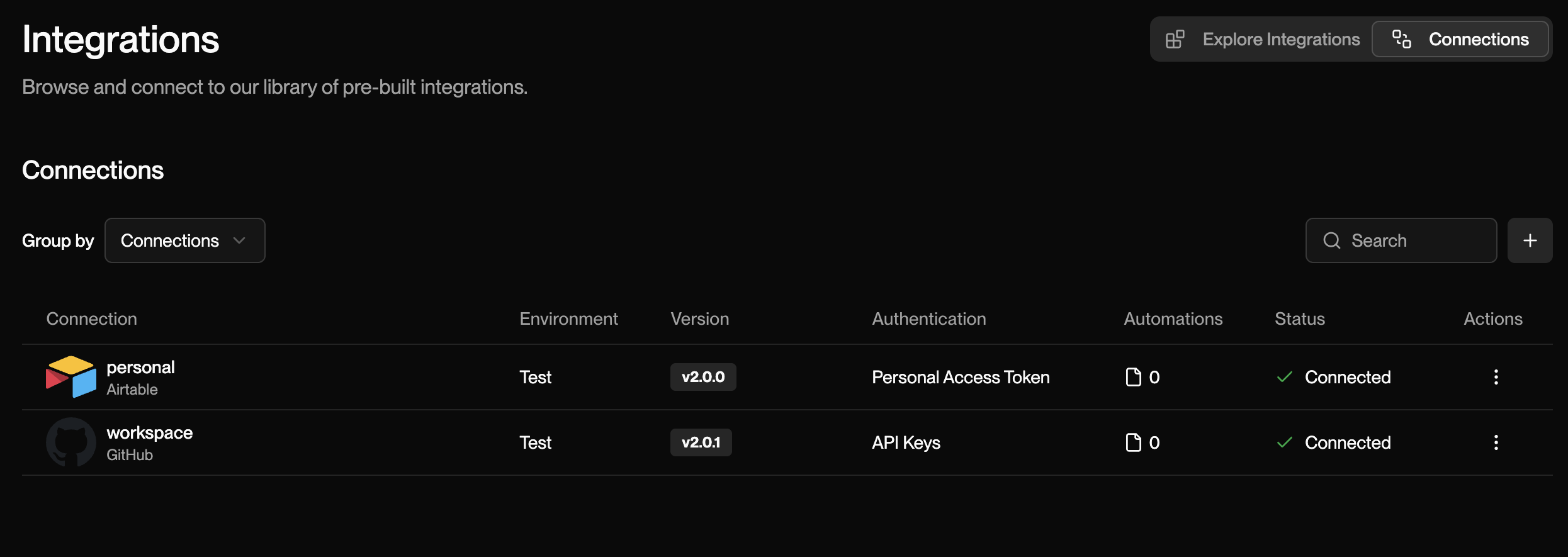
Connections are managed separately from automations. To view, add, edit, or manage your connections:
1. Navigate to **Integrations → Connections**.
2. You'll see a list of all configured connections, including:
1. **Connection Name**
2. **Environment** *(Test or Production)*
3. **Integration Name**
4. **Integration Version Number**
5. **Authentication Method** *(Personal Access Token, Client Credentials, etc.)*
6. **Automations**
7. **Status** *(Connected or Disconnected)*
8. **Actions** *(Edit or Delete)*
This page makes it easy to monitor, update, and troubleshoot your connections in one place.
### Creating Connections
Create a new connection either directly from an **Integration** or from **Connections**.
{% tabs %}
{% tab title="Via Integrations" %}
1. Navigate to **Integrations → Explore Integrations.**
2. Find the integration you'd like to connect, then click it.
3. On the integration details page, click **+ New Connection**.
4. Configure the connection:
1. Provide a name for the connection.
2. Check **Use same account for testing and production** to apply the same authentication details to both drafts and automations.
3. Select an authentication method, then click **Continue** to provide the credentials.
4. Finally, click **Connect**.
{% endtab %}
{% tab title="Via Connections" %}
1. Navigate to **Apps → Connections.**
2. Click on **+ New Connection**.
3. Select the integration you'd like to connect to from the dropdown menu.
4. Configure the connection:
1. Provide a name for the connection.
2. Check **Use same account for testing and production** to apply the same authentication details to both drafts and automations.
3. Select an authentication method, then click **Continue** to provide the credentials.
4. Finally, click **Connect**.
{% endtab %}
{% endtabs %}
### Multiple Connections
A single integration can have **multiple connections**, each with different credentials or authentication methods. For example, you might create one GitHub connection for your personal organization and another for your company's organization. Or, you could set up separate Excel connections to access workbooks from different accounts. This flexibility allows you to switch between different connections within the same integration, depending on what your automation needs to access.
## Actions
Each integration defines a set of **actions** that determine what operations you can perform, such as reading data from a spreadsheet, sending an email, or creating a record in a CRM system. For example, the **File** integration includes actions like:
Get the file's size
Get the size of a file in a human-readable format.
Get the file's extension
Get the extension of a file *(e.g., .pdf, .xlsx, .txt)*.
Read the file as a base64 string
Read the contents of a file as a base64-encoded string.
Once an integration is configured in your workspace, its actions become available for use in your workflows. You can **combine actions** from multiple integrations to build workflows that span multiple systems. For example, you might use Excel actions to read invoice data, Salesforce actions to check customer information, and email actions to send confirmations - all within a single automation.
### Custom Actions
Some integrations have **custom actions** that must be discovered and enabled before they can be used. Integrations like [SAP](/guides/platform/integrations/sap.md) and [Salesforce](/guides/platform/integrations/salesforce.md) fall into this category; their actions must be configured to control which specific services or operations are accessible within the workspace.
#### Configuration
To configure custom actions for a given integration:
{% stepper %}
{% step %}
**Open the Integration**
Navigate to **Integrations**, then locate and click the already-connected integration.
{% hint style="warning" %}
**Note:** You must have an active [connection](#connections) to the integration before you can configure custom actions.
{% endhint %}
{% endstep %}
{% step %}
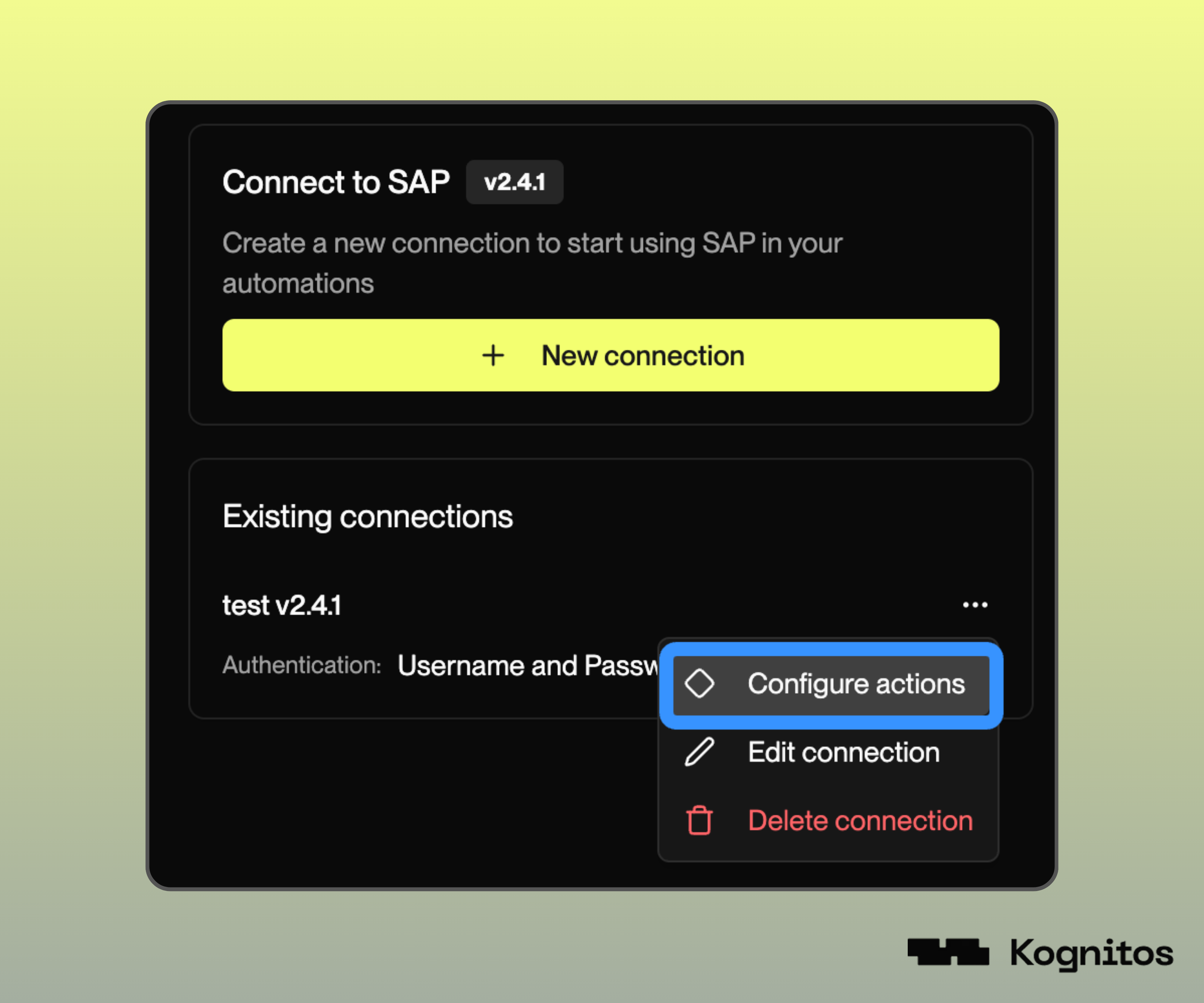
**Access Configuration Menu**
Click the three-dot menu **⋯** next to the connection name and select **Configure Actions**.
{% endstep %}
{% step %}
**Search and Enable Actions**
Browse or search for the specific actions or services you need. Toggle them on to enable them for use in your workspace. For example, in SAP, you might enable services like "Obtain Service for Material Document API" or "Manage Excitations - Products."
{% endstep %}
{% step %}
**Save**
Click **Save** to apply your configuration. Allow 1-2 minutes for the system to complete the discovery process. Once complete, these actions will become available in your draft conversations or automations.
{% endstep %}
{% endstepper %}
## Versions
Integrations are **versioned** to ensure stability and reliability. The latest version is displayed under Version Information. You can choose to upgrade at your own pace, gaining access to enhancements without disrupting your workflows.