> For the complete documentation index, see [llms.txt](https://docs.kognitos.com/llms.txt). Markdown versions of documentation pages are available by appending `.md` to page URLs; this page is available as [Markdown](https://docs.kognitos.com/guides/platform/drafts.md).
# Drafts
Drafts are your workspace for building and refining automations before publishing.
## Overview
Every automation in Kognitos begins as a **draft**, allowing you to build and refine your instructions through conversation with Kognitos. Drafts are editable workflows that evolve as you make changes.
## Dashboard
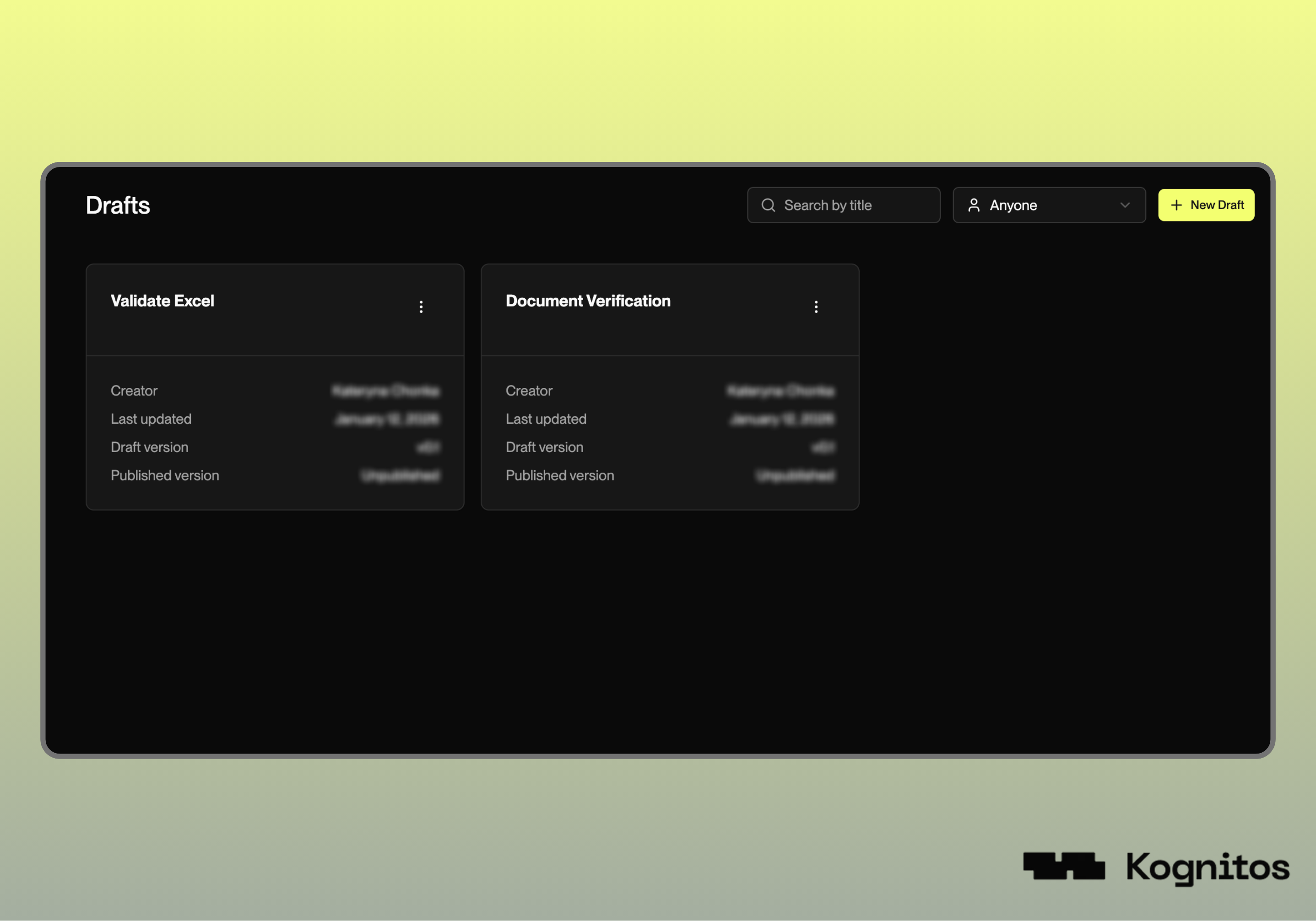
Click **Drafts** in the left navigation menu and scroll down below the chat to see a list of your drafts. You'll see the draft name, last modified date, draft version, and published version *(if applicable)*. You can also search for drafts by title or filter by creator.
### Actions
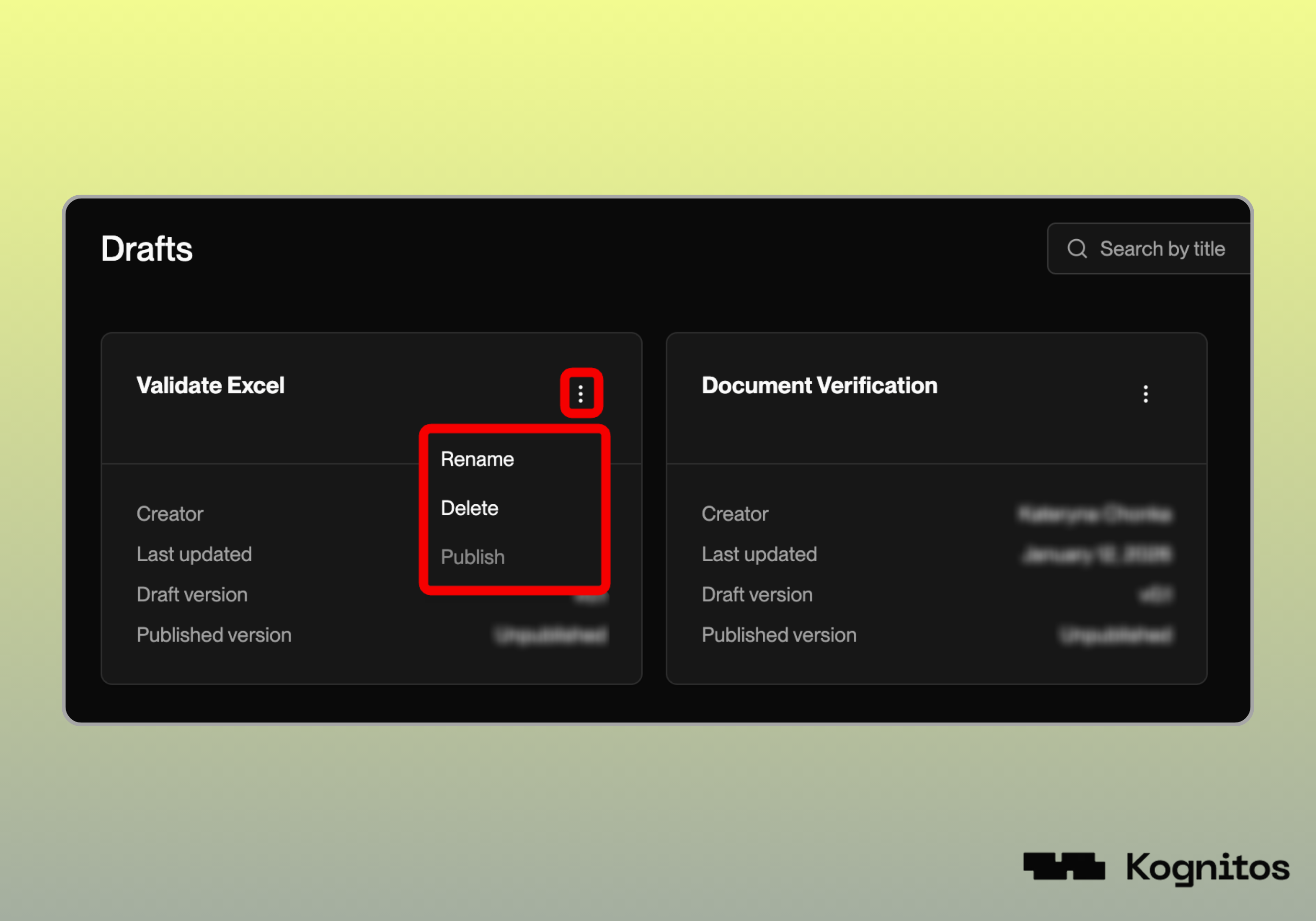
Click on any draft to open it. Create a new draft by clicking the **+ New Draft** button in the top right. To access additional options, click **⋮** on any draft to:
* **Rename** the draft for better organization
* **Delete** the draft if you no longer need it
* **Publish** the draft to turn it into an automation *(this option will be disabled if Kognitos needs more information from you first)*
## Creating a New Draft
These steps describe how to create a **new draft**:
{% stepper %}
{% step %}
#### **Navigate to Drafts**
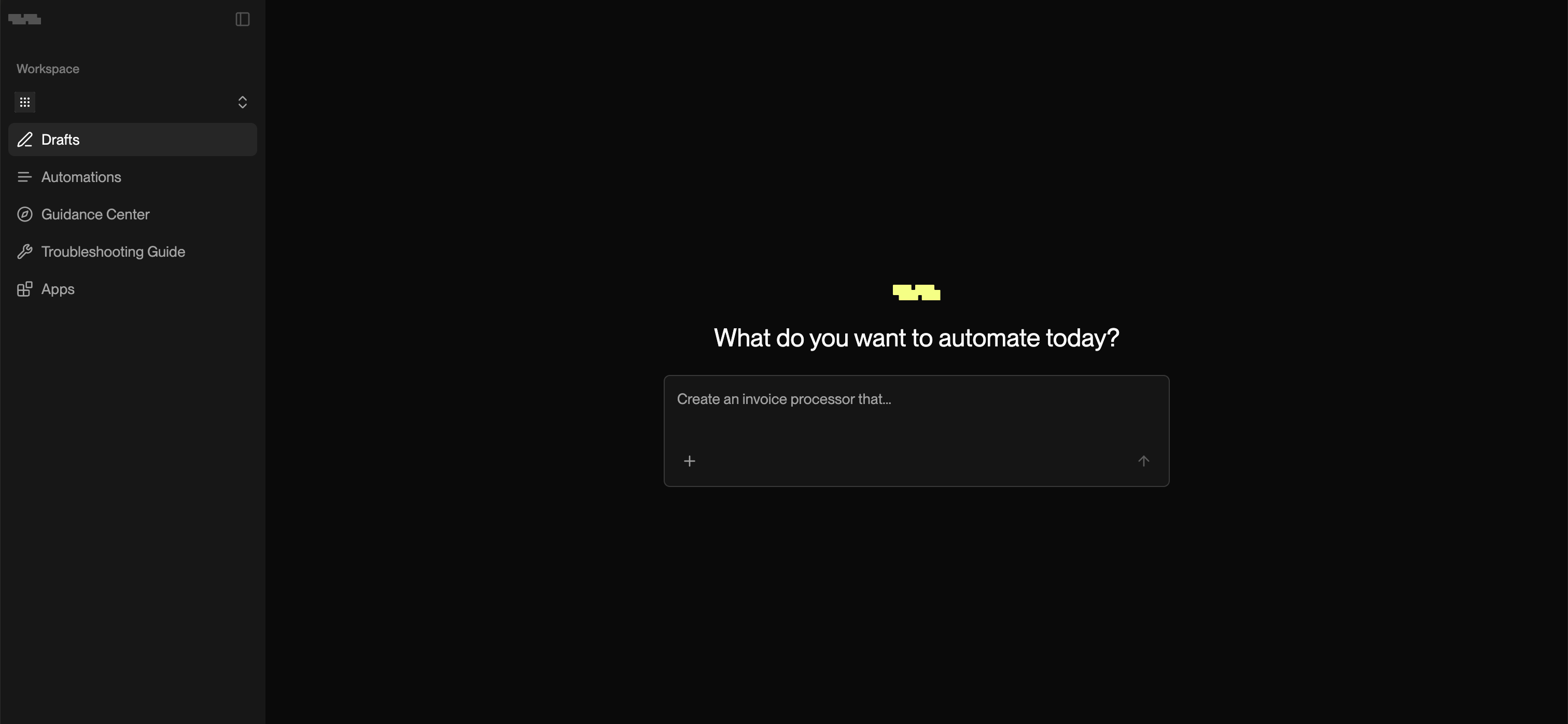
Click on **Drafts** in the left navigation menu. You'll see a prompt waiting for your instructions.
{% endstep %}
{% step %}
#### **Describe Your Task**
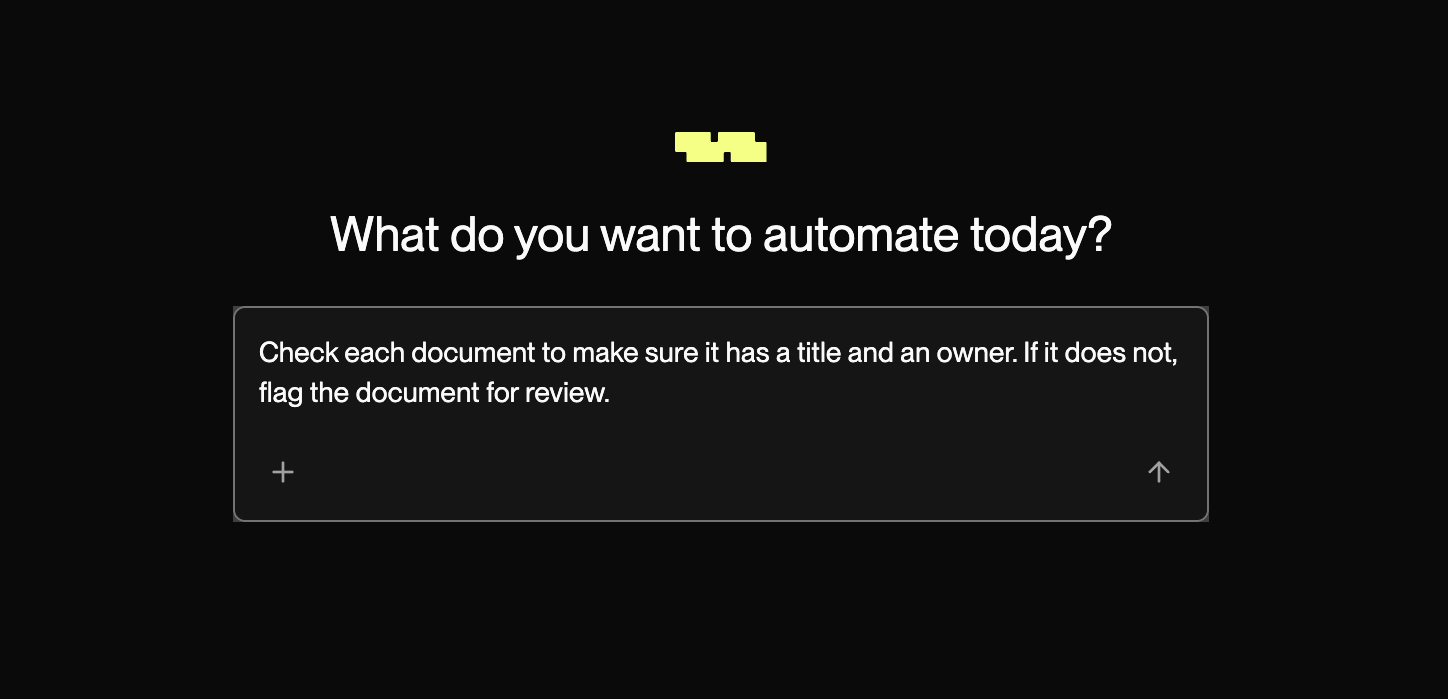
Describe what you want to automate in plain English. You can be as detailed or high-level as you like. You'll refine it together with Kognitos.
{% hint style="success" %}
Have an SOP, process document, or workflow description? Click the **+** button to upload it directly. Kognitos will read your file and generate a starting point for your automation.
{% endhint %}
{% endstep %}
{% step %}
#### **Refine**
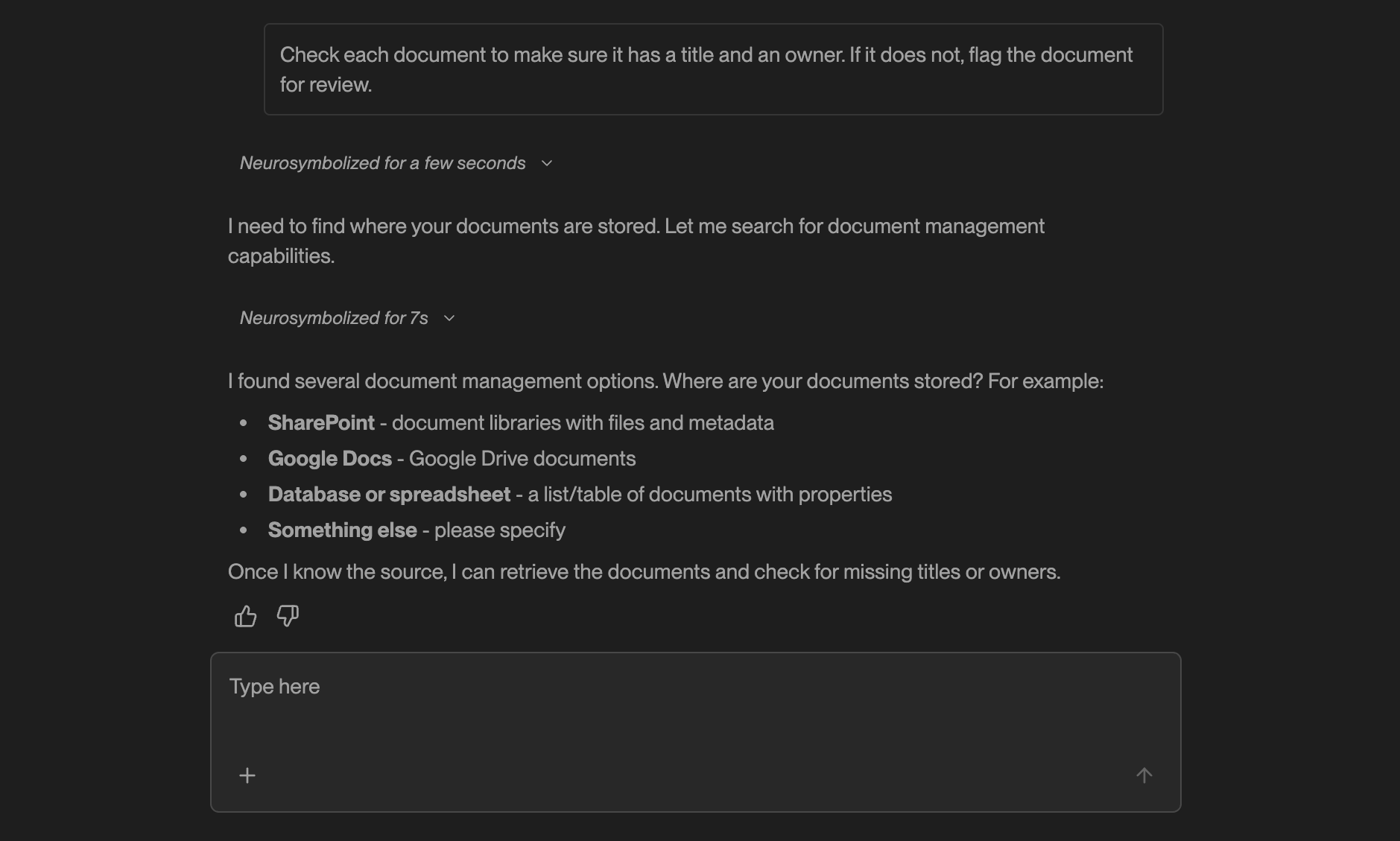
Kognitos will chat with you to understand exactly what you want to automate. It'll ask clarifying questions about your process, help you connect any tools you need, and make sure it has all the details to build your automation correctly.
**You might see questions like:**
* "Where are your documents stored?"
* "What format are the invoices in — PDF or CSV?"
* "Should the $500 threshold include or exclude tax?"
{% hint style="success" %}
**Think of this as Kognitos gathering everything it needs to get started:** the details of your process, access to your tools, and clarity on any decisions the automation needs to make.
{% endhint %}
{% endstep %}
{% step %}
#### **Review**
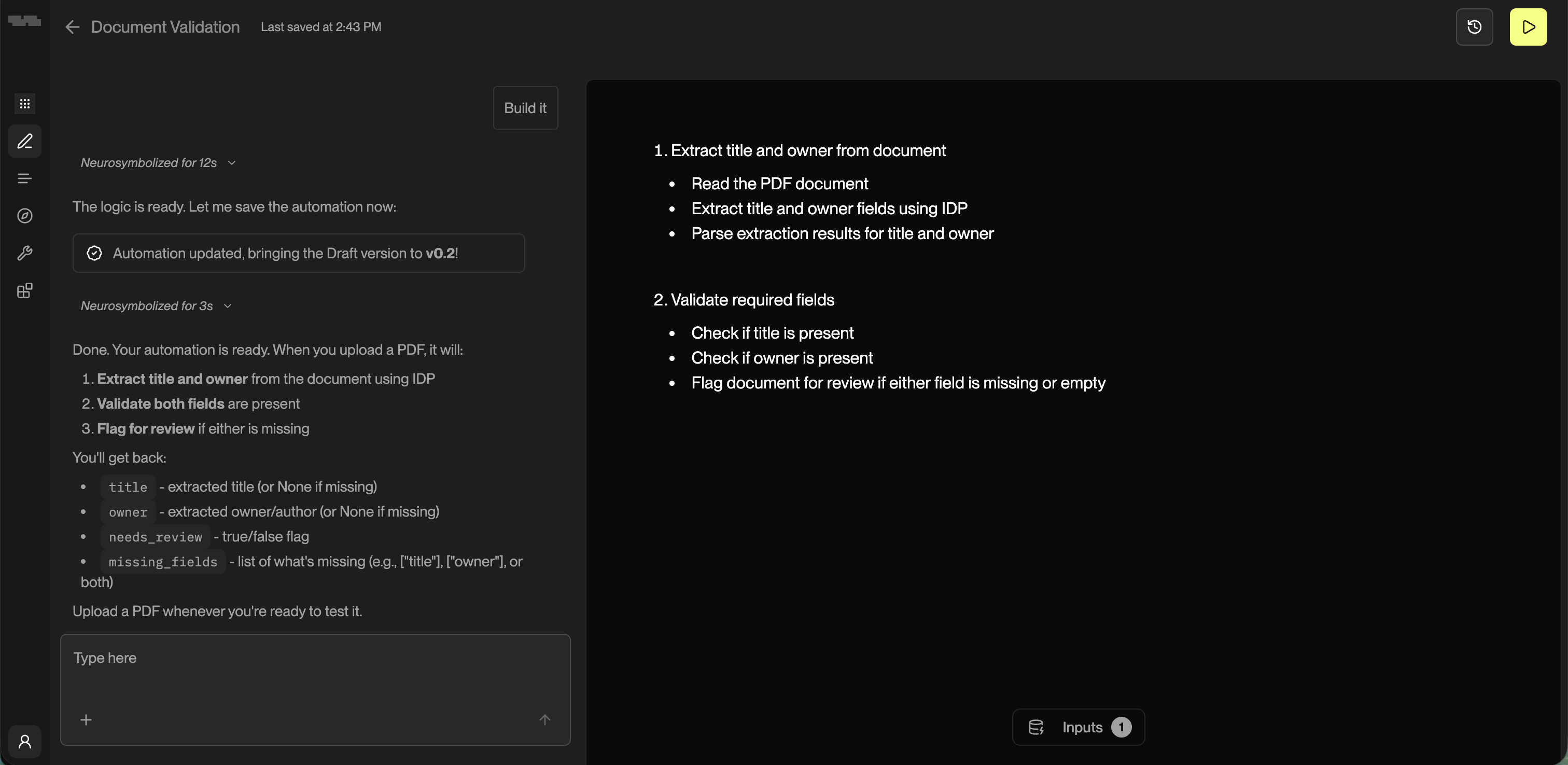
Once Kognitos understands your task and has everything it needs to proceed, it will generate the automation steps. Review the workflow to make sure it matches your expectations. You can edit continue the conversation to make adjustments as needed.
{% endstep %}
{% step %}
#### **Add Inputs**
Once you've reviewed the automation document, run and test it by providing inputs. **Inputs** are pieces of information your automation needs at the start of (or during) a run. They can come from you, the Kognitos platform, or external systems. For example:
* A folder path where documents are stored
* A date range for processing invoices
* A recipient email address
How to Add Inputs? 🔢
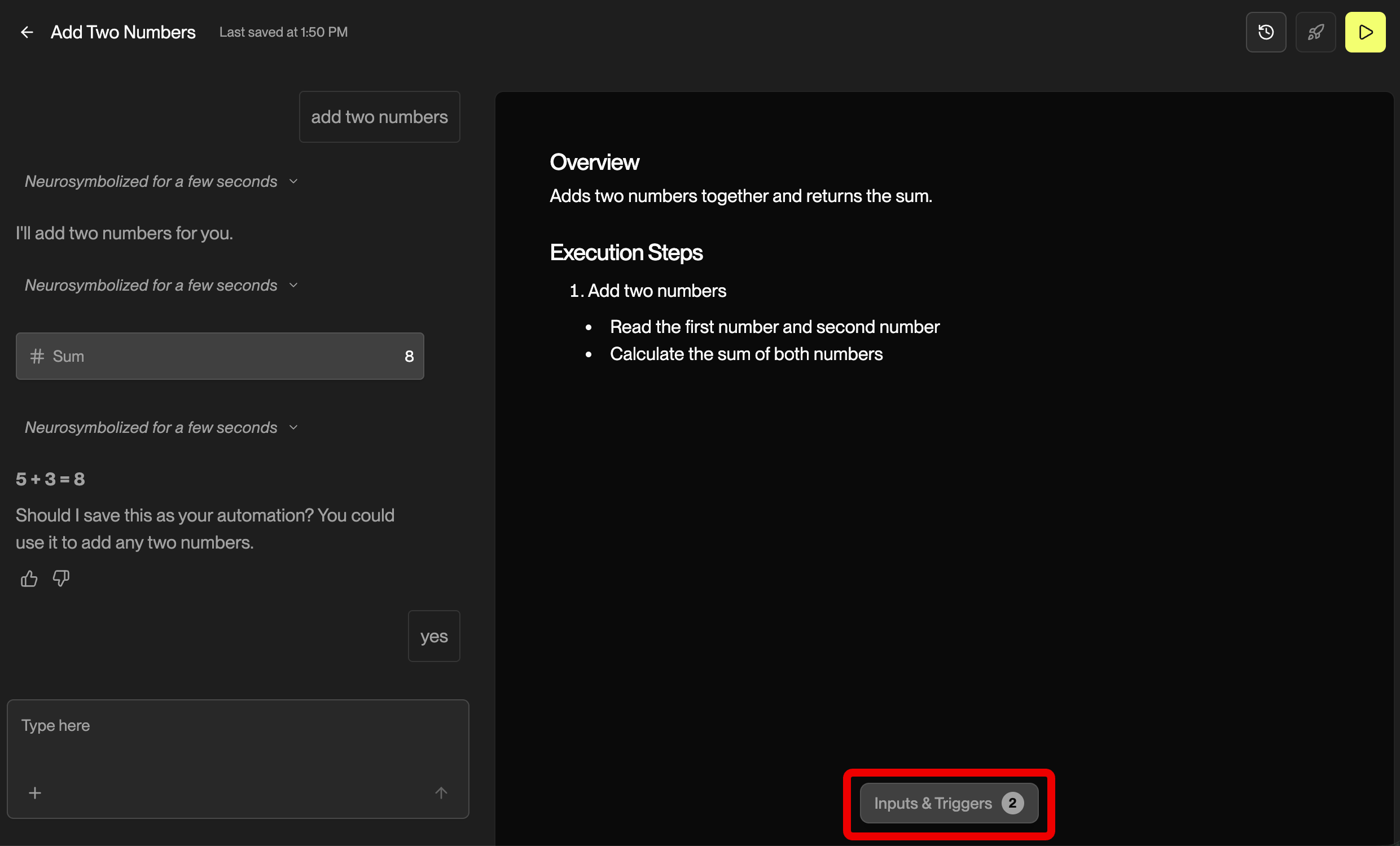
1. Click the **Inputs & Triggers** button at the bottom of the workflow document.
2. Review the detected inputs — the system automatically found them from your instructions.
3. Add in any required values:
1. **Text fields** *(names, numbers, references)*
2. **File uploads** *(PDFs, Excel files, images)*
3. **Dates, times, or selections from dropdowns**
4. Click **Save** to save your inputs.
{% hint style="danger" %}
If you click ▶️ to **run** the draft without providing inputs first, you'll see the **Almost There - Add Inputs First** screen prompting you to add them.
{% endhint %}
{% endstep %}
{% step %}
#### **Run**
Click on the ▶️ button in the top-right to execute your workflow.
After the run completes, you can:
* **Review** the outputs
* **Back to edit** the automation if needed
* **Run again** to re-execute
* **Publish** the draft to turn it into an automation
* **Chat** with the **Run Assistant** for further questions or clarifications
{% endstep %}
{% endstepper %}
## Triggers
Webhook and email triggers are configured from the draft editor. Click Inputs & Triggers in the right panel to open the trigger configuration dialog.
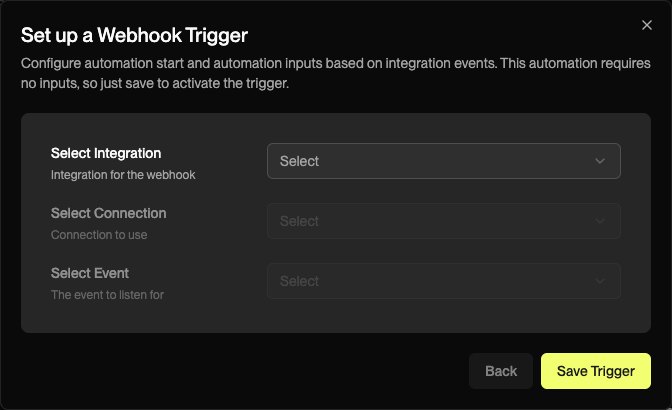
### Webhook Trigger
A webhook trigger starts a run when an external system sends an event. This is useful for connecting Kognitos to other tools, CI/CD pipelines, or custom applications.
{% stepper %}
{% step %}
**Select an integration**
Choose the integration that will send the webhook event.
{% endstep %}
{% step %}
**Select a connection**
Pick the connection to use for this integration.
{% endstep %}
{% step %}
**Select an event**
Choose the specific event that should trigger the automation.
{% endstep %}
{% step %}
**Save**
Click Save Trigger to activate. The automation will run whenever the selected event fires.
{% endstep %}
{% endstepper %}
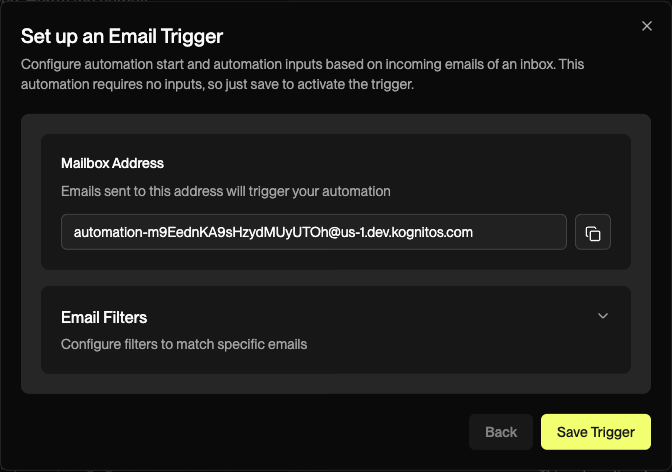
### Email Trigger
An email trigger starts a run whenever an email is received at a unique address generated by Kognitos. The email content and attachments are passed to the automation.
{% stepper %}
{% step %}
**Copy the mailbox address**
Kognitos generates a unique email address for this automation (e.g., `automation-abc123@us-1.kognitos.com`). Copy it and use it as a forwarding destination or share it with the people or systems that should trigger runs.
{% endstep %}
{% step %}
**Configure email filters (optional)**
Expand **Email Filters** to restrict which emails trigger a run. You can filter by sender address, CC address, or subject line keywords.
{% endstep %}
{% step %}
**Save**
Click Save Trigger to activate. Any email matching your filters will start a new run.
{% endstep %}
{% endstepper %}
## Publishing
When your draft is working as intended, you can publish it to promote it to an automation. An **automation** is the locked version of a draft that can be executed repeatedly and reliably. Once published, the workflow is moved from **Drafts → Automations**. You can always return to edit it by selecting "Open in Drafts" from the Automation.
### Versioning
Publishing a draft creates a **new major version** (v1, v2, v3, etc.) of your workflow. To make any updates, you'll need to edit the draft again and publish a new version.
## Best Practices
The following tips can help you build drafts more efficiently and get more reliable results.
### 1. Work Incrementally
Instead of asking Kognitos to do everything at once, build and verify in small steps.
How to Work Incrementally
For example, instead of asking Kognitos:
> "Extract all the fields from this page."
Start with a few fields and make sure they're correct before moving on:
> "Extract the first five fields from this page."
When you work in small batches, a mistake is easier to spot and fix:
> "The vendor name is incorrect. Use the one in the header, not the footer."
### 2. Be Specific
Vague instructions can lead to unintended behavior. Tell Kognitos what you want the automation to produce or how it should decide, not just what to do in general.
How to Be More Specific
Instead of:
> "Validate the totals."
Try:
> "The total amount should equal the sum of all line items. Flag any invoice where it doesn't match."
The more precise you are, the less back-and-forth is needed to produce a draft.
## Frequently Asked Questions
What does "Neurosymbolizing..." mean?
Neurosymbolizing..." appears while Kognitos is processing your instructions and converting them into executable automation steps. The term combines "neuro" (neural networks/AI) with "symbolic" (logical rules and structures), reflecting how Kognitos blends natural language understanding with structured workflow logic.
Can I work on multiple drafts at once?
Yes. You can have as many drafts in progress as you need. Each one is independent.
What happens if I close a draft before finishing?
Your work is automatically saved. Just open the draft again from the Drafts list to continue where you left off.
Can I go back to a draft after publishing?
Yes. New changes will create a new version of the automation.
Why can't I publish my draft?
The publish option will be disabled if Kognitos needs more information from you to complete the workflow. Open the draft to continue the conversation and provide any missing details; the publish option will then become available.