> For the complete documentation index, see [llms.txt](https://docs.kognitos.com/llms.txt). Markdown versions of documentation pages are available by appending `.md` to page URLs; this page is available as [Markdown](https://docs.kognitos.com/guides/api-reference/api-keys.md).
# API Keys
Create and manage API keys for authenticating with the Kognitos REST API.
## Overview
**API keys** (Personal Access Tokens) let you authenticate with the Kognitos REST API. Each key is scoped to specific workspaces and permissions, giving you control over what API consumers can access.
## Creating an API Key
{% stepper %}
{% step %}
**Open API Keys**
Click on your name or profile avatar in the bottom-left corner to open the user menu. Then select **API Keys**.
{% endstep %}
{% step %}
**Create a New Key**
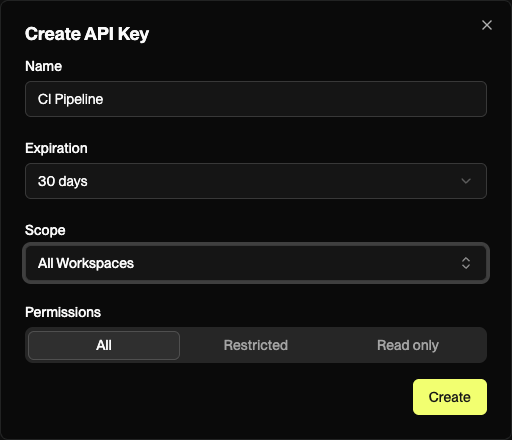
Click **Create API Key**. Fill in the following:
* **Name**: A descriptive name (e.g., "CI Pipeline", "Monitoring Dashboard")
* **Expiration**: How long the key is valid (7 days, 30 days, 60 days, 90 days, 180 days, or 1 year)
* **Scope**: Which workspaces the key can access
* **Permissions**: What the key can do
{% endstep %}
{% step %}
**Choose Permissions**
Select a permission level:
| Permission | Access |
| -------------- | --------------------------------------------------------------------------------------------- |
| **All** | Full read and write access to all API endpoints, including run archiving |
| **Read only** | Read access only (list, get, query endpoints) |
| **Restricted** | Custom per-resource permissions (includes granular control over run management and archiving) |
{% hint style="info" %}
When selecting **Restricted**, you can expand each permission group and toggle individual permissions on or off.
{% endhint %}
{% endstep %}
{% step %}
**Set the Scope**
Choose which workspaces this key can access:
* **All Workspaces**: Access to every workspace in the organization
* **Specific Workspaces**: Select one or more workspaces from the list
{% endstep %}
{% step %}
**Save Your Key**
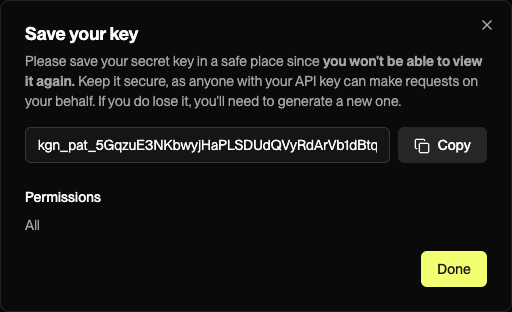
Click **Create**. Your API key will be displayed once. Copy it and store it securely.
{% hint style="warning" %}
**Save your key now.** You will not be able to view it again. If you lose it, you will need to create a new one.
{% endhint %}
{% endstep %}
{% endstepper %}
## Using Your API Key
Include the key in the `Authorization` header of every API request:
```bash
curl -H "Authorization: Bearer YOUR_API_KEY" \
"https://app.us-1.kognitos.com/api/v1/me/organizations"
```
## Managing API Keys
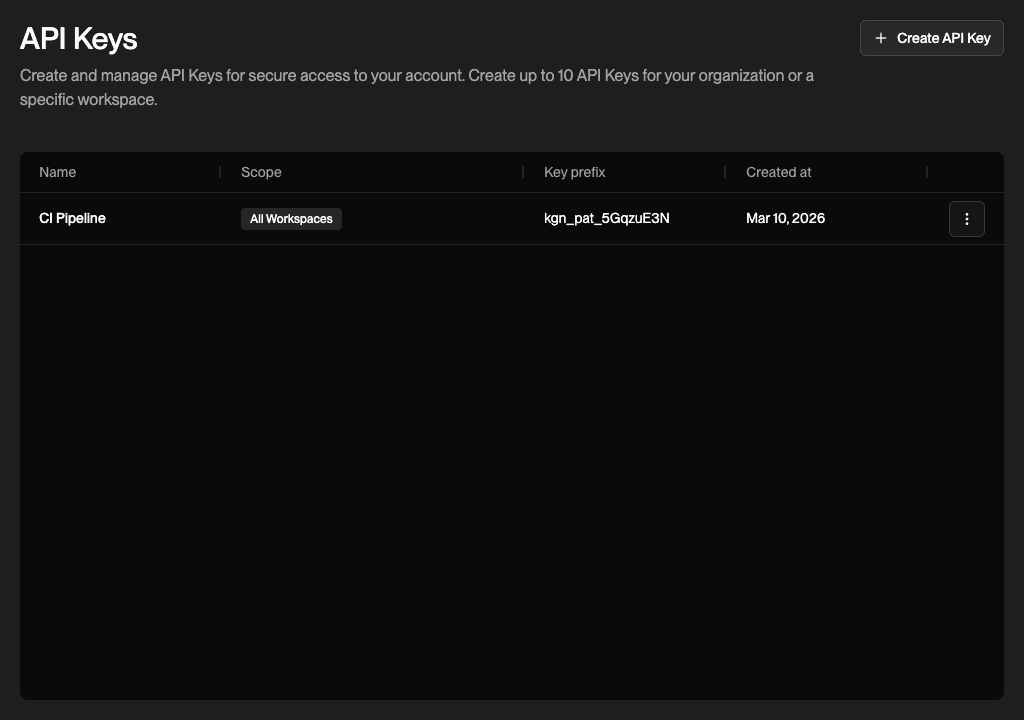
From the **API Keys** page, you can view all keys with their name, key prefix, scope, and creation date.
Use the menu on each row to **edit** a key's name, permissions, or scope, or **delete** a key to immediately revoke access.
{% hint style="warning" %}
Deleting an API key immediately disables it. Any systems using that key will lose access.
{% endhint %}
## Limits
* Up to **10 API keys** per organization
* Keys are scoped to the **organization** where they were created
* Expired keys are automatically disabled
## Checking Your Permissions
You can verify what permissions your API key grants by calling the [Current User Permissions](/guides/api-reference/api-reference.md#current-user-permissions) endpoint. This returns the effective permissions for the authenticated user in a given organization and workspace.
## Best Practices
* **Use descriptive names** so you know which system uses each key
* **Set the shortest expiration** that meets your needs
* **Use restricted permissions** to limit access to only what each consumer needs
* **Rotate keys regularly** by creating a new key before deleting the old one
* **Never commit keys to source control**. Use environment variables or a secrets manager.
---
# Agent Instructions
This documentation is published with GitBook. GitBook is the documentation platform designed so that both humans and AI agents can read, navigate, and reason over technical content effectively. Learn more at gitbook.com.
## Querying This Documentation
If you need additional information that is not directly available in this page, you can query the documentation by asking a question.
Perform an HTTP GET request on the following URL with the `ask` and `goal` query parameters:
```
GET https://docs.kognitos.com/guides/api-reference/api-keys.md?ask=&goal=
```
`ask` is the immediate question: it should be specific, self-contained, and written in natural language.
`goal` is what the user is ultimately trying to achieve, the reason they need the answer. Sharing it helps GitBook give you a better, more relevant answer. A goal is most helpful when it describes the outcome the user wants rather than restating the question. For example, with `ask=how do I create an API token`, a goal like `automate deployments from our CI pipeline` lets GitBook tailor the answer to that use case.
The response will contain a direct answer to the question and relevant excerpts and sources from the documentation.
Use this mechanism when the answer is not explicitly present in the current page, you need clarification or additional context, or you want to retrieve related documentation sections.