> For the complete documentation index, see [llms.txt](https://docs.kognitos.com/llms.txt). Markdown versions of documentation pages are available by appending `.md` to page URLs; this page is available as [Markdown](https://docs.kognitos.com/guides/administration/user-options/workspace-settings.md).
# Workspace Settings
Manage users, roles, and permissions for your workspace.
## Overview
Workspace settings control your automation environment. Each workspace operates independently with its own users, permissions, and automations. Use these settings to manage who can access your workspace and what they can do.
## Settings
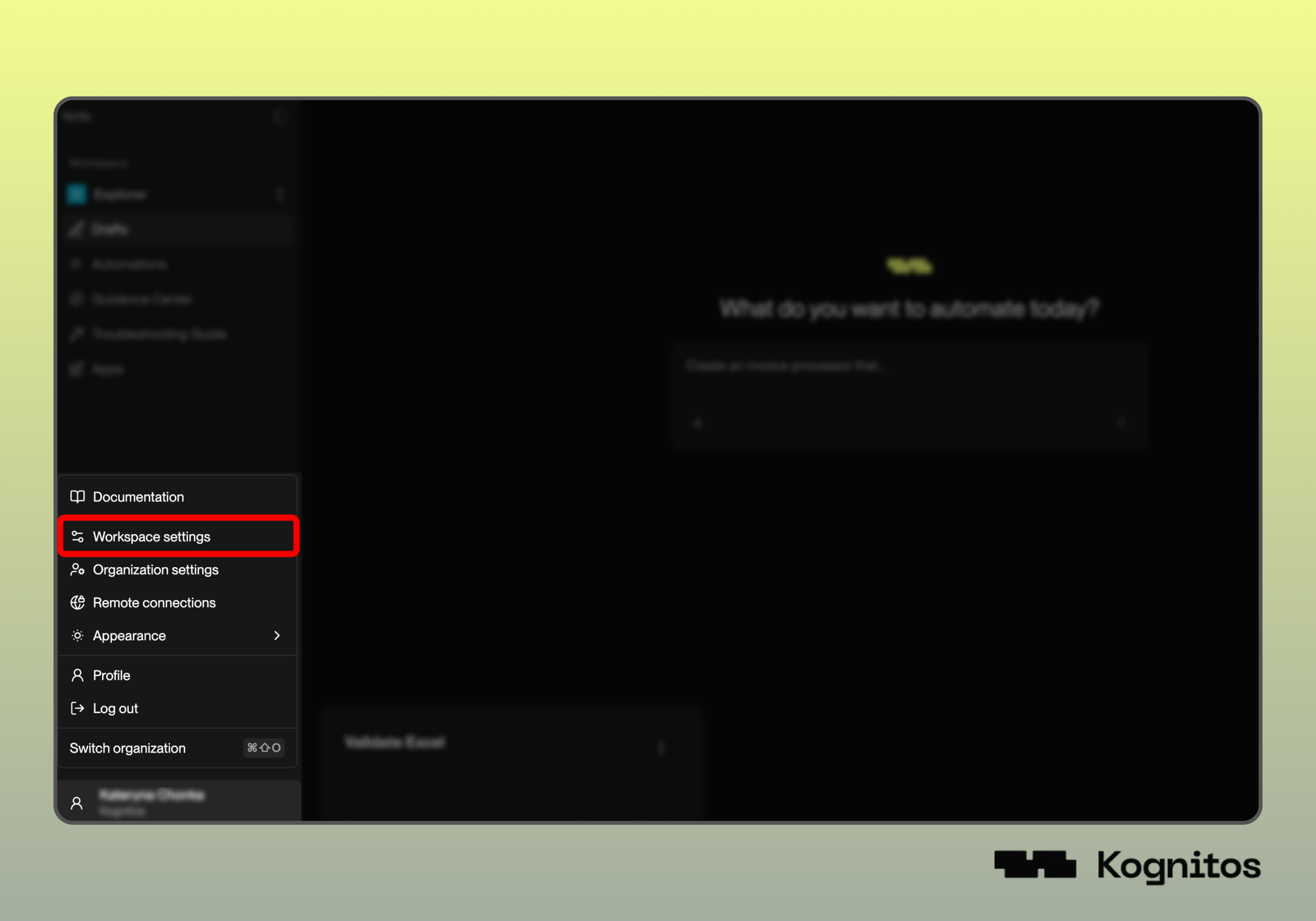
To access your workspace settings, click on your name or profile avatar in the bottom-left corner to open the user menu. Then select **Workspace settings**.
### Overview
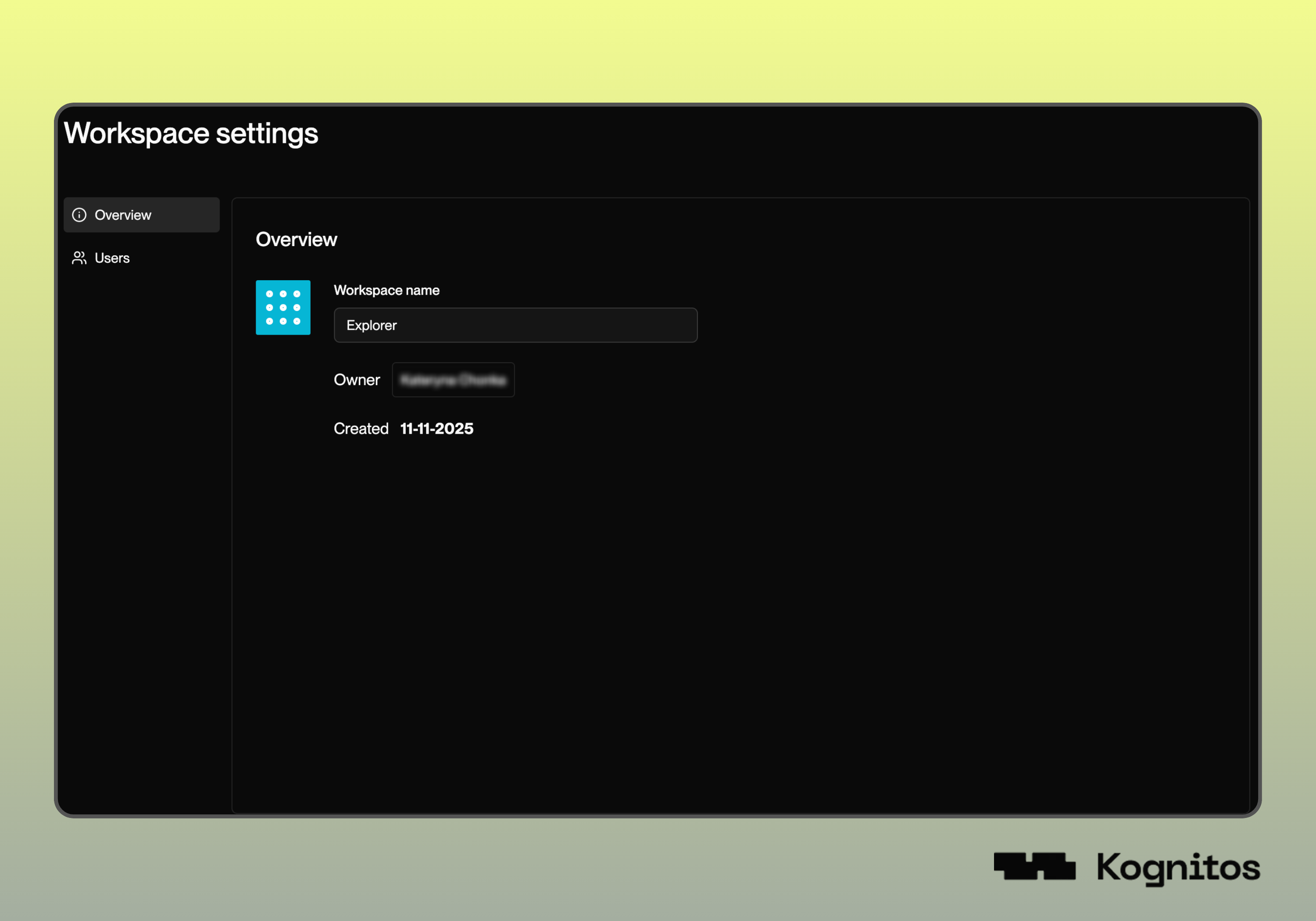
View essential information about your workspace in the **Overview**:
* **Workspace name** - The identifier for this environment *(editable).*
* **Owner** - Who manages the workspace.
* **Created** - When the workspace was established.
### Users
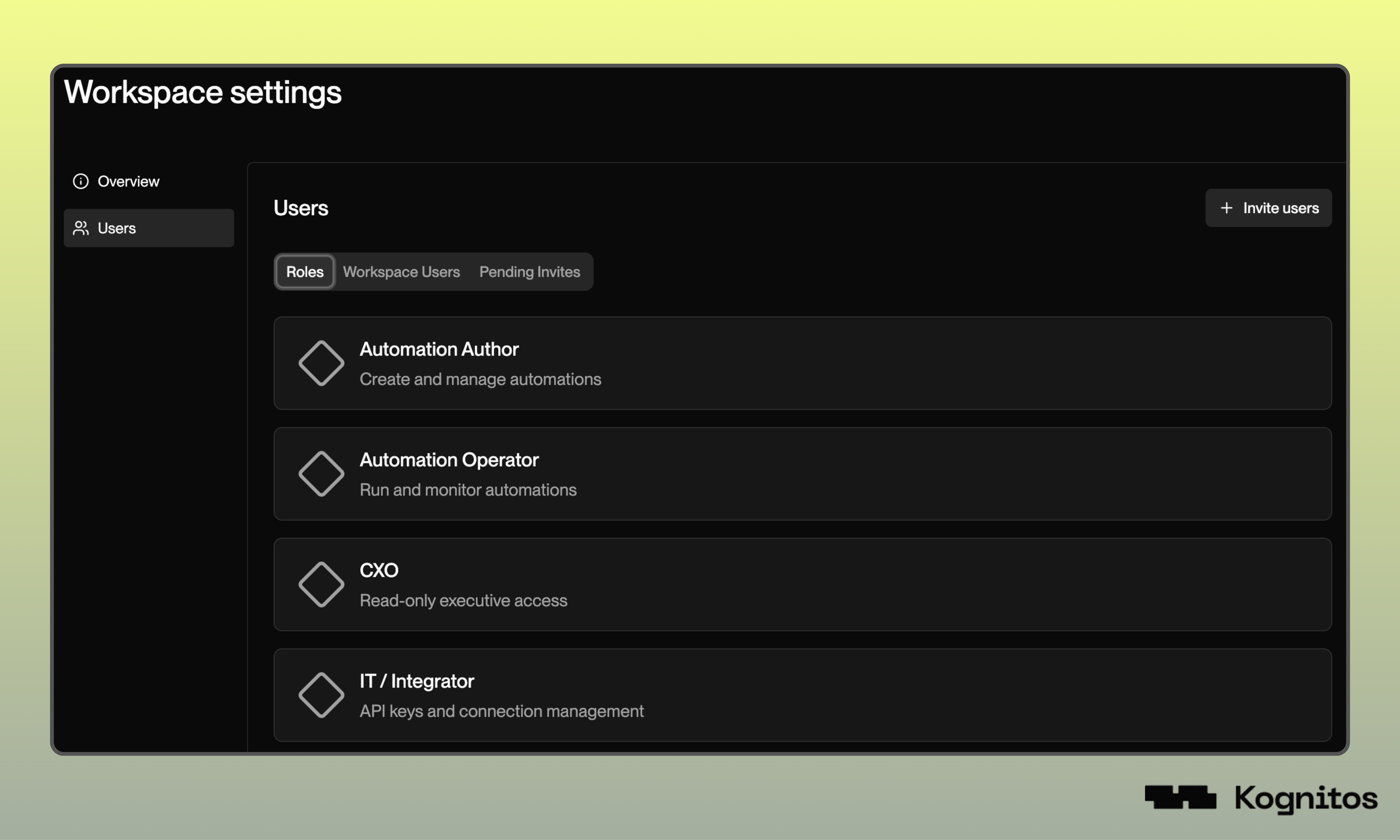
Manage who has access to your workspace and what they can do. The **Users** section includes three tabs: [**Roles**](#roles), [**Workspace Users**](#workspace-users), and [**Pending Invites**](#pending-invites).
#### Roles
View all the workspace roles and permission levels:
* **Automation Author** - Create and manage automations
* **Automation Operator** - Run and monitor automations
* **CXO** - Read-only executive access to workspace activity
* **IT/Integrator** - Manage API keys and external connections
* **Member** - Basic workspace access
* **Workspace Admin** - Full workspace administration
#### Workspace Users
View everyone who currently has access to this workspace, along with their assigned roles.
#### Pending Invites
Track invitations you've sent that haven't been accepted yet. You can access invite links and revoke invites from this tab.
## Inviting Users
To add a **team member** to your workspace:
{% stepper %}
{% step %}
**Navigate to Users**
Navigate to the **Users** tab within Workspace Settings.
{% endstep %}
{% step %}
**Invite User**
Click **+ Invite users** in the top right.
{% endstep %}
{% step %}
**Select a Role**
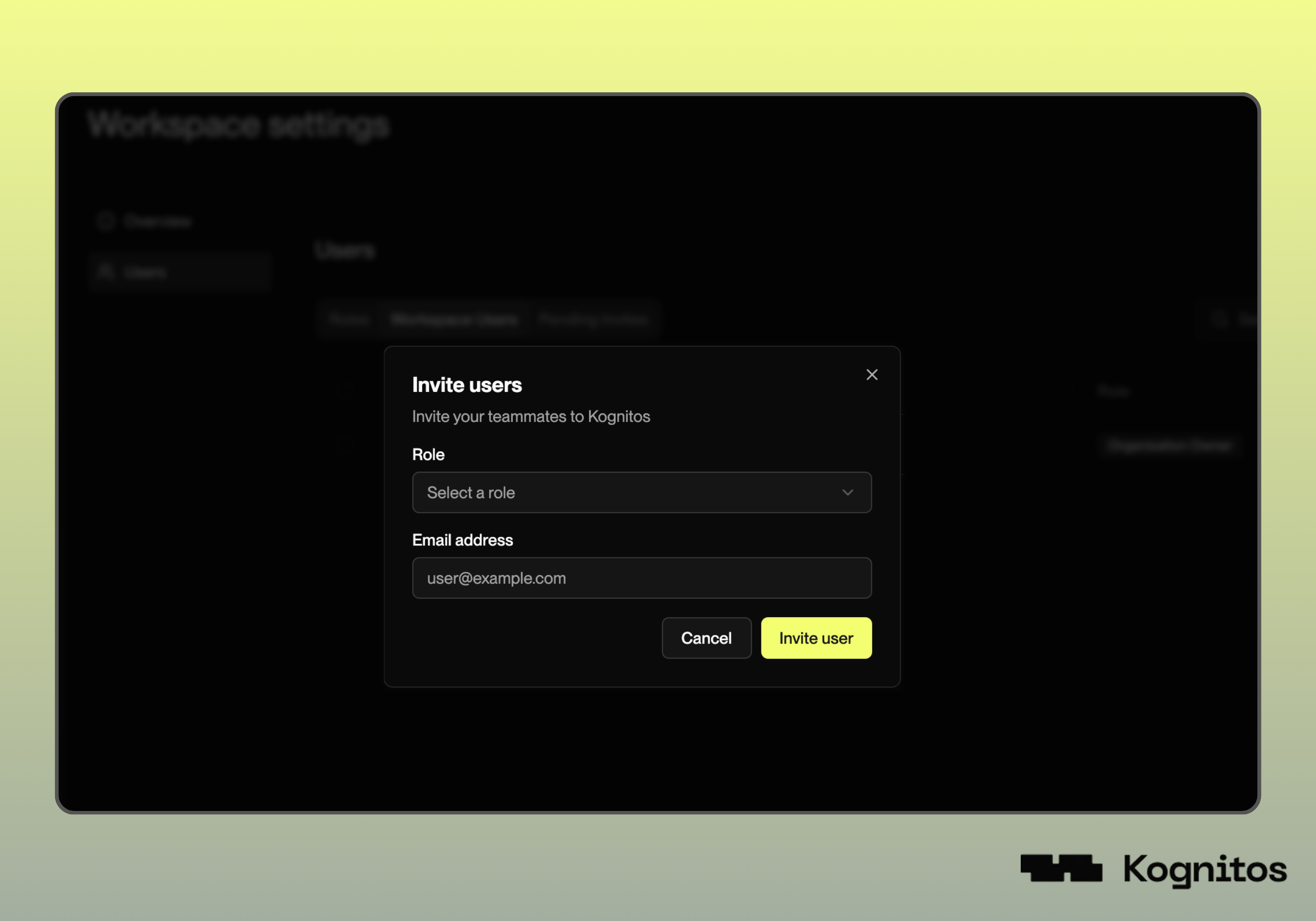
Select a role from the dropdown. This role determines what the user can do within your workspace:
* **Automation Author** - Create and manage automations
* **Automation Operator** - Run and monitor automations
* **CXO** - Read-only executive access to workspace activity
* **IT/Integrator** - Manage API keys and external connections
* **Member** - Basic workspace access
* **Workspace Admin** - Full workspace administration
{% endstep %}
{% step %}
**Enter Email**
Enter the user's email address, then click **Invite User**.
{% endstep %}
{% step %}
**Share Invitation Link**
Copy the invitation link and share it with your teammate to complete the invitation.
{% endstep %}
{% endstepper %}