> For the complete documentation index, see [llms.txt](https://docs.kognitos.com/llms.txt). Markdown versions of documentation pages are available by appending `.md` to page URLs; this page is available as [Markdown](https://docs.kognitos.com/guides/administration/user-options/organization-settings.md).
# Organization Settings
Manage organization members, workspaces, and administrative settings.
## Overview
Organization settings manage your company's Kognitos account. Your organization is the top-level container that holds all your workspaces. Use these settings to oversee and control who can access your organization.
## Settings
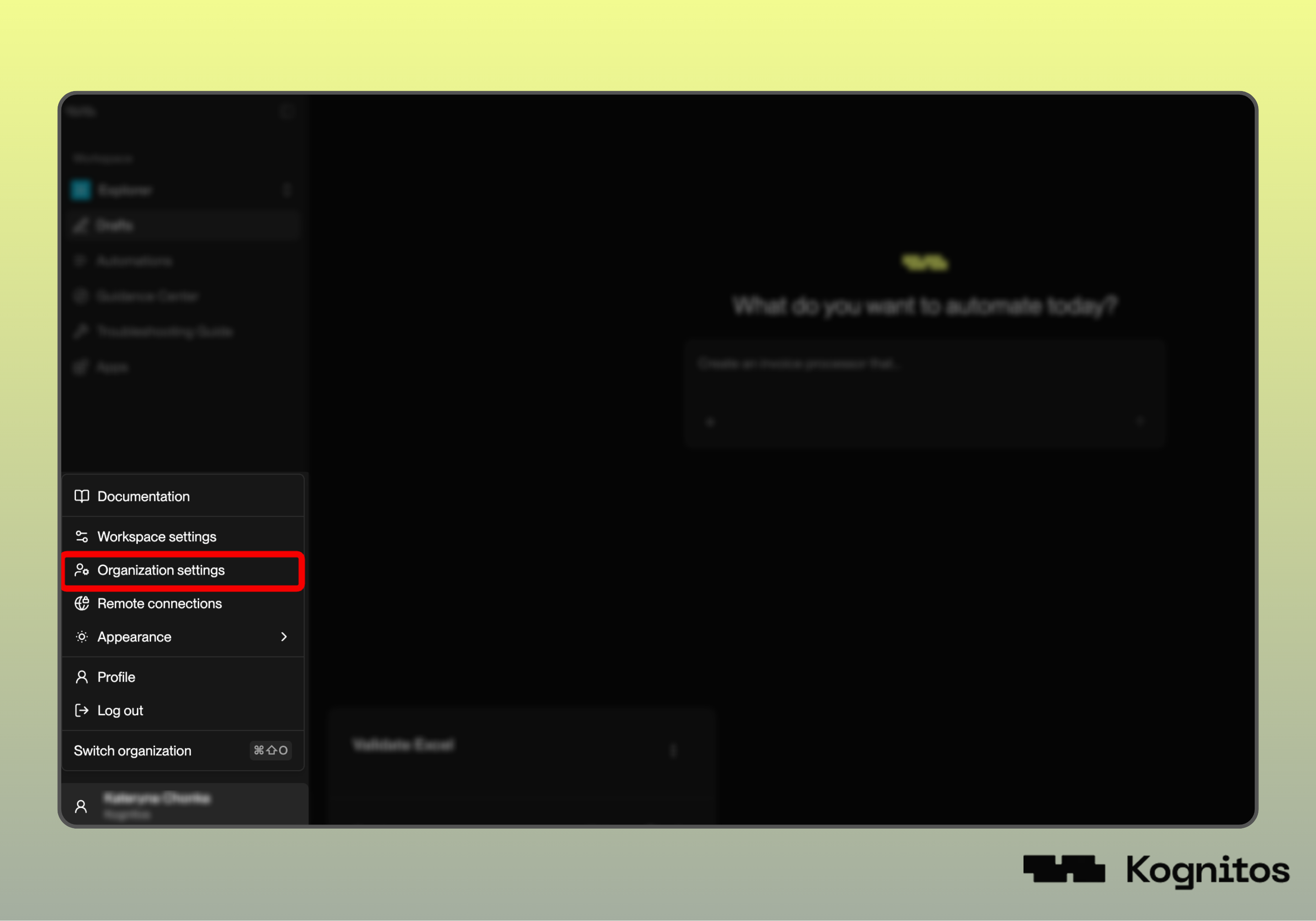
To access your organization settings, click on your name or profile avatar in the bottom-left corner to open the user menu. Then select **Organization settings**.
### Overview
View essential information about your organization in the **Overview**:
* **Organization name** — The identifier for this organization *(editable).*
* **Owner** — Who manages the workspace.
* **Created** — When the workspace was established.
### Workspaces
See all workspaces within your organization in one place. Workspaces are dedicated sections where automation projects live—think of them as folders that keep your work organized. The list shows:
* **Workspace name** — Each environment's identifier
* **Owner** — Who manages each workspace
* **Users** — How many people have access
* **Created** — When each workspace was set up
Create new workspaces using the **+ New workspace** button, or use the search bar to quickly find existing workspaces.
### Users
Manage organization-level access and permissions. The Users section has three tabs:
#### Roles
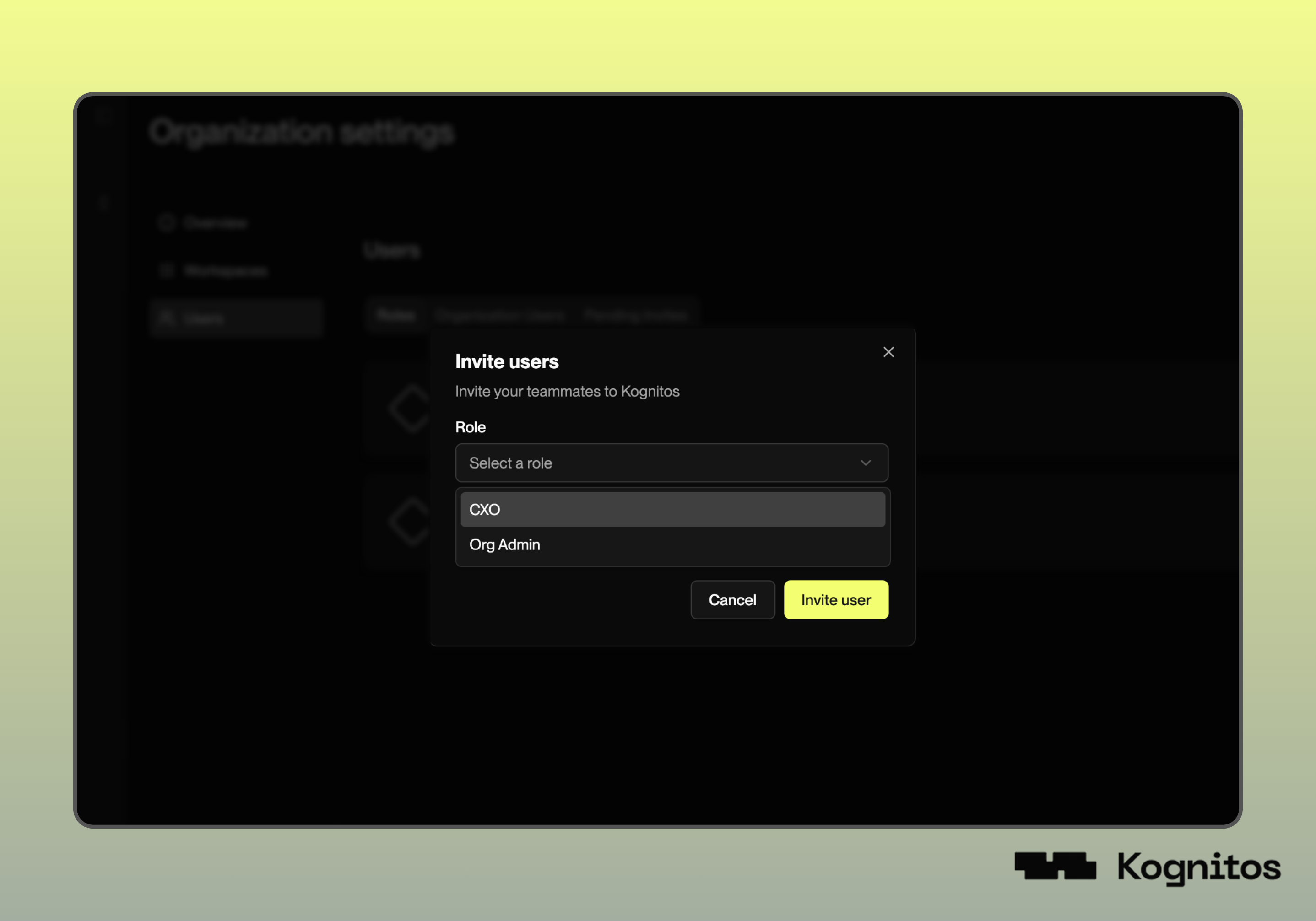
Organization roles control administrative access. The **Org Admin** has full organization administration, while a **CXO** has administration access without account ownership.
#### Organization Users
View everyone in your organization. Organization membership allows users to be added to individual workspaces.
#### Pending Invites
Track organization invitations that haven't been accepted. You can manage these invites until users accept them.
## Inviting Users
To add an administrative **user** to your organization:
{% stepper %}
{% step %}
**Navigate to Users**
Navigate to the **Users** tab within Organization Settings.
{% endstep %}
{% step %}
**Invite User**
Click **+ Invite users** in the top right.
{% endstep %}
{% step %}
**Select a Role**
Select a role from the dropdown. This role determines what the user can do within your entire organization:
* **Org Admin** — Full administrative access for the organization
* **CXO** — Organization administration without account ownership
{% endstep %}
{% step %}
**Enter Email**
Enter the user's email address, then click **Invite User**.
{% endstep %}
{% step %}
**Share Invitation Link**
Copy the invitation link and share it with your teammate to complete the invitation.
{% endstep %}
{% endstepper %}