> For the complete documentation index, see [llms.txt](https://docs.kognitos.com/llms.txt). Markdown versions of documentation pages are available by appending `.md` to page URLs; this page is available as [Markdown](https://docs.kognitos.com/legacy/legacy-experience/processes/runs/trigger-a-process-by-email.md).
# Trigger a Process by Email
Learn how to trigger an automation process run by email.
You don't have to trigger every automation run manually. Kognitos lets you trigger automations by **sending an email** — a powerful way to automate tasks like onboarding or invoice processing.
### How Email Triggers Work
A **unique email address** is generated for every Kognitos process. When someone **sends an email** to this address, it automatically starts a new process run and passes the email contents to the automation, including:
* Subject line
* Sender address
* Body (plain text or HTML)
* Attachments (files, spreadsheets, images, etc.)
{% hint style="warning" %}
Kognitos does ***not*** monitor your inbox for new emails. Email triggers work when emails are sent ***to*** the uniquely-generated email address for a process. You must manually configure email triggers for a process using the steps below.
{% endhint %}
### How to Configure Email Triggers for a Process
{% stepper %}
{% step %}
**Navigate to Processes**
Navigate to the **Processes** tab via the left sidebar.
{% endstep %}
{% step %}
**Select a Process**
Click on the Process you want to set up email triggers for.
{% endstep %}
{% step %}
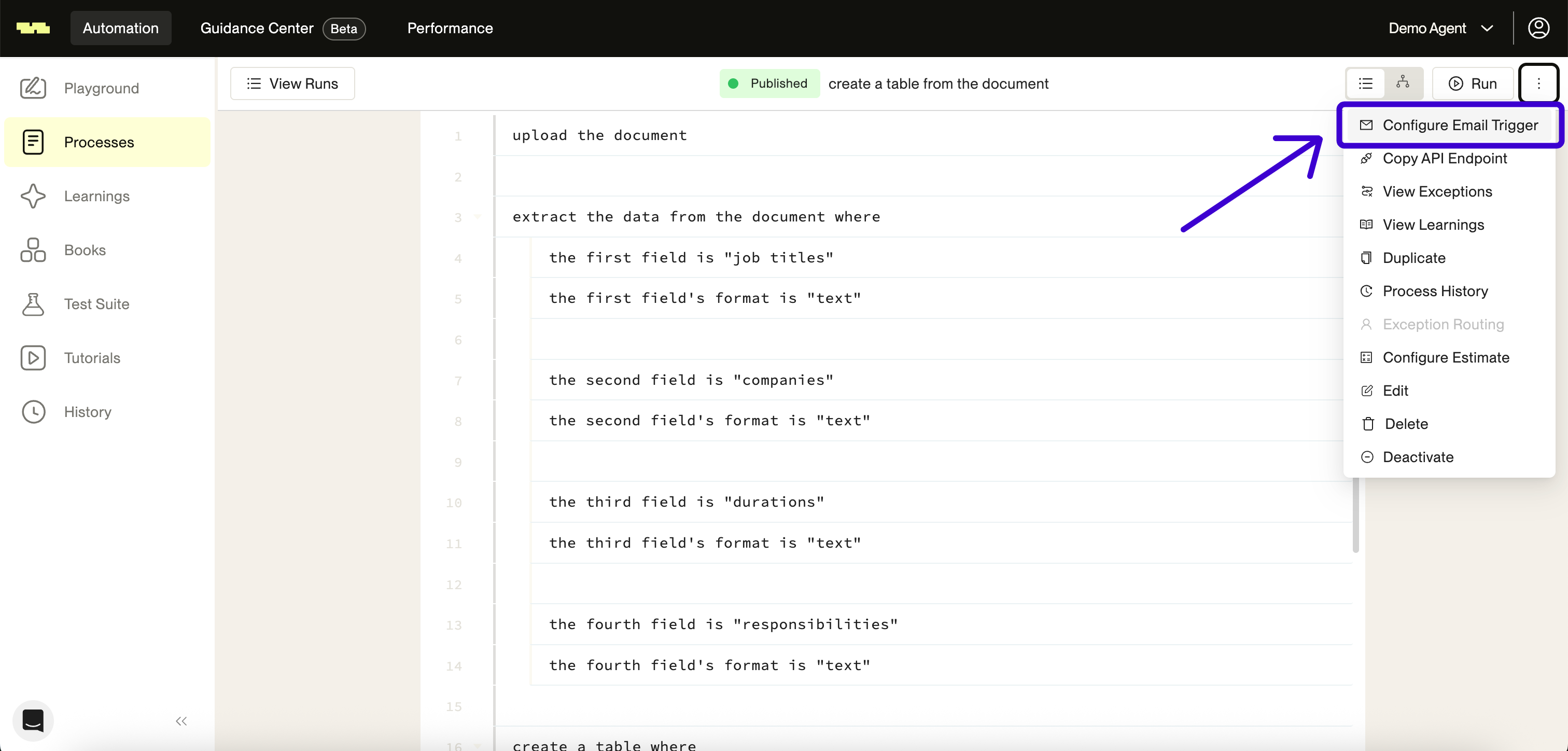
**Open Email Trigger Settings**
Click the menu ⋮ button on the right, then select Configure Email Trigger.
{% endstep %}
{% step %}
**Configure Permissions**
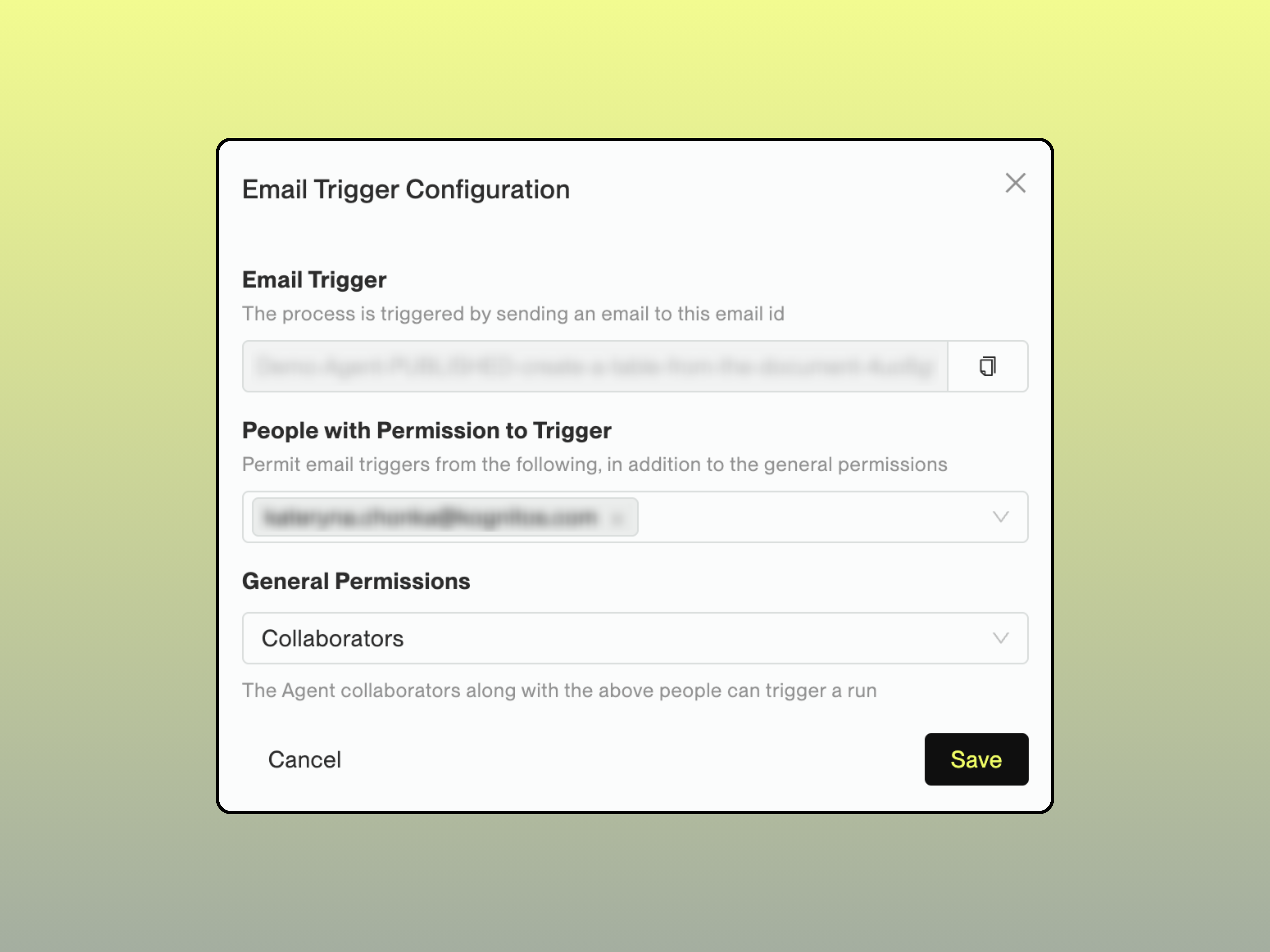
Choose who can send emails to trigger this Process:
* **Collaborators**: Only members of the agent can send emails to trigger this process. This is the default for new processes. *Note: For processes created before July 3, 2025, the default setting is "Anyone".*
* **Restricted**: Only users listed under "People with permission to trigger" can send emails to trigger the process.
* **Anyone**: Anyone can send emails to trigger this process, including non-Kognitos members.
{% hint style="info" %}
**People with permission to trigger** lets you specify additional users who can send emails to trigger the process, regardless of the general permission setting.
{% endhint %}
{% endstep %}
{% step %}
**Copy the Email Address**
Copy the **Email Trigger** address. This is the email address that people will send emails to in order to start the process.
{% endstep %}
{% step %}
**Save Your Changes**
Click Done to save your configuration changes.
{% endstep %}
{% endstepper %}
{% @supademo/embed url="" demoId="cmcng1y8g271z16b6dj4ihimv" %}
### How to Trigger a Process Run
Once you've configured email triggers for your process, anyone with the proper permissions can start a process run by sending an email. Here's how:
1. **Compose a new email** in your email client (Gmail, Outlook, Apple Mail, etc.)
2. **Set the recipient** to the unique email trigger address you copied during configuration.
3. **Write your email** with any relevant information: subject line, email body, and attachments.
4. **Send the email** — this immediately triggers a process run in Kognitos.
As soon as your email is delivered, Kognitos automatically starts a run of that process. Your automation can access all parts of the email (subject, body, attachments, sender info).
### Troubleshooting
If your process isn't starting when emails are sent:
1. Ensure the sender has adequate **permissions** to send emails that trigger the process.
2. Double-check the trigger **email address** — did the email go to the correct address?
3. Check if the email **delivered** successfully. If the email fails to deliver, the process won't trigger.
4. If you're using an email **forwarding rule**, verify that it's active and correctly configured.
5. Confirm the automation is a **published process**. Email triggers do *not* work with Playground automations.
### Best Practices
#### Managing Trigger Permissions
Use the most restrictive permission setting that meets your needs:
* **Collaborators**: Best for internal-only workflows.
* **Restricted**: Ideal when only a specific set of users should be able to trigger the process.
* **Anyone**: Use with caution & ensure the automation includes validation steps to prevent misuse.
#### Validate Incoming Emails
Add logic in your automation to validate the email content, such as checking for specific subject lines, senders, or attachments. For example, to access the attachments of an email that triggers a process, we would write:
```
get the email's attachments
process each attachment as follows
...
```
This statement grabs each attachment from the email in order to take further action. You can also use the following phrases to get details about the email to use in your automation:
* `get the text`
* `get the sender`
* `get the recipients`
* `get the date`
* `get the subject`
* `get the hyperlinks`
* `get the attachments`
* `get the body as text`
* `get the body as html`