> For the complete documentation index, see [llms.txt](https://docs.kognitos.com/llms.txt). Markdown versions of documentation pages are available by appending `.md` to page URLs; this page is available as [Markdown](https://docs.kognitos.com/legacy/legacy-experience/exception-handling/guidance-center.md).
# Guidance Center
Learn how to provide guidance to automations in the Guidance Center.
## Overview
When an automation needs additional context or clarification to proceed, it will raise a **question** *(also called an* [***exception***](/legacy/legacy-experience/exception-handling.md)*)*. In Kognitos, exceptions are resolved by **providing guidance** — giving input to the system so it understands how to proceed. Using the **Guidance Center**, you can quickly provide guidance across automations to keep your processes running smoothly.
## Getting Started
Access the Guidance Center from the top navigation menu. Here’s a quick walkthrough: ⬇️
{% @supademo/embed url="" demoId="cmd4xoubw4yd5c4kj46t9kbok" %}
## Key Features
The **Guidance Center** contains the following key features:
### Guidance Groups
Exceptions are grouped based on the automation step where each exception occurred. Using guidance groups, you can resolve similar issues together, instead of handling them individually.
### Filters
Sort and filter exceptions by:
* Agent
* Assignee
* Status *(Pending, Archived, Answered)*
* Date *(1 Week, 1 Month, 3 Months, Custom Range)*
### Exception Handling Modes
Use the Try New Flow toggle to switch between:
* **Group Handling** *(Try New Flow: enabled)* - Resolve multiple related exceptions at once.
* **Individual Handling** *(Try New Flow: disabled)* - Resolve exceptions one by one, a workflow used in the former Exception Center.
***
## Providing Guidance
**Providing guidance** is the process of giving input *(**guidance**)* that helps the system understand how to resolve exceptions and continue execution. Guidance can take the form of a specific value, a decision to skip the issue, or another form of clarification. Additionally, guidance can be provided for **individual exceptions** or for an entire **group of exceptions**.
{% hint style="success" %}
We recommend **group handling** — It’s the fastest and easiest way to resolve multiple exceptions!
{% endhint %}
### 1. Group Exception Handling
**Group exception handling** allows you to resolve multiple exceptions at once. The Guidance Center automatically identifies and groups exceptions based on the automation step where each exception occurred. Instead of handling each exception individually, you can address the entire group. Additionally, group exception handling allows you to provide guidance using natural language instructions. Here's how:
{% stepper %}
{% step %}
**Navigate to the Guidance Center**
From the top navigation menu, go to the Guidance Center.
{% endstep %}
{% step %}
**Try New Flow**
Enable Try New Flow for group exception handling.
{% endstep %}
{% step %}
**Select a Guidance Group**
Select a **guidance group** by clicking on it.
{% endstep %}
{% step %}
**View More Details**
Open any **run** to view more details about an exception.
{% endstep %}
{% step %}
**Provide Guidance in Natural Language**
Provide instructions for resolving the exception. Then, click on Generate to create answer suggestions.
➡️ ***Best Practices***
{% tabs %}
{% tab title="1. Be Specific" %}
Provide clear instructions, including necessary context to avoid misinterpretations.
```
For the date, use the one from the invoice.
```
```
Match based on the Customer Name from the billing section.
```
{% endtab %}
{% tab title="2. Use Overriding Commands" %}
If the system has pulled incorrect data, override it by clearly stating what to use and what to ignore.
```
Calculate the tip as 15% of the total. Ignore the tip in the document.
```
```
Set quantity to 0. Don’t use the value extracted from the scanned form.
```
{% endtab %}
{% tab title="3. Specify Formatting" %}
Specify if you need data returned in a specific format *(especially for dates or numbers)*.
```
Extract the date in YYYY-MM-DD format.
```
```
Return the amount with two decimal places.
```
{% endtab %}
{% endtabs %}
{% endstep %}
{% step %}
**Review Suggestions**
Review the suggested answers. Hover over the ✨ icon to view an explanation summary.
{% endstep %}
{% step %}
**Take Action**
Decide how to handle each run, after reviewing the suggested answers. You can choose to submit, provide alternative guidance *(individually or for multiple runs)*, or leave certain runs unresolved and return to them later.
{% hint style="info" %}
Click on Choose another answer option to take an alternative action.
{% endhint %}
**Individual Resolution Actions**
These resolution actions can be taken on individual runs:
{% tabs %}
{% tab title="Provide Value" %}
Enter your own answer directly, instead of using the system-generated suggestion. You can choose one of the following value types: **Text**, **File Upload**, or **No Value**. This option may be useful when the automation can’t infer the right answer.
{% endtab %}
{% tab title="Compute the Answer" %}
Let the system calculate or derive the answer using available data or logic. You can use this when the answer isn’t directly available, but can be computed.
{% endtab %}
{% tab title="Skip this Step" %}
This option bypasses the step in the automation. This is helpful if the step is not applicable or doesn't need resolution at the moment. For this resolution method, you can also **add a delay or timeout**.
{% hint style="warning" %}
***Note***: Skipping a step may cause another exception if it resolves data that's needed later in the automation.
For example: An exception occurs with the message "Could not get a file as a scanned document". The user chooses the Skip this step option. Later, the automation attempts to reference the document, resulting in a new exception: "Please provide scanned document."
{% endhint %}
{% endtab %}
{% tab title="Retry this Step" %}
Use this option to **re-execute the failed automation step**. This may be helpful if the exception was caused by a network error, a timeout, or temporary issues.
{% endtab %}
{% endtabs %}
**Bulk Resolution Actions**
Select one or more runs, then choose one of the following actions to apply to all:
{% tabs %}
{% tab title="Skip" %}
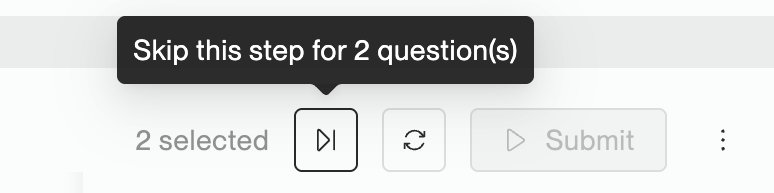
**Skip** the current step for all the selected runs.
{% endtab %}
{% tab title="Retry" %}
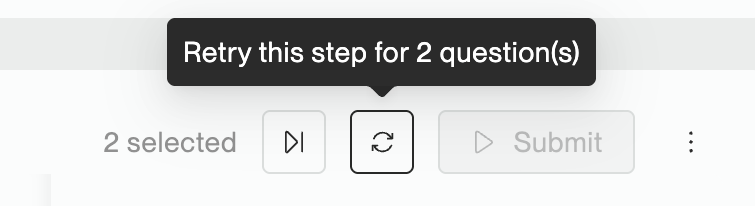
**Retry** the automation step for all the selected runs.
{% endtab %}
{% tab title="Submit" %}
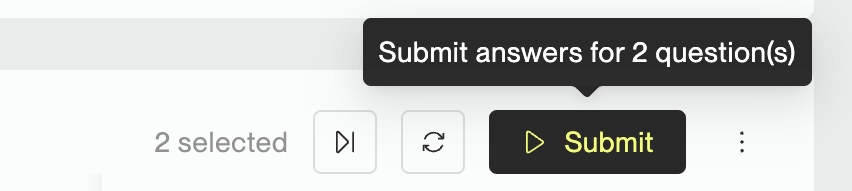
**Submit** answers across all the selected runs.
{% endtab %}
{% tab title="Assign" %}
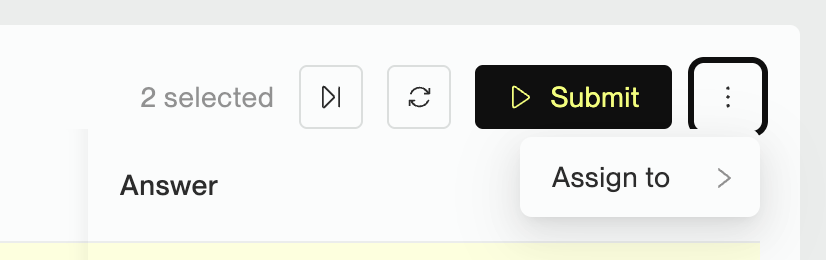
**Assign** the selected questions to a user.
{% endtab %}
{% endtabs %}
{% endstep %}
{% endstepper %}
{% @supademo/embed url="" demoId="cmd7uowx37ci4c4kj8vmtph4h" %}
### 2. Individual Exception Handling
The **individual exception handling** workflow *(previously used in the **Exception Center**)* is also available in the Guidance Center.
{% stepper %}
{% step %}
**Navigate to the Guidance Center**
From the top navigation menu, go to the Guidance Center.
{% endstep %}
{% step %}
**Disable Try New Flow**
Disable Try New Flow for individual exception handling.
{% endstep %}
{% step %}
**Select an Exception**
Select an exception to resolve from the bottom.
{% endstep %}
{% step %}
**Select a Resolution Method**
Select a [resolution method](#resolution-methods) to handle the exception.
{% hint style="success" %}
Check **always use this answer for this process** to automatically reuse your response if the same exception reoccurs in the future.
{% endhint %}
{% endstep %}
{% step %}
**Submit**
Click Submit to submit the resolution.
{% endstep %}
{% endstepper %}
## Resolution Methods
When resolving exceptions in the Guidance Center, you can choose from several resolution methods:
### Provide Value
Manually enter a static value to resolve the exception. Use this when you know the exact answer for simple values like names, numbers, dates, or text. Supports multiple input types (text, number, date, boolean, file upload, or no value). Character limit: 5,000.
**Example:**
```
Question: "What is the customer name?"
Answer: "John Smith"
```
### Compute the Answer
Write executable automation code (a technique) that calculates the answer dynamically. Use this when the answer needs to be calculated from data, varies based on context, or requires extraction/transformation. The technique runs in a mini playground, and you can choose to use the output as the answer, retry the step, or skip the step. Character limit: 15,000.
**Example:**
```
Question: "What is the invoice total?"
Technique:
open the invoice document
extract the table named "Line Items"
sum the "Amount" column
```
### Skip
Bypasses the current step and continues to the next step. Use this for optional or non-critical steps, when you want to continue despite failures, or for testing. You can optionally provide additional facts before skipping.
{% hint style="warning" %}
Skipping a step may cause another exception if it resolves data needed later. For example, if you skip getting a document, later references to that document will raise new exceptions.
{% endhint %}
### Retry
Re-executes the failed step. Use this for temporary failures (network issues, rate limits, timeouts) or when waiting might resolve the issue. You can configure a minimum delay (wait time before retry) and timeout (maximum retry duration), both in seconds. Optionally provide additional facts before retrying.
**Example:**
```
Scenario: API call failed
Action: Retry after 5 seconds with 60-second timeout
```
### Review
Approves a review request when the system needs human verification. Use this to approve extracted data, confirm actions should proceed, or validate quality control checkpoints.
**Example:**
```
Request: "Please review this extracted invoice data"
Action: Approve to proceed
```
### Validate Facts
Provide or correct facts that failed validation. The system will run a technique with your corrected facts, then you choose to retry or skip the original step. Use this when extracted data is incorrect or incomplete, or when validation rules need to be overridden.
**Example:**
```
Issue: Invoice date extracted incorrectly
Action: Correct the date value
```
### Replace Step
Replaces the problematic step with new steps you provide. Use this when the original step is fundamentally wrong, you need to change the approach entirely, or for one-time workarounds.
**Example:**
```
Original: "open file.xlsx"
Replace with: "open invoice_2024.xlsx"
```
## Learning from Resolutions
Most resolution methods can be **learned**, meaning the same resolution will automatically apply to identical exceptions in the future. When submitting an answer, check the "Remember" checkbox and select where to apply (Draft Mode and/or Published Mode for processes, or agent's playgrounds). The learning will be stored and applied automatically to future identical exceptions, eliminating the need for repeated human intervention.
## Notes
### Exception Scope & Visibility
The Guidance Center only shows exceptions for **published runs**. Draft runs are treated as test runs, so they don’t generate exceptions. If you don’t see an exception, first check whether the process is published.