> For the complete documentation index, see [llms.txt](https://docs.kognitos.com/llms.txt). Markdown versions of documentation pages are available by appending `.md` to page URLs; this page is available as [Markdown](https://docs.kognitos.com/legacy/legacy-experience/books/connections.md).
# Connections
Learn how to add, manage, and switch connections for books.
### What is a Connection?
A **connection** is a book that's added to an agent with a set of authentication credentials. While some books can be installed without credentials, those that integrate with an external service or API may require authentication, so Kognitos can securely access and interact with the service.
### Connect in Multiple Ways
Certain books can be connected using more than one set of credentials. For example, the GitHub book can be configured to access multiple organizations, or the Excel book can connect to workbooks from different accounts.
You can switch between API keys, access tokens, or login details by creating separate connections for each supported authentication method. This provides flexible access to the same book in multiple ways.
### Managing Connections
To view and manage your connections:
1. Navigate to **Books → Connections**.
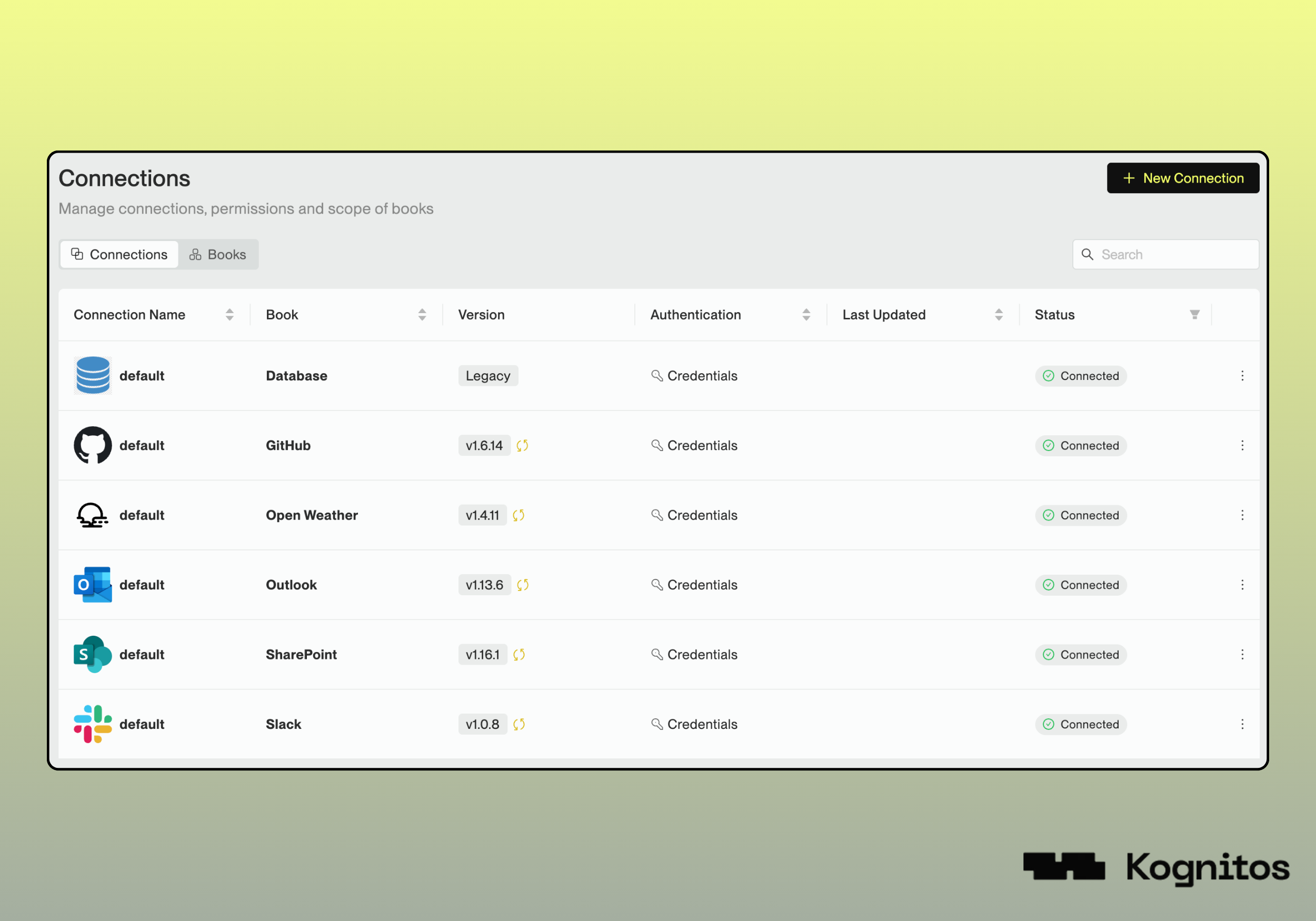
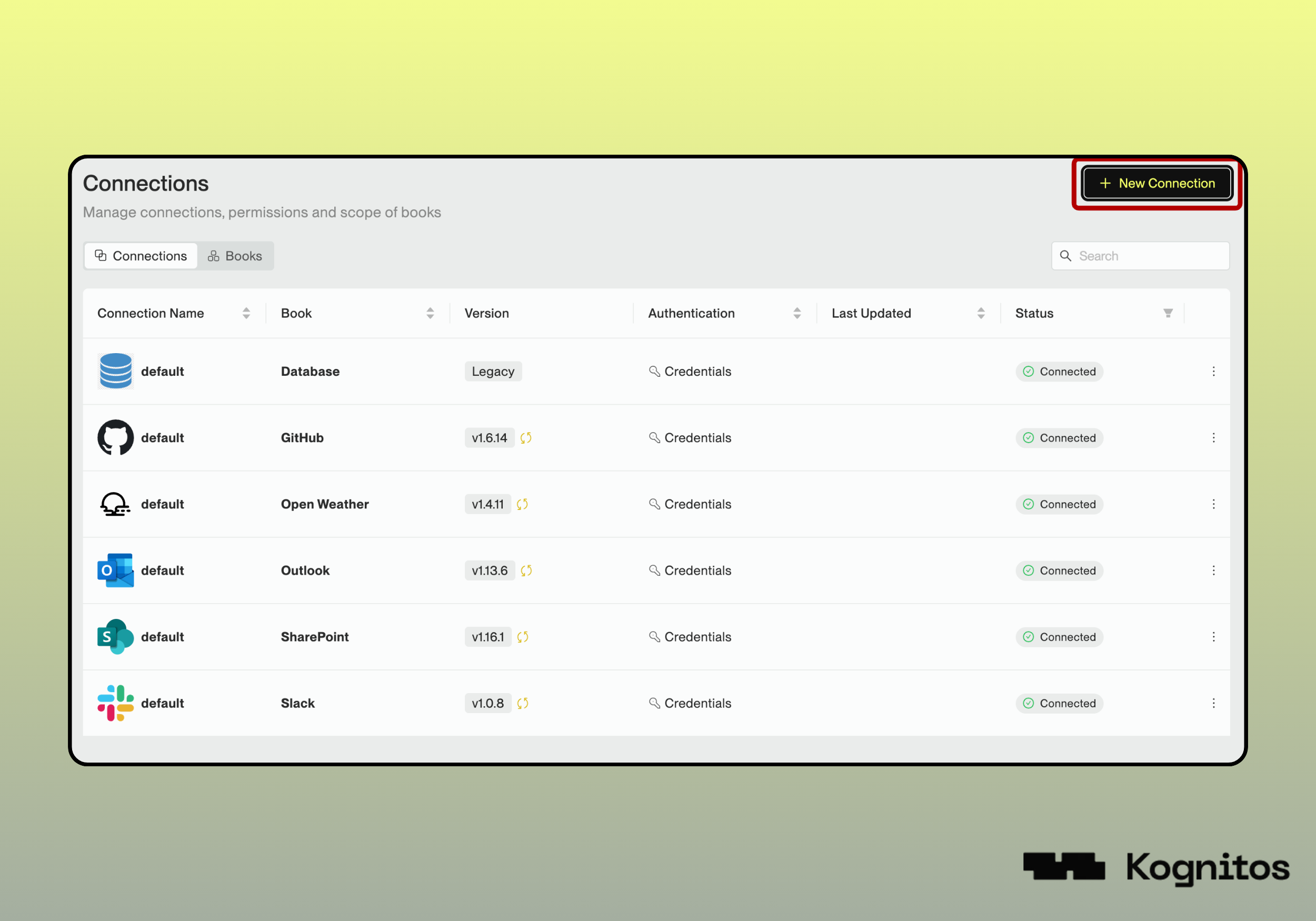
2. You'll see a list of all configured connections, including:
1. **Connection name**
2. **Book name**
3. **Book version**
4. **Authentication method**
5. **Connection status**
This page makes it easy to monitor, update, and troubleshoot your connections in one place.
### Adding a New Connection
You can add a connection either from [**All Books**](/legacy/legacy-experience/books/all-books.md) or directly from **the Connections section**.
{% tabs %}
{% tab title="Add from All Books" %}
1. Navigate to **Books → All Books.**
2. Find the book you'd like to add and click on it.
3. On the [Book Details](/legacy/legacy-experience/books/all-books.md#book-details) page, click **Add Connection**.
4. Configure the connection by providing the name and authentication details, then click **Connect**.
{% endtab %}
{% tab title="Add from Connections" %}
1. Navigate to **Books → Connections**.
2. Click on **+ New Connection**.
3. Select the book you'd like to connect to from the dropdown menu.
4. Configure the connection by providing the name and authentication details, then click **Connect**.
{% endtab %}
{% endtabs %}
{% hint style="info" %}
**Notes**
1. If this is the first connection for the book, the connection name will be set to **default**.
2. Check **Use same credentials for Draft and Published** to apply the same authentication details to both draft and published processes. If unchecked, draft changes will use test credentials.
{% endhint %}
### Switching Connections
Agents will use the **default** connection for a given book, unless otherwise specified. You can switch the connection by using the following syntax in your playground or process:
```
switch to "connection name"
```
Replace **book name** with the book name and **connection name** with the name given to your connection. In the example below, the credentials are switched to those for the secondary GitHub organization.
```
switch github to "secondary"
```