> For the complete documentation index, see [llms.txt](https://docs.kognitos.com/llms.txt). Markdown versions of documentation pages are available by appending `.md` to page URLs; this page is available as [Markdown](https://docs.kognitos.com/legacy/legacy-experience/automation-management/performance-dashboard.md).
# Performance Dashboard
A guide to understanding the Performance Dashboard in Kognitos.
## Overview
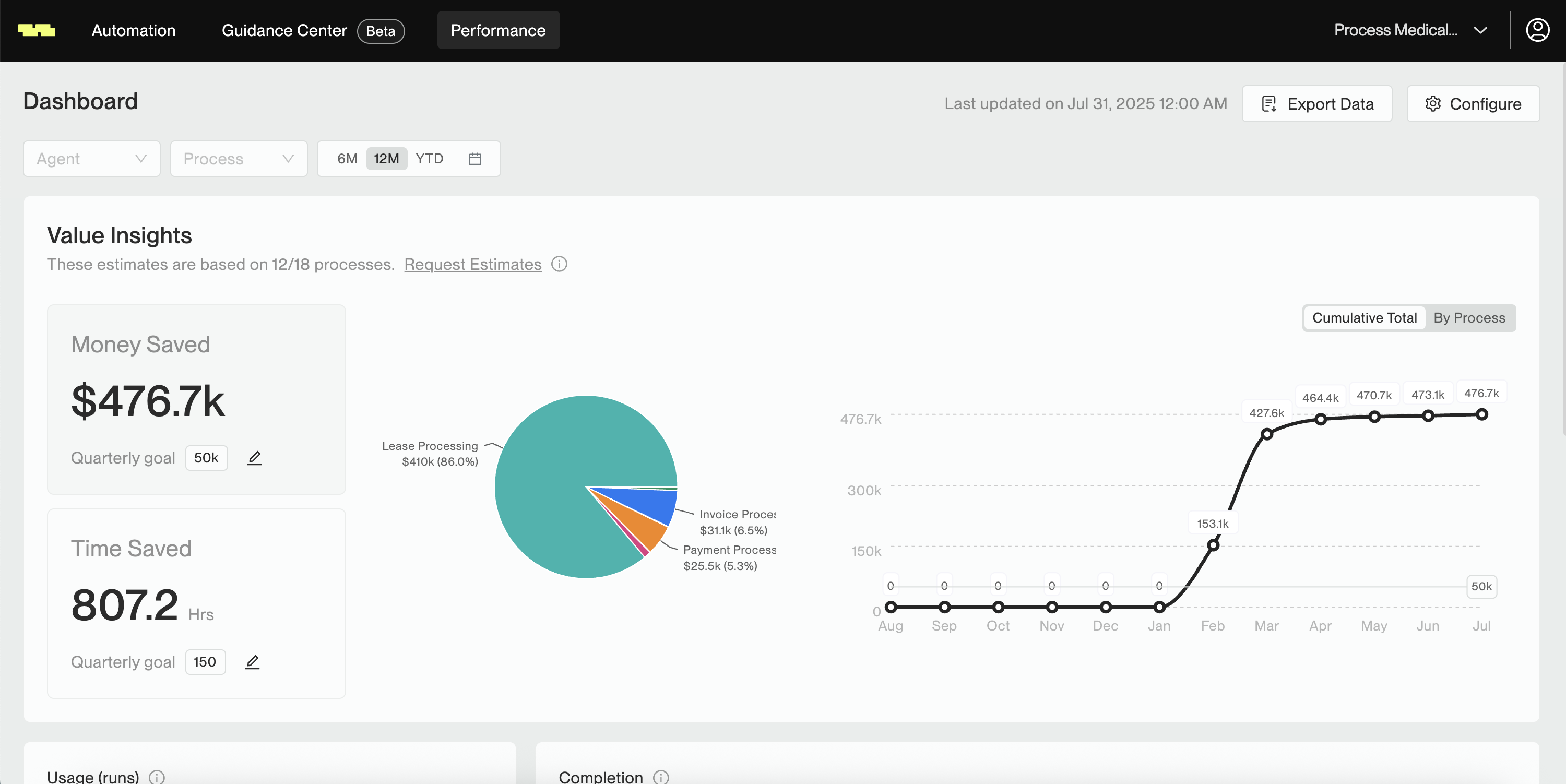
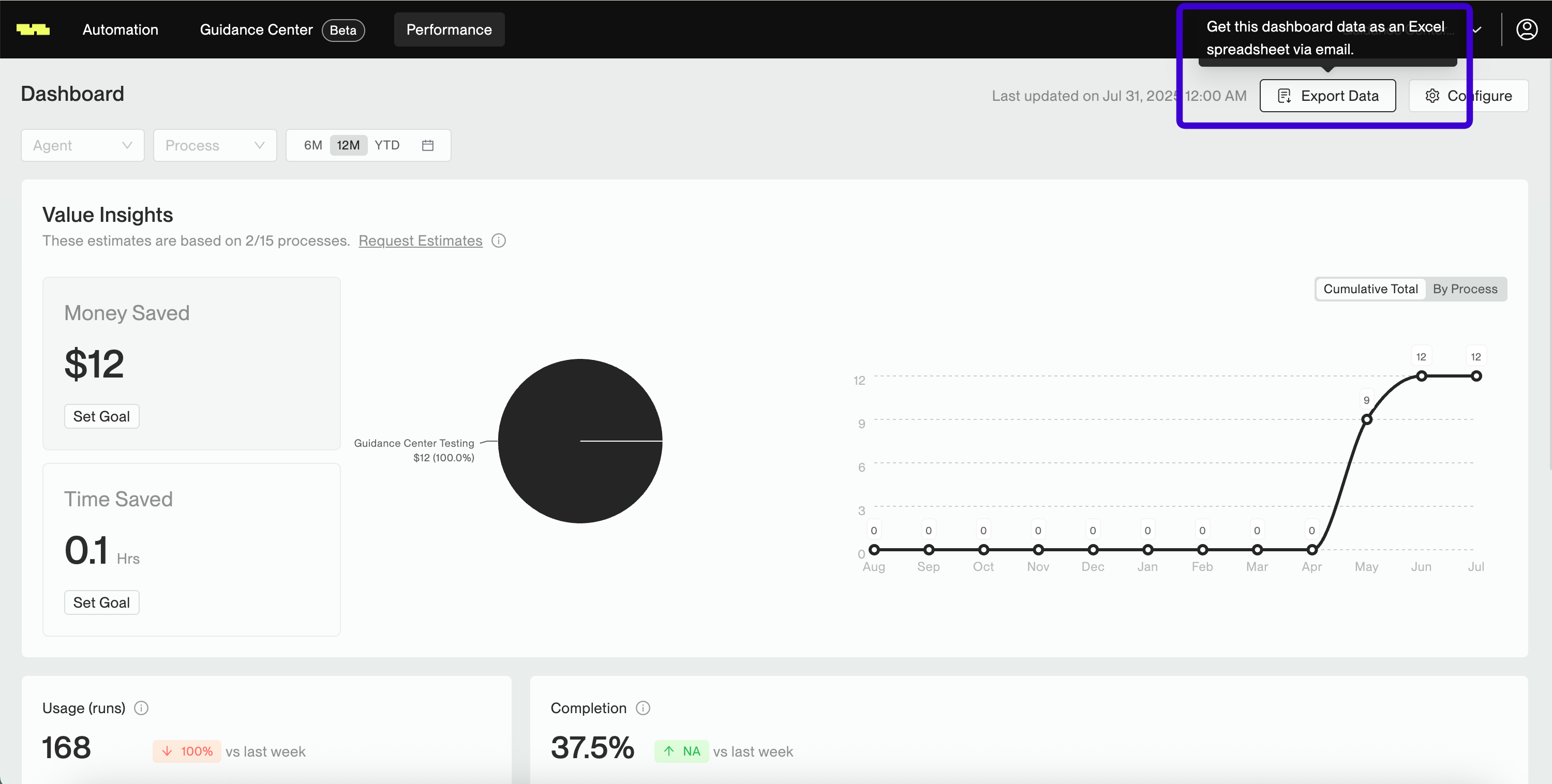
The **Performance Dashboard** provides a centralized view of your automation performance. It also calculates and displays your **return on investment (ROI)**, giving you a clear picture of the value your automations are generating. To access the dashboard, click on Performance in the top navigation bar.
***
## Daily Updates
The dashboard is updated daily to ensure you have access to the latest metrics.
*(Updates occur every day at midnight UTC.)*
***
## Filters
The dashboard can be filtered by agents, published processes, or date ranges.
### 🗃️ Agent Filter
The agent filter allows you to narrow metrics by specific agents. By default, it includes all agents.
### ⚙️ Process Filter
The process filter allows you to narrow metrics by specific processes. By default, it includes all processes from all agents.
### 📅 Date Range Filter
The date range filter allows you to narrow metrics by time period. Filter options include:
* **6M**: Last 6 months, including the current month
* **12M**: Last 12 months, including the current month *(default)*
* **YTD**: Year-to-Date, including the current date
* **Custom range**: A custom range within a 2-year period
***
## Dashboard Components
### 1. Value Insights
Value Insights offers an overview of the time and money saved by using Kognitos. These insights are calculated using the agents and processes selected in the [dashboard filters](#filters). **The summation (Σ) is taken across all selected processes using the date ranges selected.**
{% hint style="danger" %}
**Configuration Required**
Value Insights are based on user-submitted cost and time estimates. Process owners need to [configure these estimates](#configuring-your-dashboard-for-value-insights) for their processes to generate these insights. Click on **Request Estimate** to send an email notification to process creators, or click on **Configure** to set them up.
{% endhint %}
{% hint style="info" %}
Click on *Money Saved* or *Time Saved* to update the visualizations for either category. Use the toggle on the right to switch between *Cumulative Total* and *By Process* views for these insights.
{% endhint %}
#### **Money Saved**
A calculation of your dollar savings based on cost estimates configured for your processes.
> **Money Saved ($)** = Σ (Total Completed Published Runs × Average Money Saved per Run)
#### Time Saved
A calculation of your time savings based on the time estimates configured for your processes.
> **Time Saved (Hours)** = Σ ((Total Completed Published Runs × Average Time Saved per Run) ÷ 60)
### 2. Usage
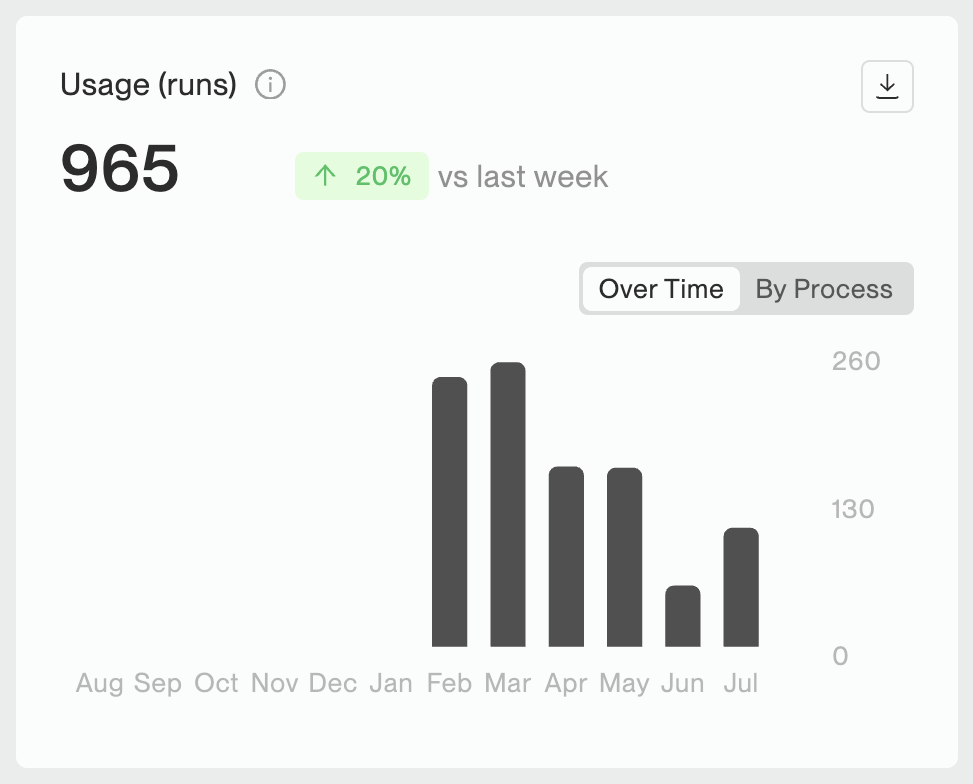
**Usage** shows the total number of published process runs (regardless of completion status). The number is calculated based on the agents and date ranges selected in the [dashboard filters](#filters). You can view usage **Over Time** or **By Process** by choosing the corresponding filter.
### 3. Completion
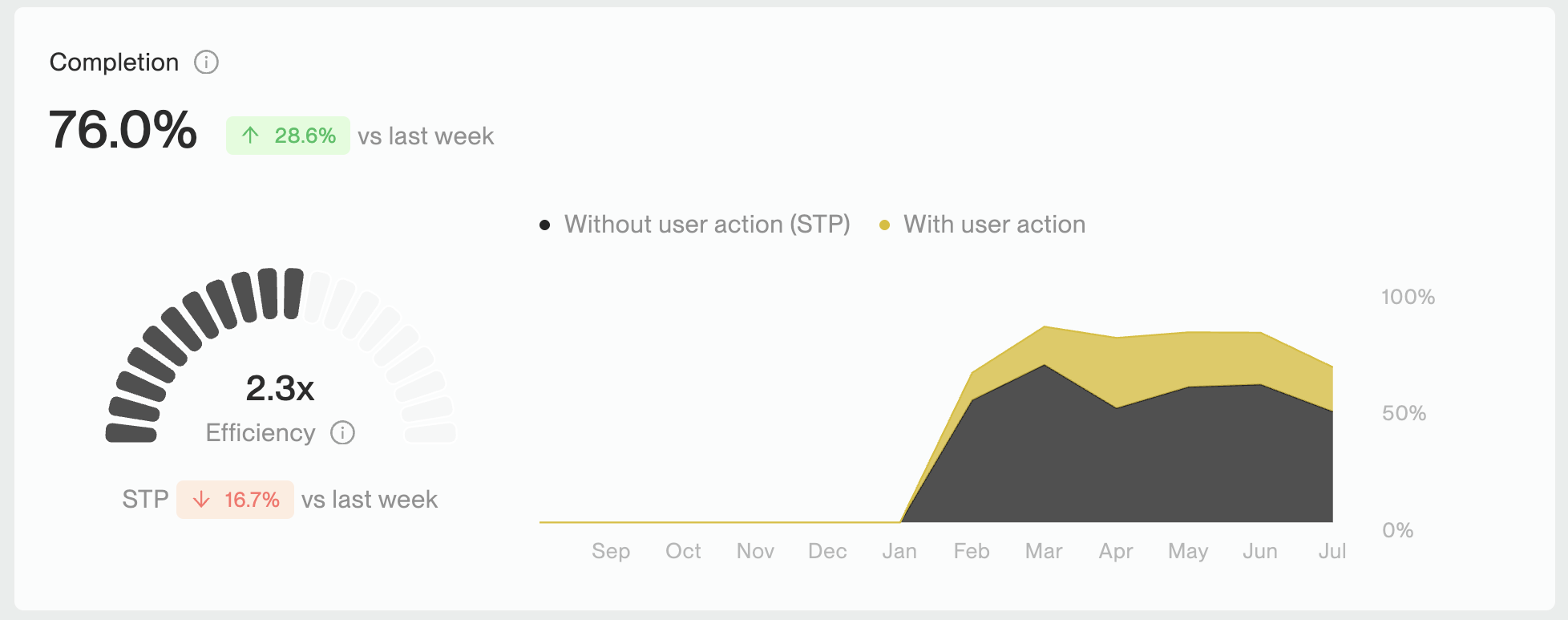
Completion metrics track the success of your published process runs. They are calculated using the agents and date ranges selected in the [dashboard filters](#filters).
#### Completion Rate
The **completion** rate is the percentage of published process runs that have successfully completed out of the total number of published runs. It accounts for:
* Runs that completed automatically (STP)
* Runs that completed with user intervention (Guidance Provided)
> **Completion Rate (%)** = (Total Completed Published Runs ÷ Total Published Runs) × 100
#### Efficiency
This metric calculates the **Straight Through Processing (STP)** rate, which is a measure of the runs that completed without user intervention. The STP rate is translated to an **efficiency** score, which represents how much more work can be completed with the same resources due to automation.
> **Efficiency Score** = 100 ÷ (100 - STP)
**Example**
* An 80% STP results in 5x efficiency.
* With 80% STP, only 20% of the work remains manual.
* The same resources can handle 5 times more work.
### 4. Contract Details
**Contract** details provide an overview of your current contract, including:
#### 📅 Key Dates
* **Start date**: Date your contract began
* **End date:** Date your contract ends
* **Expiration:** Remaining days until your contract expires *(e.g., 35 days)*
#### 📊 Usage Summary
* **Runs Used:** Total number of published and test runs used *(e.g., 151)*
* **Runs Remaining:** Total number of published and test runs still available *(e.g., 349)*
* **Total Allowed Runs:** Maximum number of runs permitted under your contract *(e.g., 500)*
{% hint style="success" %}
If you have questions about your contract or need assistance, please contact our support team at or via our platform's Support AI Chat.
{% endhint %}
***
## Downloading and Exporting Data
Kognitos makes it easy to share insights from your dashboard, without the hassle of screenshots or manual copy-and-pasting.
### Save Images
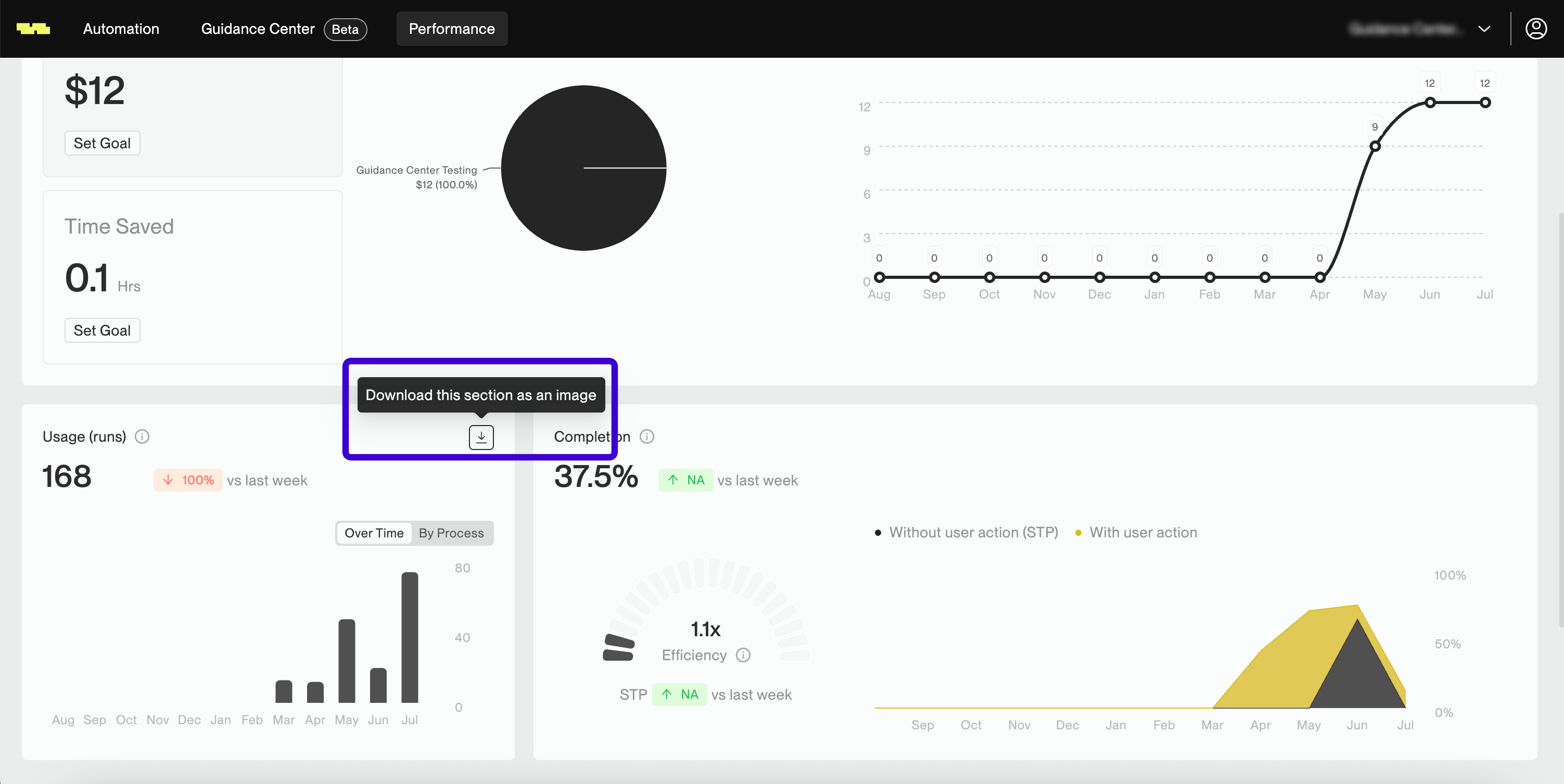
You can download a **PNG image** of any individual metric directly from the dashboard:
1. Hover over any section *(Value Insights, Usage, or Completion)*.
2. A download icon labeled "Download this section as an image" will appear in the top-right corner.
3. Click on the icon to download a `.png` of that section to your device.
### Export Data
Click on Export Data to export an Excel report of your dashboard data. Kognitos will automatically email the `.xlsx` file to you. This feature is great for in-depth analysis, reporting, or sharing insights in spreadsheet format.
{% hint style="info" %}
**Note:** The exported data will reflect the filters you currently have applied on the dashboard.
{% endhint %}
***
## Configuring Your Dashboard for Value Insights
[Value Insights](#1-value-insights) are generated off user-submitted cost and time estimates. While it's not required to provide estimates for every process, these metrics are only generated when the data is configured.
### Configuring Process Estimates
To configure process estimates, follow these steps:
1. Click on **Configure** in the top right corner. This will open up a menu showing all your processes across agents.
2. For a given process, enter in the following details:
* **Time**: Average time saved per process run (in minutes).
* **Cost**: Average cost savings per run (in dollars).
{% hint style="warning" %}
**Handling Invoked Process Estimates**
If the process invokes another process, please exclude the invoked process estimates from the parent process estimates.
{% endhint %}
3. Click **Save** to apply your configuration.
### Setting Quarterly Goals
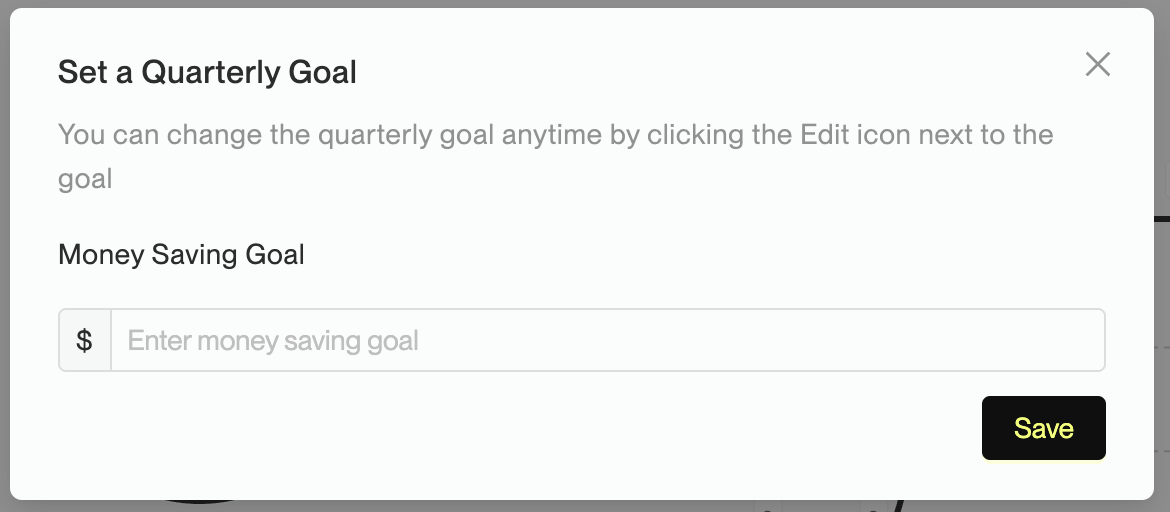
You can set quarterly goals for Value Insight metrics. To do this:
1. Click on **Set Goal** underneath either **Money Saved** or **Time Saved**.
2. Enter your goal *(dollars or hours).*
3. Click **Save**.