> For the complete documentation index, see [llms.txt](https://docs.kognitos.com/llms.txt). Markdown versions of documentation pages are available by appending `.md` to page URLs; this page is available as [Markdown](https://docs.kognitos.com/legacy/legacy-experience/automation-areas/tables-v2/get-a-column/column-formulas.md).
# Column Formulas
Use column formulas to dynamically populate and transform column data in your tables.
## Overview
A **column formula** is an expression that defines how to calculate values for a table column. Column formulas use data from other columns, tables, or predefined logic to dynamically populate column values in a table. They are useful for:
* **Data transformation** — combining first and last names, extracting values from JSON.
* **Mathematical operations** — calculating totals, differences, or conditional values.
* **Sequence generation** — creating ordered lists of numbers, dates, or time intervals.
## How to Add a Column Formula
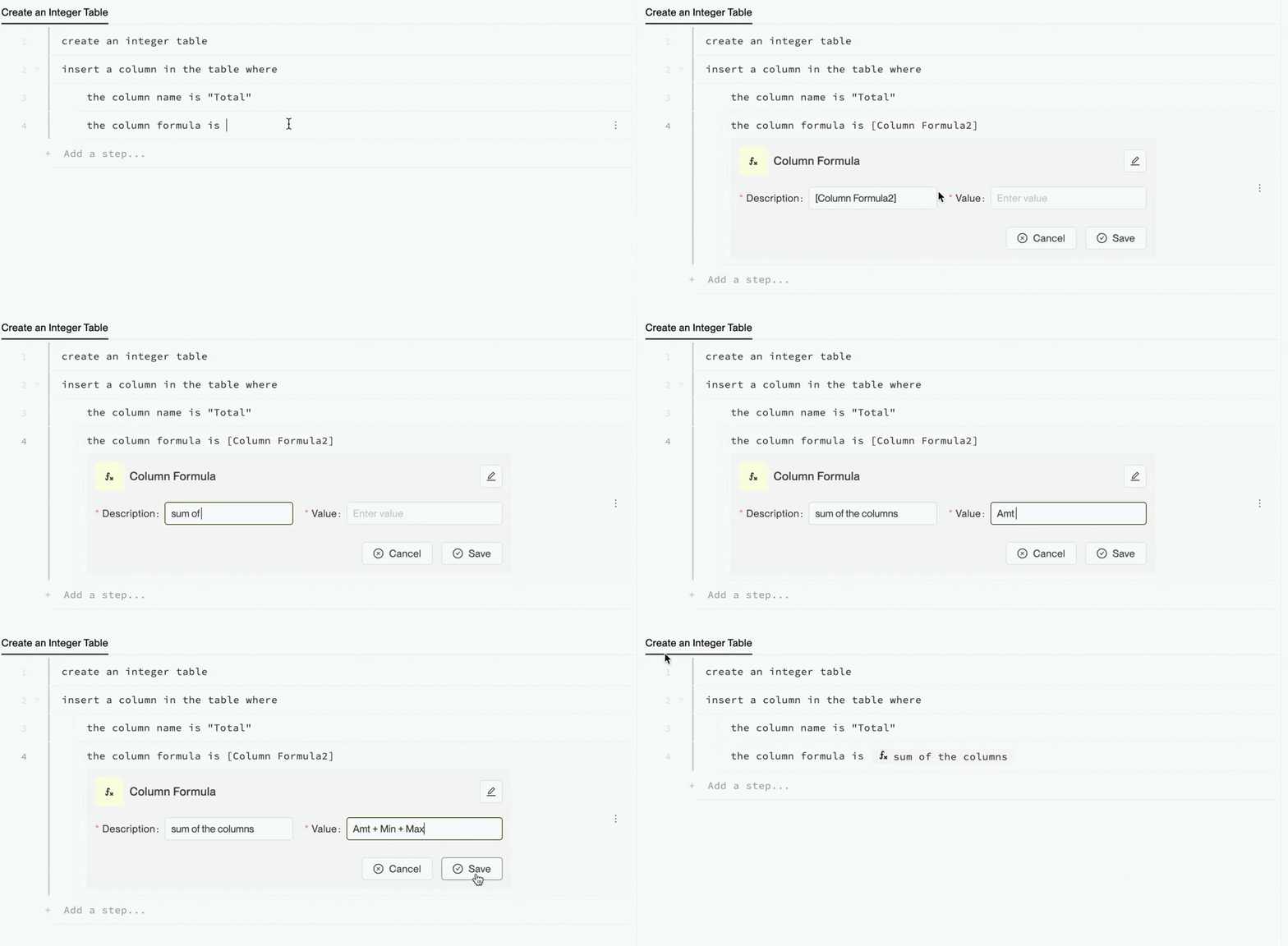
1. In your automation, write:
```
the column formula is
```
2. Then, type a forward slash (/) to open the widget menu.
3. Select Column Formula.
4. Provide a **Description** that explains what the formula does.
5. Enter the formula expression in the **Value** field.
6. Click Save to insert the formula into your automation.
## Data Manipulation Formulas
### 1. `combine`
Concatenates column values together using a specified delimiter.
**Syntax**
```
combine(delimiter, column1, column2, ...)
```
**Parameters**
| Parameter | Type | Description |
| ----------- | -------- | ------------------------------------------------------------------------ |
| `delimiter` | `string` | The delimiter used to separate the values. Examples: `" "`, `","`, `";"` |
| `*columns` | `Any` | The names of the columns to concatenate. |
**Example**
This example combines the **First Name** and **Last Name** columns with a space in between.
{% tabs %}
{% tab title="Automation" %}
```
insert a column in the table where
the column name is "Full Name"
the column formula is @{"type": "column_formula", "value": "combine(' ', 'First Name', 'Last Name')"}
```
{% endtab %}
{% endtabs %}
***
### 2. `extract_property_from_column`
Extracts a property value from a JSON string in a specified column.
**Syntax**
```
extract_property_from_column(property_name, column_name)
```
**Parameters**
| Parameter | Type | Description |
| --------------- | -------- | ------------------------------------------- |
| `property_name` | `string` | The property name to extract from the JSON. |
| `column_name` | `string` | The column containing JSON strings. |
**Example**
Suppose you have a table where each row contains structured data in the **Row with GST** column — a JSON string that includes the item name and its GST (Goods and Services Tax) amount. You want to extract the GST value from that JSON and insert it as a new, standalone column called **GST**.
| Item | Location | Row with GST | Sale Price | Tax |
| ------ | -------- | -------------------------------- | ---------- | ---- |
| Book | Store A | {"Item": "Book", "GST": 10.0} | 100.0 | 10.0 |
| Laptop | Store B | {"Item": "Laptop", "GST": 100.0} | 200.0 | 20.0 |
This command adds a new column named **GST** by parsing each row’s JSON string and extracting the value associated with the "GST" key.
{% tabs %}
{% tab title="Automation" %}
```
insert a column in the table where
the column name is "GST"
the column formula is @{"type": "column_formula", "value": "extract_property_from_column('GST', 'Row with GST')", "description": "extract the GST from the value in 'Row with GST' column."}
```
{% endtab %}
{% tab title="Results" %}
**the table**
| GST | Item | Location | Row with GST | Sale Price | Tax |
| ------------- | ------ | -------- | -------------------------------- | ---------- | ---- |
| 10.0 | Book | Store A | {"Item": "Book", "GST": 10.0} | 100.0 | 10.0 |
| 100.0 | Laptop | Store B | {"Item": "Laptop", "GST": 100.0} | 200.0 | 20.0 |
| {% endtab %} | | | | | |
| {% endtabs %} | | | | | |
***
### 3. `corresponding_value_from_other_table`
Retrieves values from another table using **fuzzy matching**. It returns the best match, even if that match is reused across multiple rows. Useful when you're okay with repeated matches and just want the closest available value.
**Syntax**
```
corresponding_value_from_other_table(query_column, other_table_match_column, other_table_return_column)
```
**Parameters**
| Parameter | Type | Description |
| --------------------------- | -------- | --------------------------------------------------------------------------- |
| `query_column` | `column` | Column in the current table containing the values to match. |
| `other_table_match_column` | `string` | Name of the column in the other table to use for matching. |
| `other_table_return_column` | `string` | Name of the column in the other table to retrieve values from once matched. |
**Example**
Suppose you are working with two tables from a spreadsheet:
**Main Table** *(Sheet with headers: "Pokemon" to "Finishing Move")*
| Pokemon | Type | Size | Finishing Move |
| --------- | -------- | -------- | -------------- |
| Pikachu | Electric | Small | Thunderbolt |
| Charizard | Fire | Large | Blast Burn |
| Mewtwo | Psychic | Medium | Psystrike |
| Gyarados | Water | Gigantic | Hydro Pump |
| Bulbasaur | Grass | Small | Solar Beam |
| Pikachu | Wildcard | Small | Thunderbolt |
**Rating Table** *(Sheet with headers: "Name" to "Rating")*
| Name | Rating |
| --------- | ------ |
| Pikachu | 70 |
| Charizard | 80 |
| Mewtwo | 90 |
| Gyarados | 10 |
| Bulbasaur | 23 |
| Pikachu | 100 |
You want to add the Pokémon’s type from the Main Table to the Rating Table, even if there are small differences in names (e.g., extra spaces or capitalization). Here's how you can define the column:
{% tabs %}
{% tab title="Automation" %}
```
get the sheet's table whose first header is "Pokemon" and whose last header is "Finishing Move"
use the above as the main table
get the sheet's table whose first header is "Name" and whose last header is "Rating"
use the above as the rating table
insert a column in the rating table where
the column name is "PType"
the other table is the main table
the column formula is @{"type": "column_formula", "value": "corresponding_value_from_other_table(Name, 'Pokemon', 'Type')"}
```
{% endtab %}
{% tab title="Results" %}
**the rating table**
The fuzzy match finds both "Pikachu" rows in the main table and chooses the best match for each.
| Name | Rating | PType |
| ------------- | ------ | -------- |
| Pikachu | 70 | Electric |
| Charizard | 80 | Fire |
| Mewtwo | 90 | Psychic |
| Gyarados | 10 | Water |
| Bulbasaur | 23 | Grass |
| Pikachu | 100 | Wildcard |
| {% endtab %} | | |
| {% endtabs %} | | |
***
### 4. `corresponding_value_from_other_table_unique`
Tries to assign each row a **unique fuzzy match** from another table. It performs a row-by-row comparison, returning a value from a specified column in the second table when the values in a specified column match *(depending on the match percentage)*.
Unlike `corresponding_value_from_other_table`, this function tries to assign each row in the main table a **unique** match from the other table. If no unused match is found, it falls back to the previously matched row. This is useful when you want to avoid duplicate matches where possible.
**Syntax**
```
corresponding_value_from_other_table_unique(query_column, other_table_match_column, other_table_return_column, match_percentage)
```
**Parameters**
| Parameter | Type | Description |
| --------------------------- | -------- | ----------------------------------------------------------------------------------------------- |
| `query_column` | `column` | Column in the current table containing the values you want to match. |
| `other_table_match_column` | `string` | Name of the column in the **other** table to compare against. |
| `other_table_return_column` | `string` | Name of the column in the **other** table whose values you want returned. |
| `match_percentage` | `int` | Minimum match accuracy (0–100) required for values to be considered a match. Exact match = 100. |
**Example**
Suppose you are working with two tables from a spreadsheet:
**Main Table** *(Sheet with headers: "Pokemon" to "Finishing Move")*
| Pokemon | Type | Size | Finishing Move |
| --------- | -------- | -------- | -------------- |
| Pikachu | Electric | Small | Thunderbolt |
| Charizard | Fire | Large | Blast Burn |
| Mewtwo | Psychic | Medium | Psystrike |
| Gyarados | Water | Gigantic | Hydro Pump |
| Bulbasaur | Grass | Small | Solar Beam |
**Rating Table** *(Sheet with headers: "Name" to "Rating")*
| Name | Rating |
| --------- | ------ |
| Pikachu | 70 |
| Charizard | 80 |
| Mewtwo | 90 |
| Gyarados | 10 |
| Bulbasaur | 23 |
You want to add a **PType** column to the Rating Table that looks up the corresponding Type for each Pokémon from the Main Table. Here, the formula will populate the **PType** column in the Rating Table with the matching type from the Main Table, based on Pokémon names.
{% tabs %}
{% tab title="Automation" %}
```
get the sheet's table whose first header is "Pokemon" and whose last header is "Finishing Move"
use the above as the main table
get the sheet's table whose first header is "Name" and whose last header is "Rating"
use the above as the rating table
insert a column in the rating table where
the column name is "PType"
the other table is the main table
the column formula is @{"type": "column_formula", "value": "corresponding_value_from_other_table_unique(Name, 'Pokemon', 'Type', 80)"}
```
{% endtab %}
{% tab title="Results" %}
**the rating table**
| Name | Rating | PType |
| ------------- | ------ | -------- |
| Pikachu | 70 | Electric |
| Charizard | 80 | Fire |
| Mewtwo | 90 | Psychic |
| Gyarados | 10 | Water |
| Bulbasaur | 23 | Grass |
| {% endtab %} | | |
| {% endtabs %} | | |
***
### 5. `sequence_of_numbers`
Generates a number sequence that increases by a specified interval.
**Syntax**
```
sequence_of_numbers(start, interval)
```
**Parameters**
| Parameter | Type | Description |
| ---------- | ----- | ------------------------------------------------------ |
| `start` | `int` | The first number in the sequence. |
| `interval` | `int` | The interval (difference) between consecutive numbers. |
**Example**
This example generates a column of numbers that starts at 10 and increases by 5 for each row.
{% tabs %}
{% tab title="Automation" %}
```
create a table where
the headers are "ID"
the row count is 3
update the column in the table where
the column name is "ID"
the column values are "A001", "A002", "A003"
insert a column in the table where
the column name is "seq"
the column formula is @{"type": "column_formula", "value": "sequence_of_numbers(10, 5)", "description": "Sequence of numbers, starting with 10, interval of 5."}
```
{% endtab %}
{% tab title="Results" %}
**the table**
| ID | seq |
| ------------- | --- |
| A001 | 10 |
| A002 | 15 |
| A003 | 20 |
| {% endtab %} | |
| {% endtabs %} | |
***
### 6. `conditional_column_copy`
Conditionally copies a column value based on a specified condition.
**Syntax**
```
conditional_column_copy(column_value, condition)
```
**Parameters**
| Parameter | Type | Description |
| -------------- | ------ | ------------------------------------------------------- |
| `column_value` | `Any` | The value to potentially copy. |
| `condition` | `bool` | The condition used to decide whether to copy the value. |
**Example**
This example copies values from the "Quantity" column into a new "First Type" column, but only if the value is greater than 12.
{% tabs %}
{% tab title="Automation" %}
```
create a table where
the headers are "ID"
the row count is 3
update the column in the table where
the column name is "ID"
the column values are "A001", "A002", "A003"
insert a column in the table where
the column name is "Quantity"
the column values are 10, 13, 20
insert a column in the table where
the column name is "First Type"
the column formula is @{"type": "column_formula", "value": "conditional_column_copy(Quantity, Quantity > 12)"}
```
{% endtab %}
{% tab title="Results" %}
**the table**
| ID | Quantity | First Type |
| ------------- | -------- | ---------- |
| A001 | 10 | - |
| A002 | 13 | 13 |
| A003 | 20 | 20 |
| {% endtab %} | | |
| {% endtabs %} | | |
***
### 7. Sum
Adds two or more columns together. Each column is separated by a space and a `+` symbol.
**Syntax**
```
{column1} + {column2} + {column3} ...
```
#### Parameters
| Parameter | Type | Description |
| --------- | -------- | ------------------------------------- |
| `column1` | `string` | The name of the first column to add. |
| `column2` | `string` | The name of the second column to add. |
| `column3` | `string` | The name of the third column to add. |
#### Example
In this example, a table is created with three integer columns: **Amt**, **Min**, and **Max** using the [Create an Integer Table](/legacy/legacy-experience/automation-areas/tables-v2/create-a-table/create-an-integer-table.md) procedure.
| Amt | Min | Max |
| --- | --- | --- |
| 100 | 10 | 300 |
| 200 | 5 | 500 |
A column formula is then applied to sum the values from these columns, and the result is stored in a new column named **Total**.
{% tabs %}
{% tab title="Automation" %}
```
create an integer table
insert a column in the table where
the column name is "Total"
the column formula is @{"type": "column_formula", "value": "Amt +Min + Max", "description": "Sum of all columns"}
```
{% endtab %}
{% tab title="Results" %}
| Amt | Min | Max | Total |
| ------------- | --- | --- | ----- |
| 100 | 10 | 300 | 410 |
| 200 | 5 | 500 | 705 |
| {% endtab %} | | | |
| {% endtabs %} | | | |
## Date and Time Formulas
### 1. `elapsed_time_between_two_date_columns`
Calculates the elapsed time between two date columns in specified units.
**Syntax**
```
elapsed_time_between_two_date_columns(date_column1, date_column2, time_unit)
```
#### Parameters
| Parameter | Type | Description |
| -------------- | -------- | ---------------------------------------------------------------------- |
| `date_column1` | `string` | The name of the first date column. |
| `date_column2` | `string` | The name of the second date column. |
| `time_unit` | `string` | The unit of time to calculate (`days`, `hours`, `minutes`, `seconds`). |
#### Example
This example calculates the number of days between a **Start Date** and an **End Date** column:
{% tabs %}
{% tab title="Automation" %}
```
insert a column in the table where
the column name is "Days Elapsed"
the column formula is @{"type": "column_formula", "value": "elapsed_time_between_two_date_columns('Start Date', 'End Date', 'days')"}
```
{% endtab %}
{% endtabs %}
***
### 2. `construct_date`
Returns **the date** from the row's day, month, and year in a specified format.
#### Syntax
```
construct_date(day, month, year)
```
#### Parameters
| Parameter | Type | Description |
| ------------- | -------- | -------------------------------------------------------------- |
| `day` | `int` | The day component. |
| `month` | `int` | The month component. |
| `year` | `int` | The year component. |
| `date_format` | `string` | The format for the output date string *(default: "%Y/%m/%d").* |
#### Example
{% tabs %}
{% tab title="Automation" %}
```
insert a column in the table where
the column name is "Start Date"
the column formula is @{"type": "column_formula", "value": "construct_date(2025, July, 30)"}
```
{% endtab %}
{% endtabs %}
***
### 3. `sequence_of_dates`
Generates a **sequence of dates** that increment by a specified number of days.
#### Syntax
```
sequence_of_dates(start_date, interval_days, format)
```
#### Parameters
| Parameter | Type | Description |
| --------------- | -------- | ---------------------------------------------------------------- |
| `start_date` | `string` | Starting date in YYYY-MM-DD format. |
| `interval_days` | `int` | Number of days between consecutive dates. |
| `format` | `string` | The format in which to display the date *(default: "%Y-%m-%d")*. |
#### Example
This example creates a column of dates with weekly intervals that start from January 1, 2024.
{% tabs %}
{% tab title="Automation" %}
```
create a table where
the headers are "ID"
the row count is 3
update the column in the table where
the column name is "ID"
the column values are "A001", "A002", "A003"
insert a column in the table where
the column name is "dates"
the column formula is @{"type": "column_formula", "value": "sequence_of_dates("2024-01-01", 7, "%Y-%m-%d")", "description": "Sequence of dates starting from Jan 1 2024, incrementing by 7 days"}
```
{% endtab %}
{% tab title="Results" %}
**the table**
| ID | dates |
| ------------- | ---------- |
| A001 | 2024-01-01 |
| A002 | 2024-01-08 |
| A003 | 2024-01-15 |
| {% endtab %} | |
| {% endtabs %} | |
***
### 4. `sequence_of_times`
Generates a **sequence of times** that increment by a specified number of minutes.
#### Syntax
```
sequence_of_times(start_time, interval_minutes, format)
```
#### Parameters
| Parameter | Type | Description |
| ------------------ | -------- | ---------------------------------------------------------- |
| `start_time` | `string` | Starting time in HH:MM format. |
| `interval_minutes` | `int` | Number of minutes between consecutive times. |
| `format` | `int` | Format string for the output time *(default: '%I:%M %p')*. |
#### Example
This example generates a column of times that starts at 12:30 AM and increases by 30-minute intervals.
{% tabs %}
{% tab title="Automation" %}
```
create a table where
the headers are "ID"
the row count is 3
update the column in the table where
the column name is "ID"
the column values are "A001", "A002", "A003"
insert a column in the table where
the column name is "times"
the column formula is @{"type": "column_formula", "value": "sequence_of_times("12:30 AM", 30, "%I:%M %p")", "description": "Sequence of times starting from 12:30 AM, incrementing by 30 minutes"}
```
{% endtab %}
{% tab title="Results" %}
**the table**
| ID | times |
| ------------- | -------- |
| A001 | 12:30 AM |
| A002 | 01:00 AM |
| A003 | 01:30 AM |
| {% endtab %} | |
| {% endtabs %} | |
***
### 5. `sequence_of_months`
Generates a **sequence of months** that increments by a specified number of months.
#### Syntax
```
sequence_of_months(start_month, interval_months, format)
```
#### Parameters
| Parameter | Type | Description |
| ----------------- | -------- | -------------------------------------------------------- |
| `start_month` | `string` | Starting month in YYYY-MM format. |
| `interval_months` | `int` | Number of months between consecutive dates. |
| `format` | `string` | Format string for the output month *(default: '%Y-%m')*. |
#### Example
This example generates a column of months that starts from January 2024 and increments by 2 months.
{% tabs %}
{% tab title="Automation" %}
```
create a table where
the headers are "ID"
the row count is 3
update the column in the table where
the column name is "ID"
the column values are "A001", "A002", "A003"
insert a column in the table where
the column name is "months"
the column formula is @{"type": "column_formula", "value": "sequence_of_months("2024-01", 2, "%Y-%m")", "description": "Sequence of months starting from Jan 2024, incrementing by 2 months"}
```
{% endtab %}
{% tab title="Results" %}
**the table**
| ID | months |
| ------------- | ------- |
| A001 | 2024-01 |
| A002 | 2024-03 |
| A003 | 2024-05 |
| {% endtab %} | |
| {% endtabs %} | |
***
### 6. `sequence_of_mondays`
Generates a **sequence of Mondays** that increments by a specified number of weeks.
#### Syntax
```
sequence_of_mondays(start_monday, interval_weeks, format)
```
#### Parameters
| Parameter | Type | Description |
| ---------------- | -------- | ---------------------------------------------------------- |
| `start_monday` | `string` | Starting Monday date in YYYY-MM-DD format. |
| `interval_weeks` | `int` | Number of weeks between consecutive Mondays. |
| `format` | `int` | Format string for the output date *(default: '%Y-%m-%d')*. |
#### Example
This example generates a column of Mondays that starts from January 1, 2024 and increments by 2 weeks.
{% tabs %}
{% tab title="Automation" %}
```
create a table where
the headers are "ID"
the row count is 3
update the column in the table where
the column name is "ID"
the column values are "A001", "A002", "A003"
insert a column in the table where
the column name is "mondays"
the column formula is @{"type": "column_formula", "value": "sequence_of_mondays("2024-01-01", 2, "%Y-%m-%d")", "description": "Sequence of Mondays starting from Jan 1 2024, incrementing by 2 weeks"}
```
{% endtab %}
{% tab title="Results" %}
**the table**
| ID | mondays |
| ------------- | ---------- |
| A001 | 2024-01-01 |
| A002 | 2024-01-15 |
| A003 | 2024-01-29 |
| {% endtab %} | |
| {% endtabs %} | |
***
### 7. `sequence_of_weekdays`
Generates a **sequence of weekdays** (Monday to Friday) that start from a given date *(skipping weekends)*.
#### Syntax
```
sequence_of_weekdays(start_date, interval_weekdays, format)
```
#### Parameters
| Parameter | Type | Description |
| ------------------- | -------- | ---------------------------------------------------------- |
| `start_date` | `string` | Starting date in YYYY-MM-DD format. |
| `interval_weekdays` | `int` | Number of weekdays between consecutive dates. |
| `format` | `int` | Format string for the output date *(default: '%Y-%m-%d')*. |
#### Example
This example generates a column of weekdays that starts from January 1, 2024 (Monday) and increments by 2 weekdays.
{% tabs %}
{% tab title="Automation" %}
```
create a table where
the headers are "ID"
the row count is 3
update the column in the table where
the column name is "ID"
the column values are "A001", "A002", "A003"
insert a column in the table where
the column name is "weekdays"
the column formula is @{"type": "column_formula", "value": "sequence_of_weekdays("2024-01-01", 2, "%Y-%m-%d")", "description": "Sequence of weekdays starting from Jan 1 2024, skipping weekends, interval of 2 weekdays"}
```
{% endtab %}
{% tab title="Results" %}
**the table**
| ID | weekdays |
| ------------- | ---------- |
| A001 | 2024-01-01 |
| A002 | 2024-01-03 |
| A003 | 2024-01-05 |
| {% endtab %} | |
| {% endtabs %} | |