> For the complete documentation index, see [llms.txt](https://docs.kognitos.com/llms.txt). Markdown versions of documentation pages are available by appending `.md` to page URLs; this page is available as [Markdown](https://docs.kognitos.com/guides/platform/integrations/google-authentication.md).
# Google Authentication
Set up shared Google OAuth authentication for Gmail, Google Calendar, Google Chat, Google Docs, Google Drive, and Google Sheets.
Use this guide when you connect a Google integration in Kognitos with Continue with Google.
You can create one Google OAuth app in Google Cloud and reuse the same **Client ID** and **Client Secret** across these integrations:
* [Gmail](/guides/platform/integrations/gmail.md)
* [Google Calendar](/guides/platform/integrations/calendar.md)
* [Google Chat](/guides/platform/integrations/chat.md)
* [Google Docs](/guides/platform/integrations/docs.md)
* [Google Drive](/guides/platform/integrations/drive.md)
* [Google Sheets](/guides/platform/integrations/sheets.md)
{% hint style="info" %}
Google Docs, Google Drive, and Google Sheets also support service account authentication. This page covers the shared OAuth setup that works across all six Google integrations. For service account setup, see [Google Service Account Authentication](/guides/platform/integrations/google-service-account-authentication.md).
{% endhint %}
## Before You Start
Make sure you have:
* Access to a Google Cloud project, or permission to create one
* Permission to configure the Google Auth Platform and create OAuth clients
* Access to the Kognitos workspace where you want to add the connection
If your organization wants to avoid Google's unverified app warning, create the OAuth app as an **Internal** app in your Google Workspace organization.
## Set Up the OAuth App in Google Cloud
{% stepper %}
{% step %}
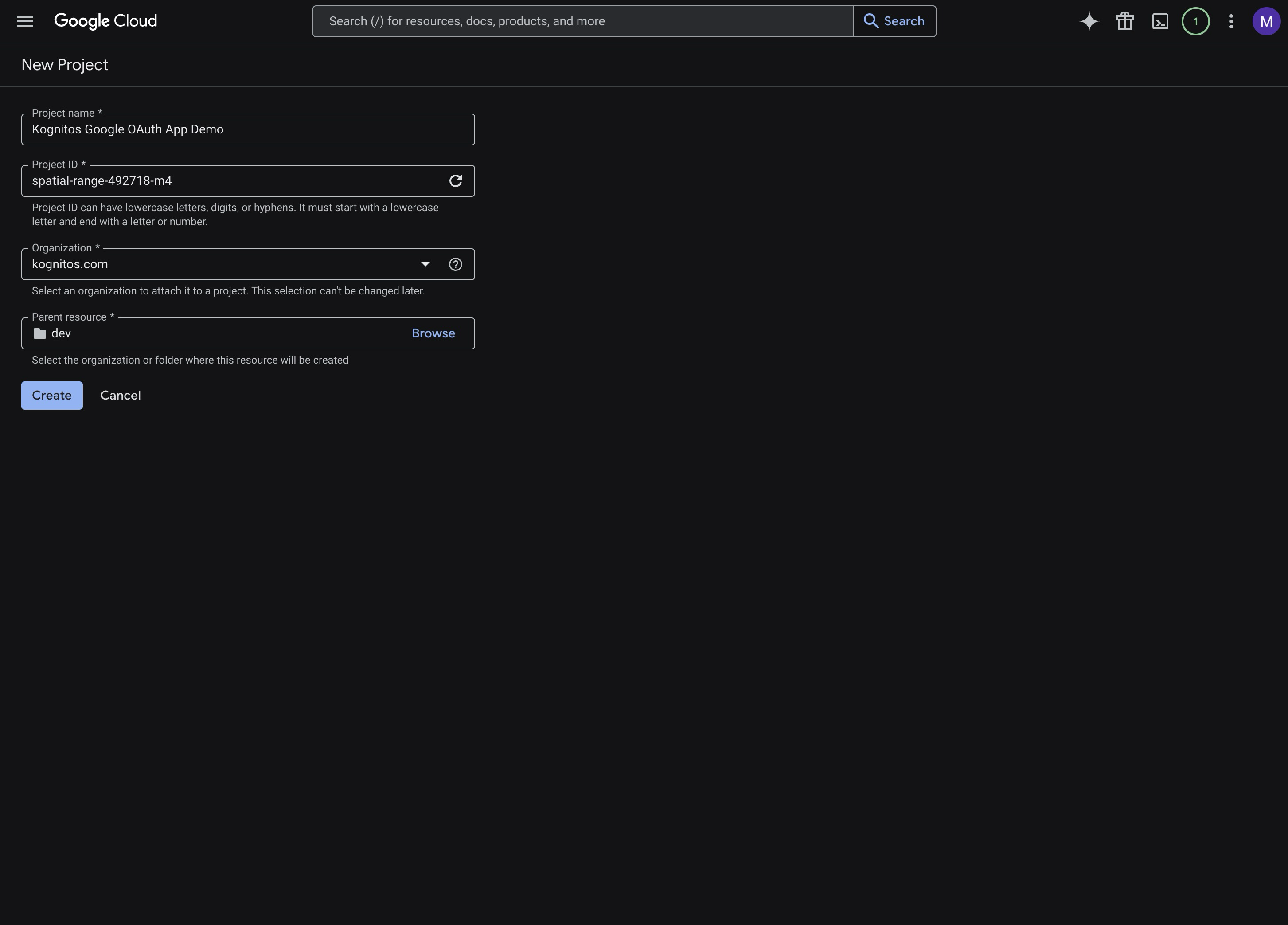
**Create or select a Google Cloud project**
In [Google Cloud Console](https://console.cloud.google.com/), create a new project or open an existing one that will own the OAuth app.
{% endstep %}
{% step %}
**Configure the consent screen**
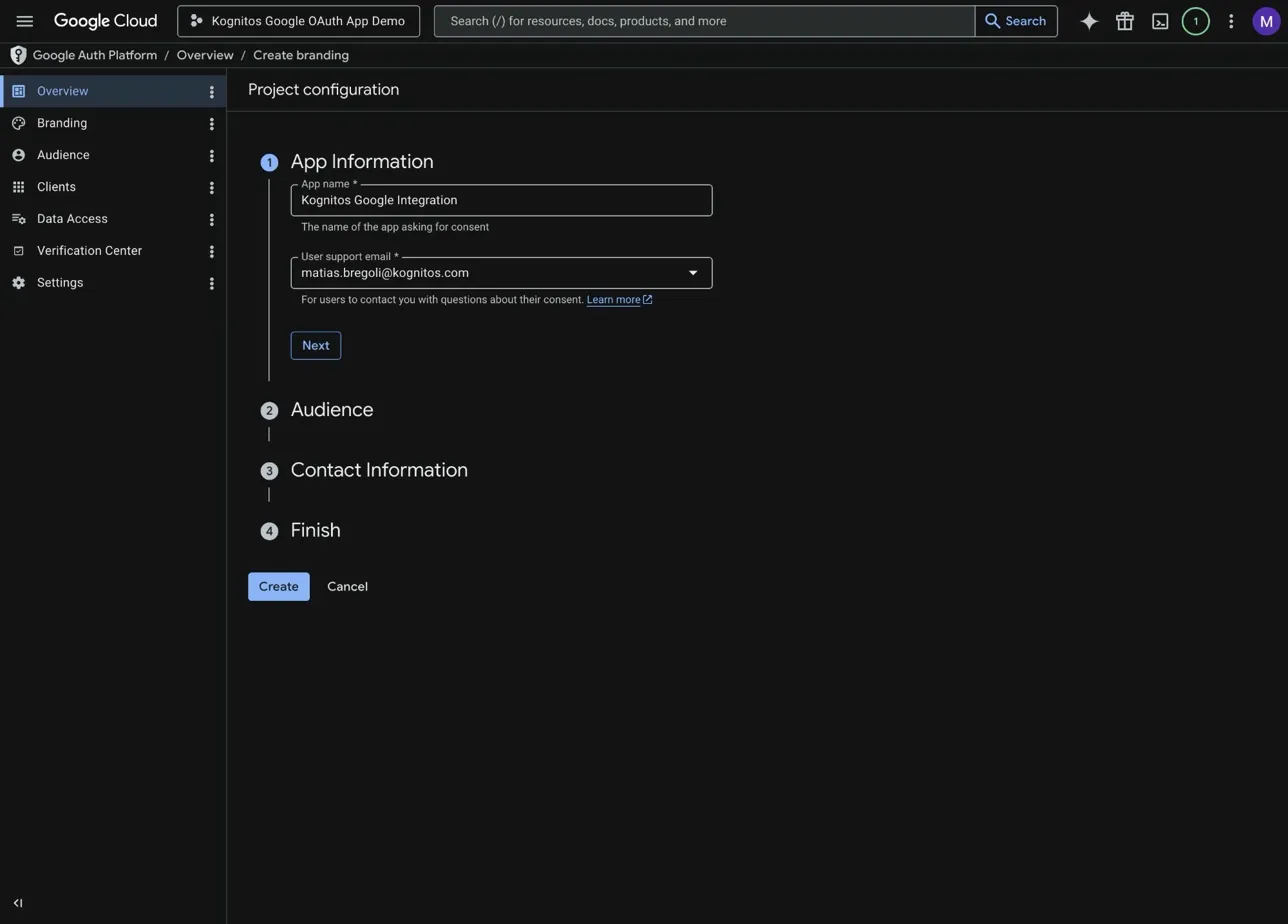
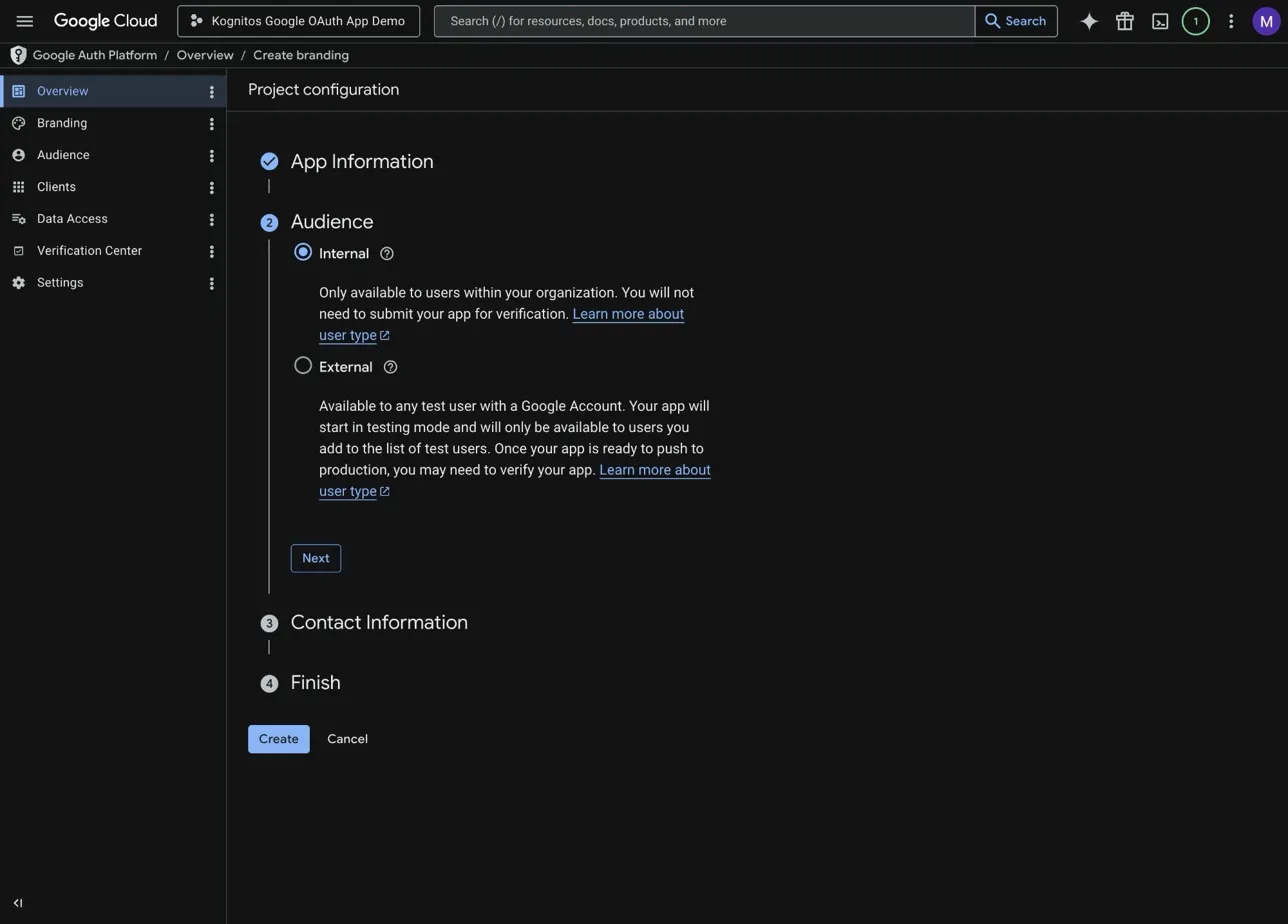
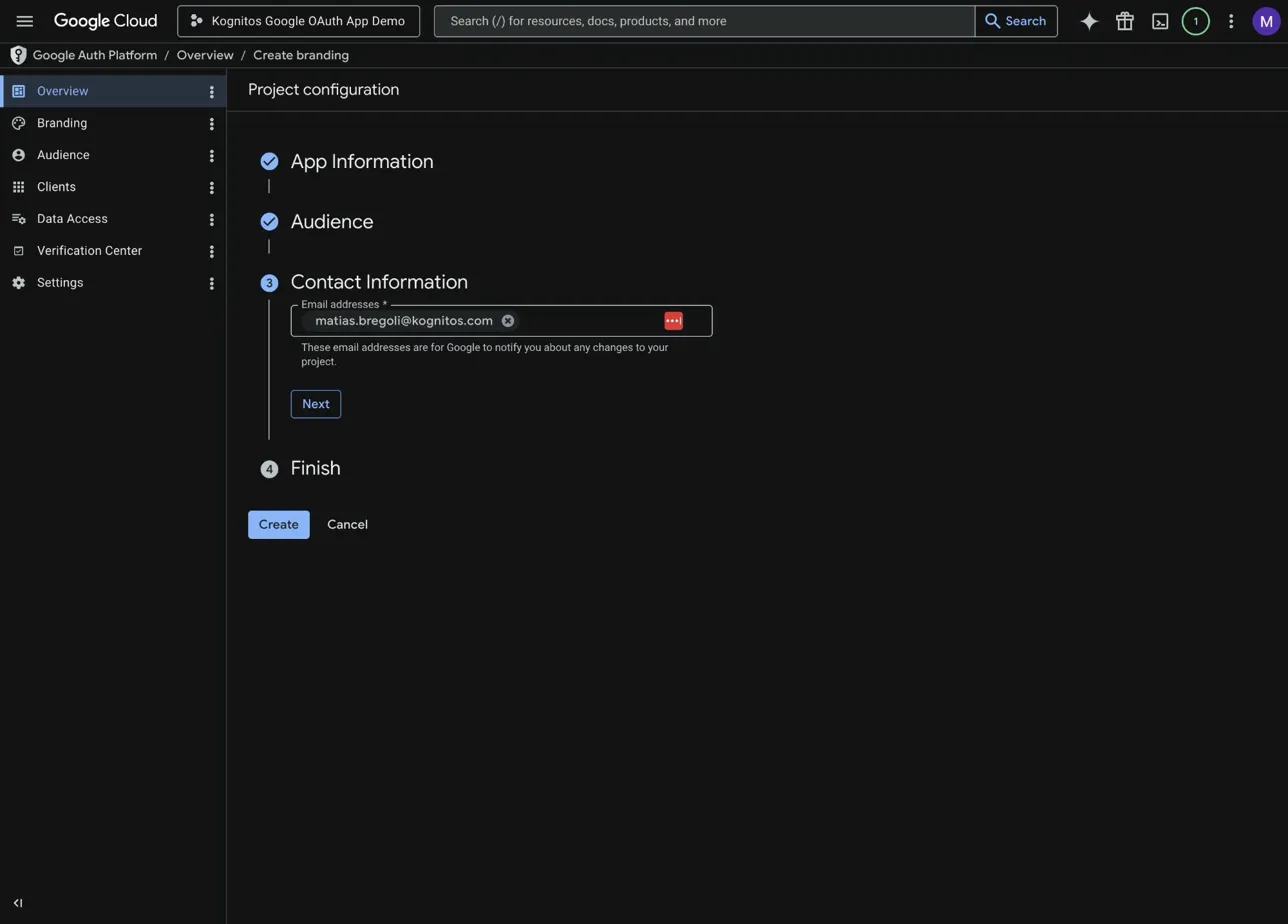
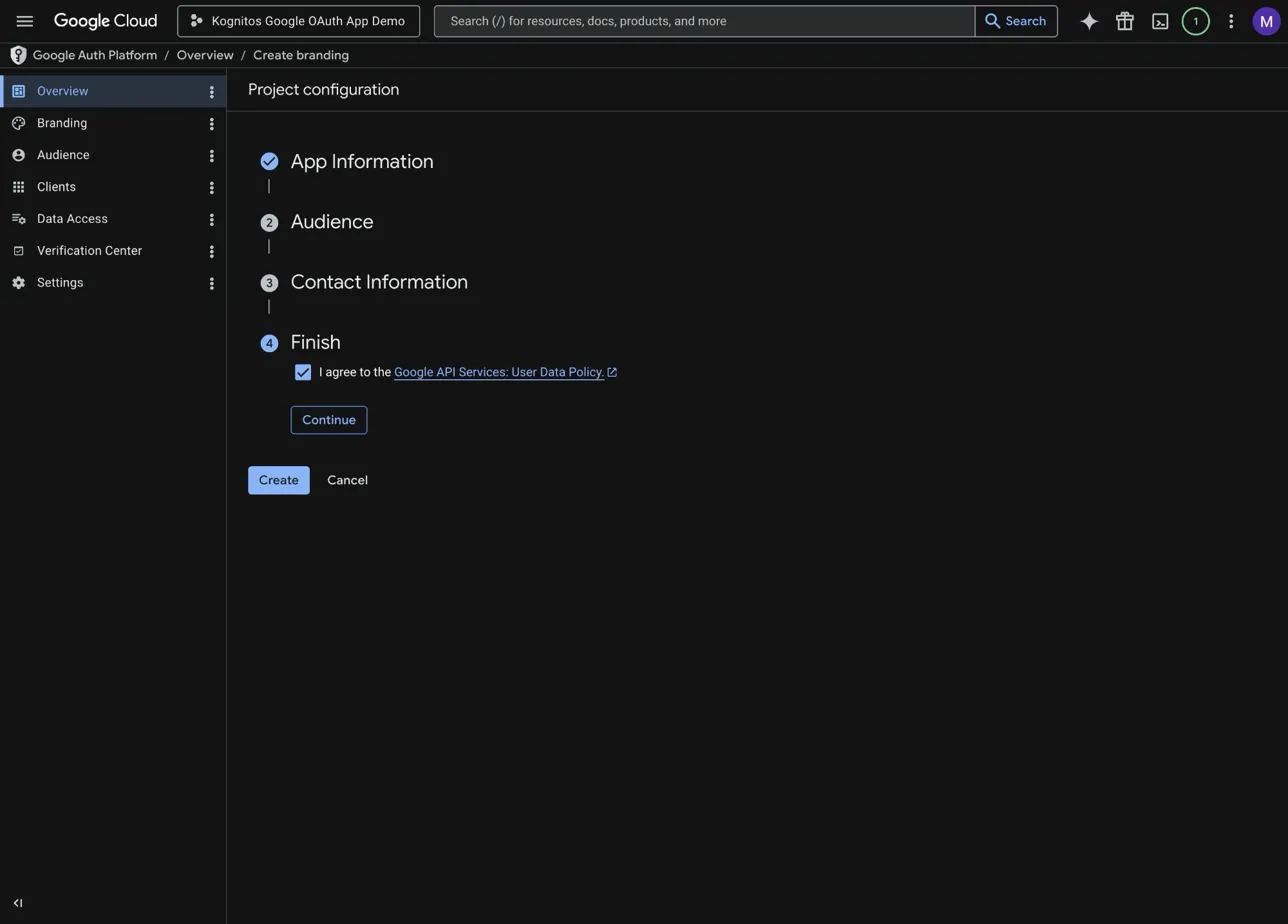
In **Google Auth Platform**, set up the consent screen for the project:
1. Enter an app name.
2. Select a user support email.
3. Choose **Internal** as the audience if the app should only be used by people in your Google Workspace organization.
4. Add a contact email.
5. Accept Google's user data policy and save the configuration.
{% endstep %}
{% step %}
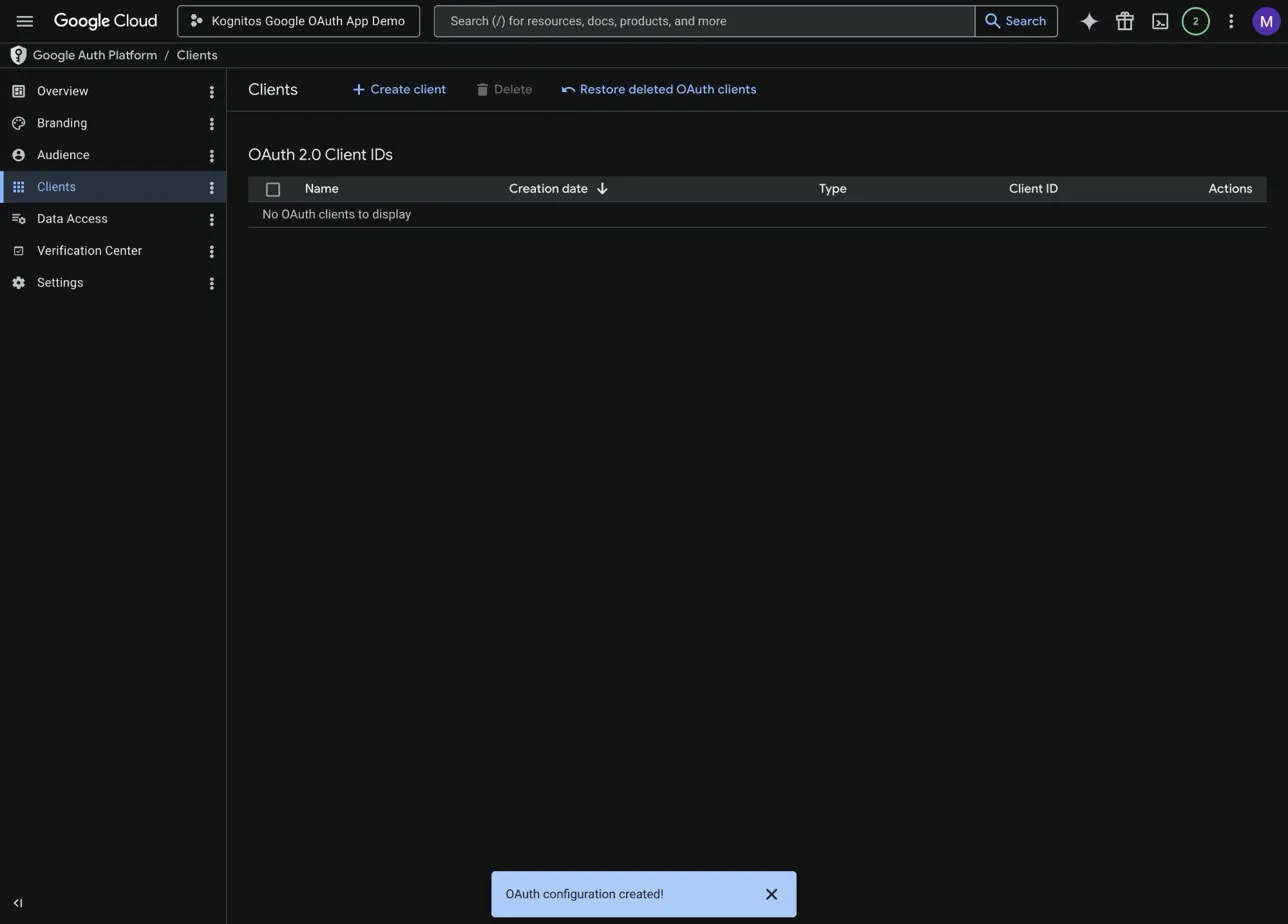
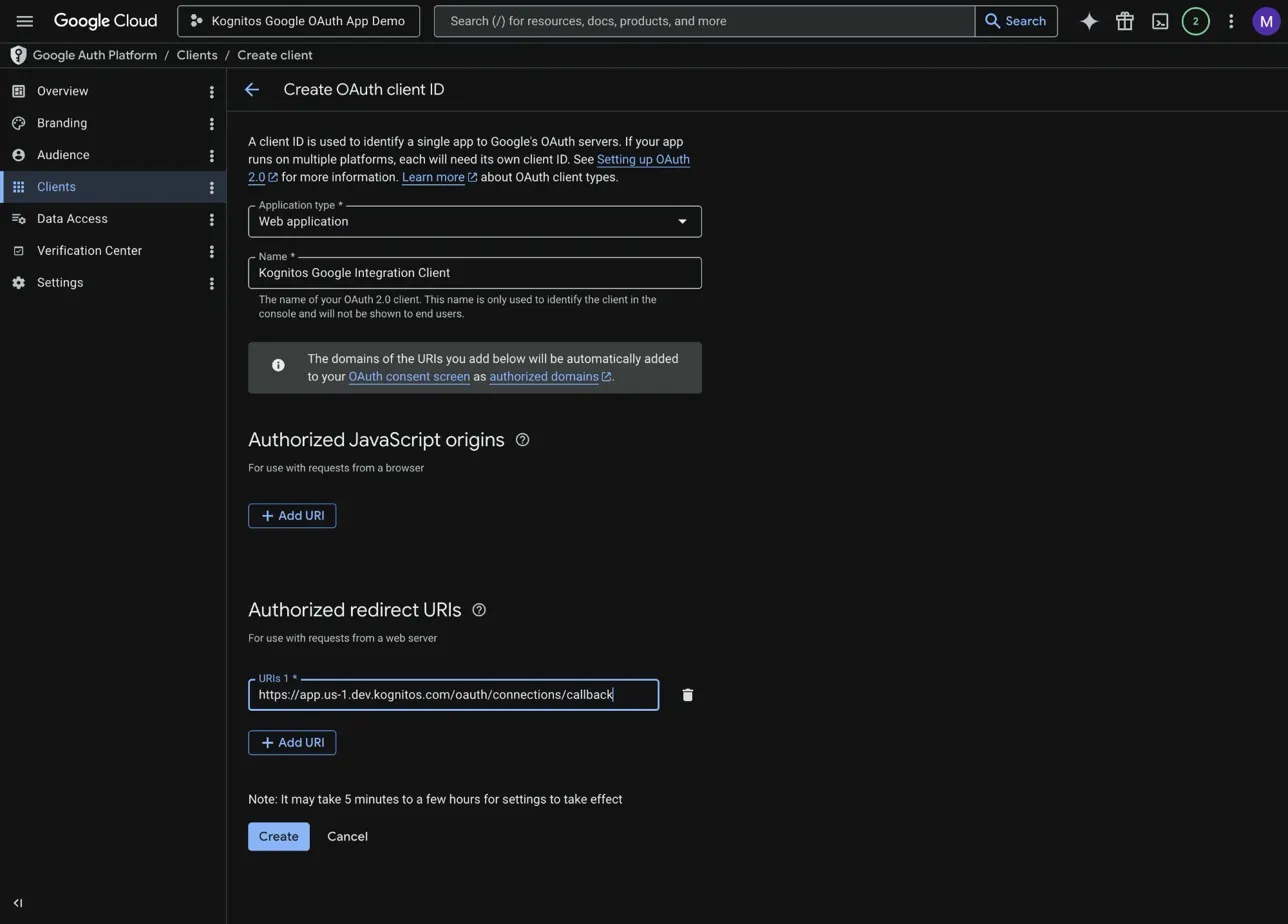
**Create the OAuth client**
Create a new client with these settings:
* **Application type:** Web application
* **Authorized redirect URI:** `https://app.us-1.kognitos.com/oauth/connections/callback`
Copy the **Client ID** and **Client Secret** after you create the client. Store the secret somewhere secure in case Google only shows it once.
{% hint style="warning" %}
Use the production redirect URI exactly as shown. Do not use the dev URL or a legacy callback URL.
{% endhint %}
{% endstep %}
{% step %}
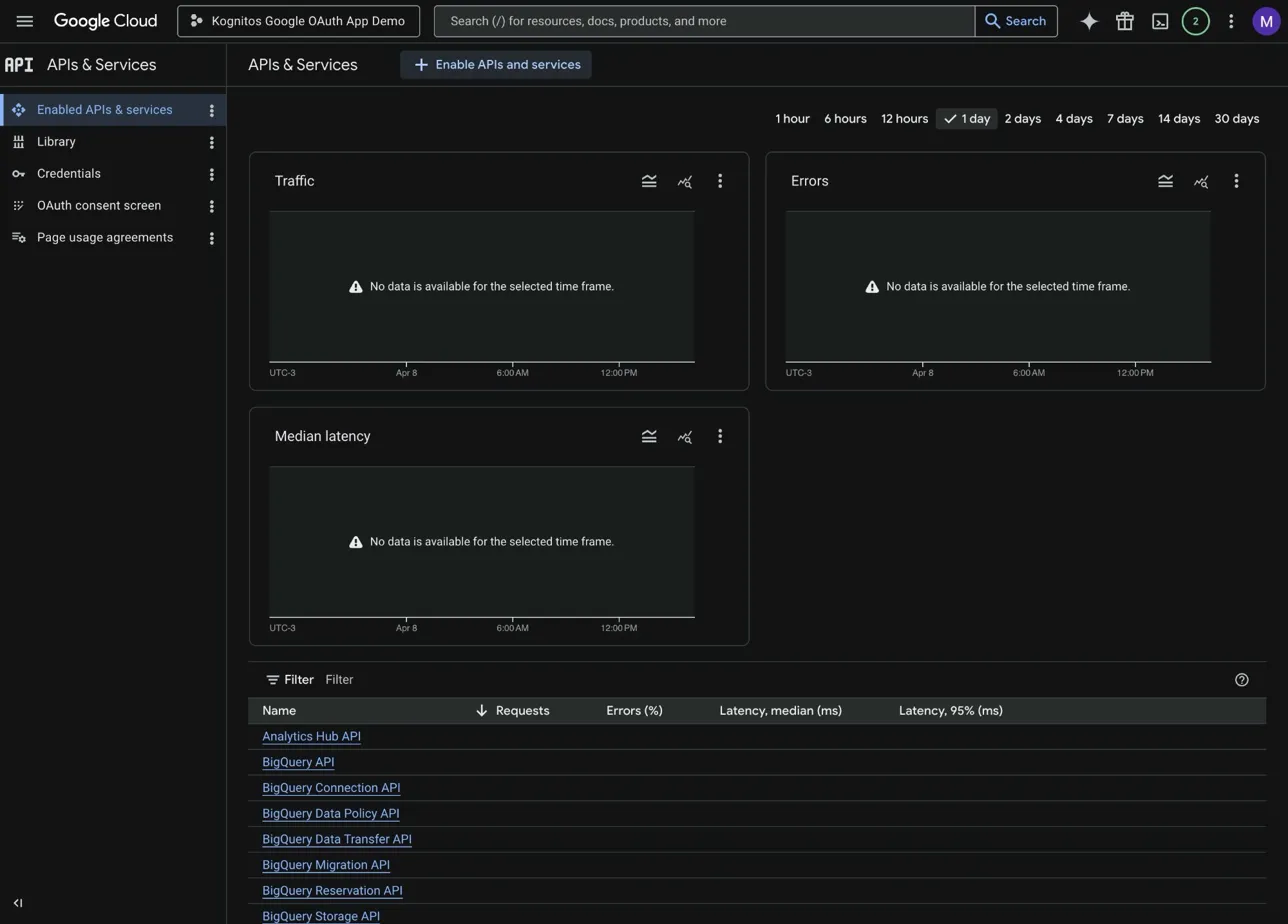
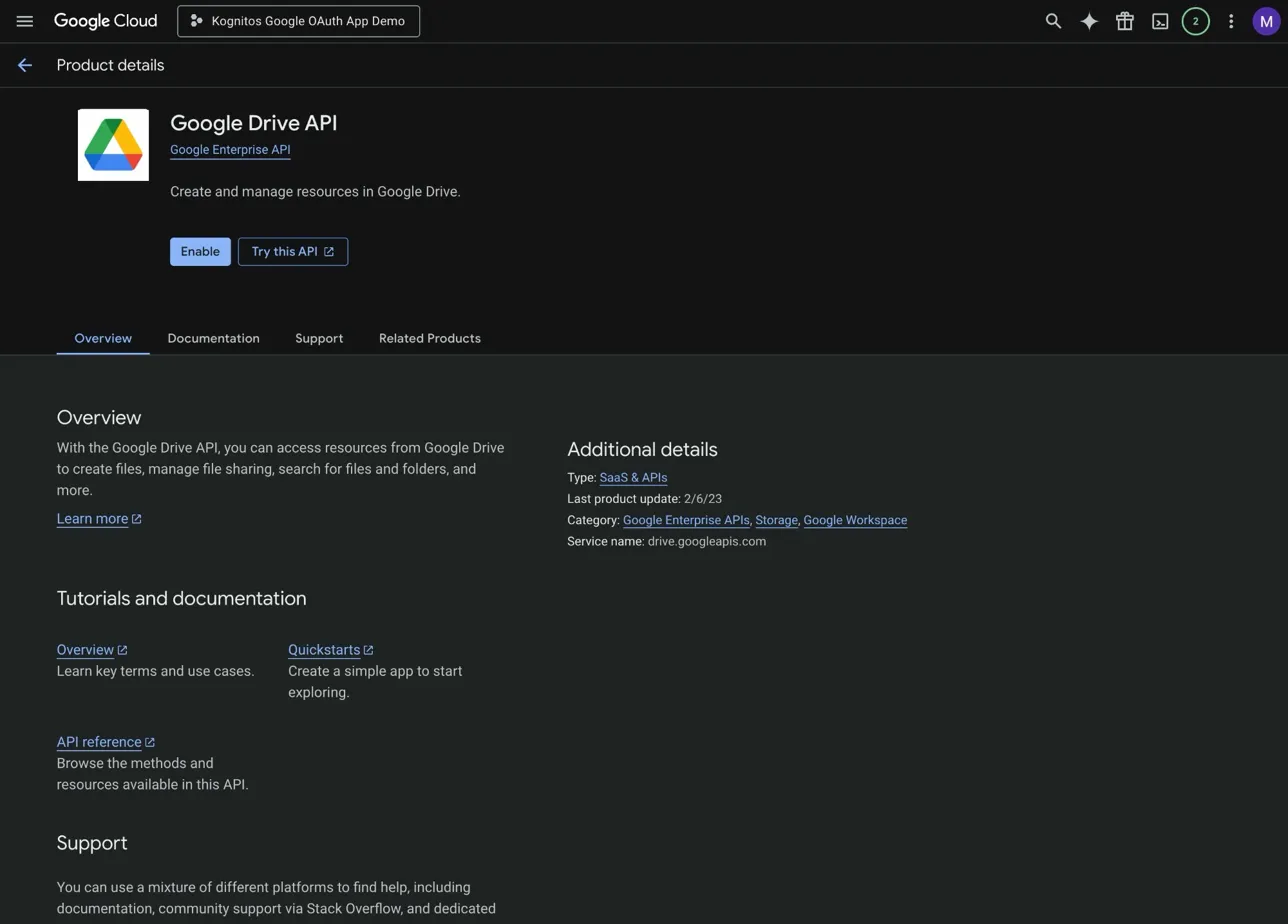
**Enable the APIs you need**
In APIs & Services → Library, enable the APIs for the Google integrations you plan to use:
| Integration | API to enable |
| ------------------------------------------------------------ | -------------------------------------------- |
| [Gmail](/guides/platform/integrations/gmail.md) | **Gmail API** |
| [Google Calendar](/guides/platform/integrations/calendar.md) | **Google Calendar API** |
| [Google Chat](/guides/platform/integrations/chat.md) | **Google Chat API** |
| [Google Docs](/guides/platform/integrations/docs.md) | **Google Docs API** and **Google Drive API** |
| [Google Drive](/guides/platform/integrations/drive.md) | **Google Drive API** |
| [Google Sheets](/guides/platform/integrations/sheets.md) | **Google Sheets API** |
If you plan to use several Google integrations, enable all of their APIs in the same project.
{% hint style="info" %}
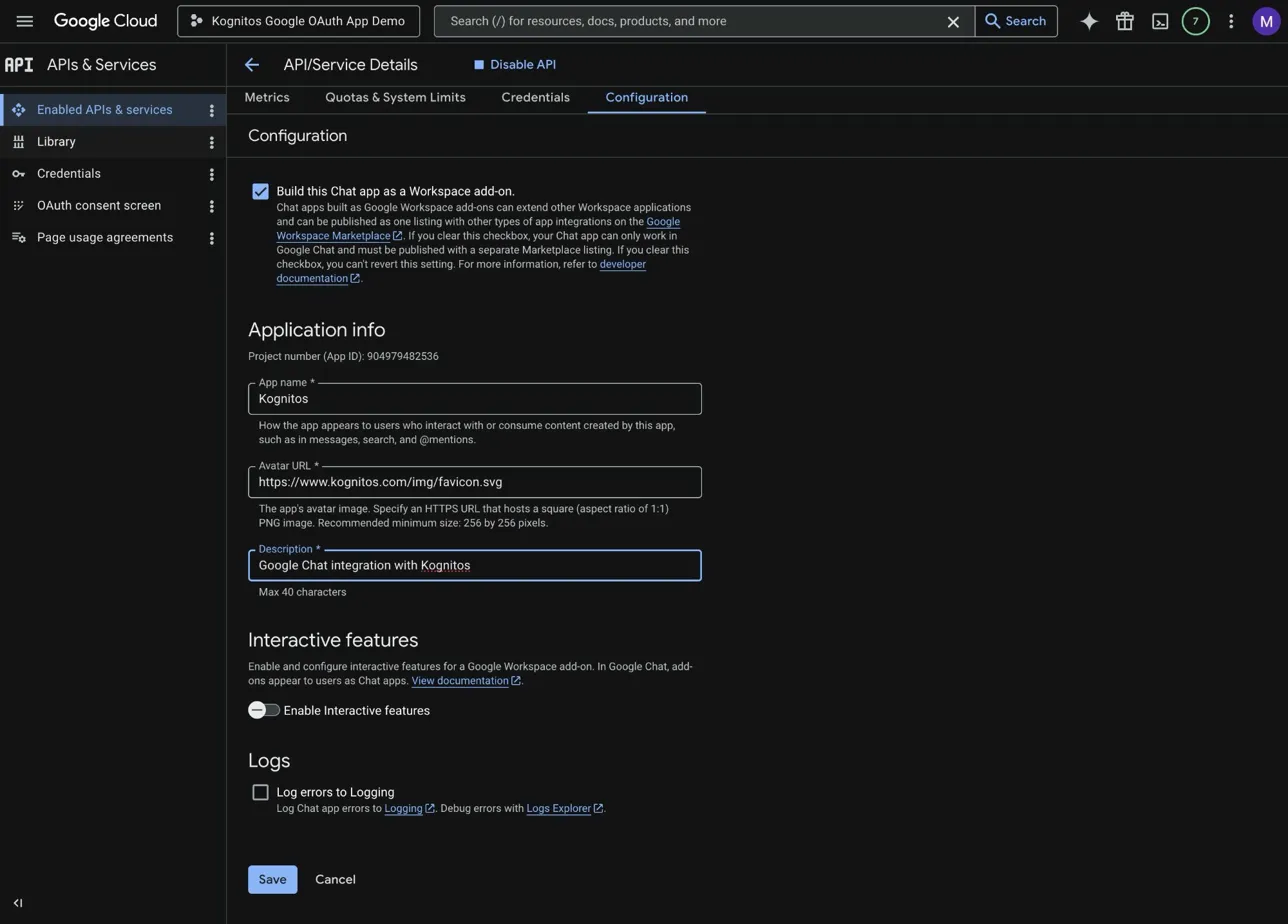
If you use [Google Chat](/guides/platform/integrations/chat.md), open the Google Chat API configuration after you enable the API and complete the app details before you connect it in Kognitos:
* **App name:** for example, `Kognitos`
* **Avatar URL:** `https://www.kognitos.com/img/favicon.svg`
* **Description:** for example, `Google Chat integration with Kognitos`
* Enable **Build this Chat app as a Workspace add-on**
* Disable **Interactive features**
{% endhint %}
{% endstep %}
{% endstepper %}
## Use the Credentials in Kognitos
After you create the OAuth client in Google Cloud, connect each Google integration in Kognitos with the same credentials.
{% stepper %}
{% step %}
**Open the integration**
In Kognitos, go to Integrations → Explore Integrations, then open the Google integration you want to connect.
{% endstep %}
{% step %}
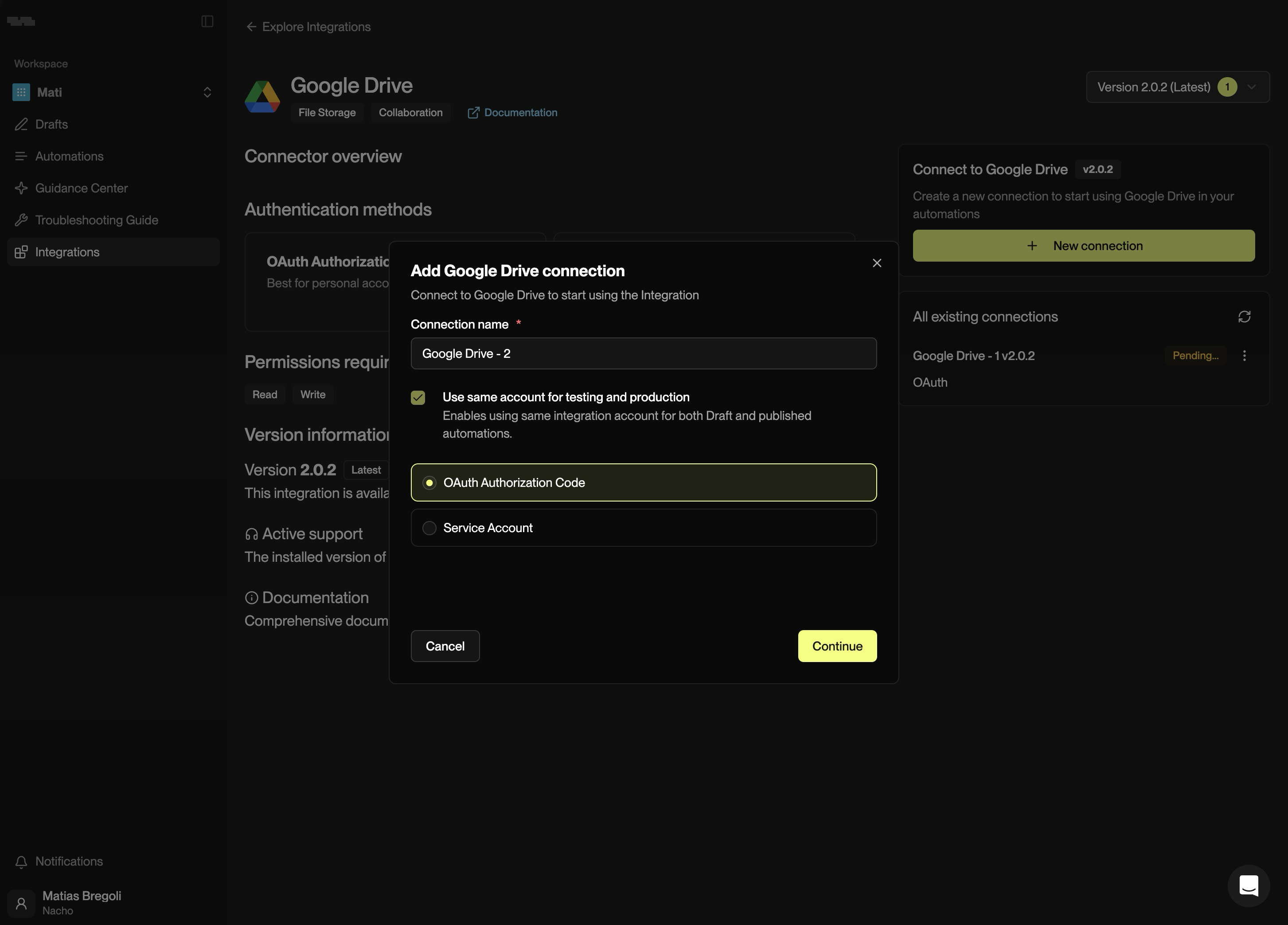
**Start a new connection**
Click Connect, add a connection name, and choose the OAuth option if Kognitos asks you to select an authentication method.
{% endstep %}
{% step %}
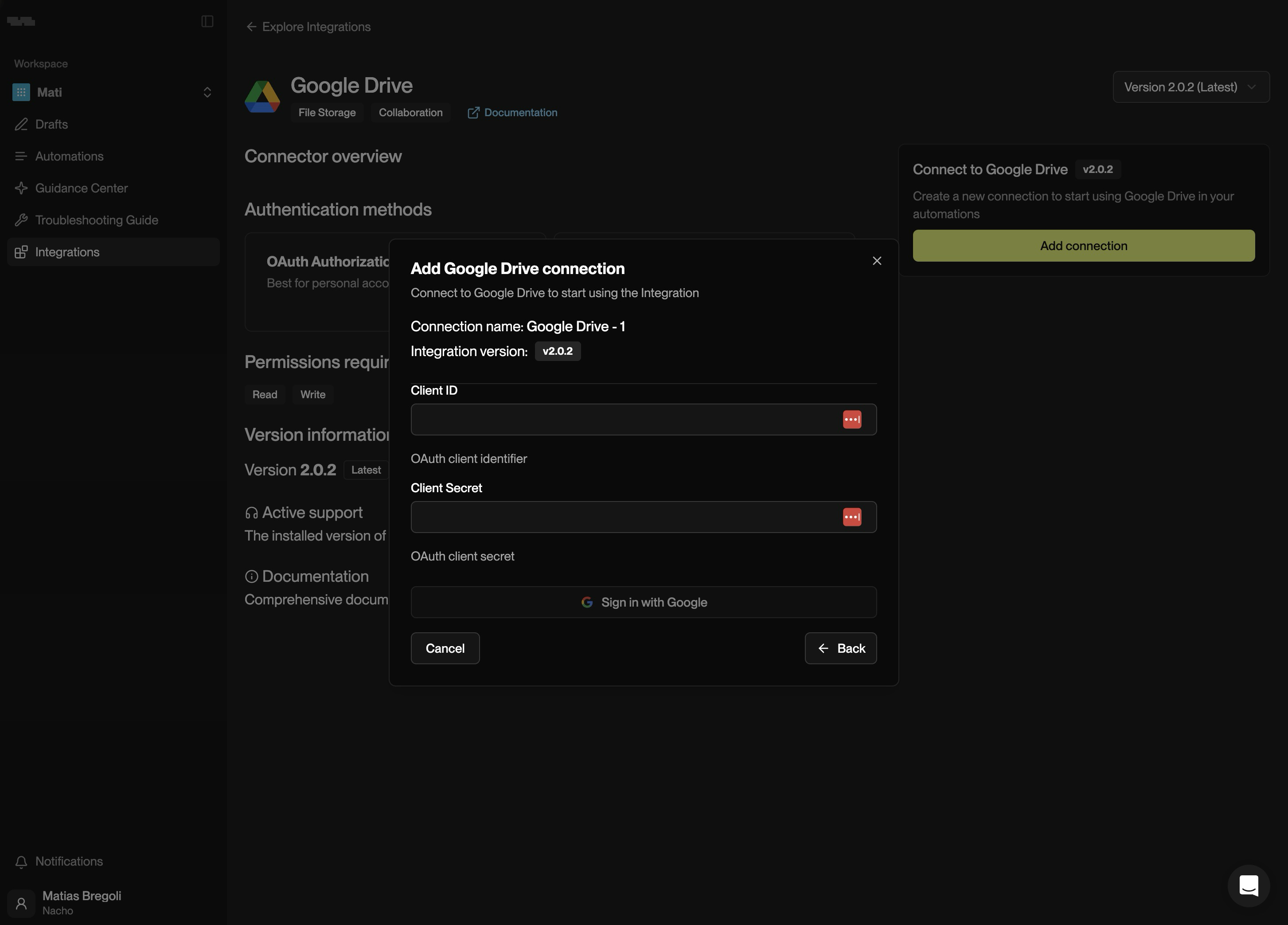
**Enter your OAuth client details**
Paste the **Client ID** and **Client Secret** from Google Cloud.
{% endstep %}
{% step %}
**Authorize with Google**
Click Continue with Google, sign in to Google, grant access, and return to Kognitos.
{% endstep %}
{% endstepper %}
Repeat this for each Google integration you want to connect. You can reuse the same OAuth app across all six integrations.
## Troubleshooting
| Issue | What to check |
| ---------------------- | ----------------------------------------------------------------------------------------------------------------------- |
| Redirect URI mismatch | Confirm the redirect URI is exactly `https://app.us-1.kognitos.com/oauth/connections/callback` |
| Unverified app warning | Make sure the OAuth app audience is set to **Internal**, and the user belongs to the same Google Workspace organization |
| Access blocked | Verify that the API for the integration is enabled in the Google Cloud project |
| Missing client secret | Create a new client secret in Google Cloud, then update the connection in Kognitos |
## Related Integration Pages
* [Gmail](/guides/platform/integrations/gmail.md)
* [Google Calendar](/guides/platform/integrations/calendar.md)
* [Google Chat](/guides/platform/integrations/chat.md)
* [Google Docs](/guides/platform/integrations/docs.md)
* [Google Drive](/guides/platform/integrations/drive.md)
* [Google Sheets](/guides/platform/integrations/sheets.md)
---
# Agent Instructions
This documentation is published with GitBook. GitBook is the documentation platform designed so that both humans and AI agents can read, navigate, and reason over technical content effectively. Learn more at gitbook.com.
## Querying This Documentation
If you need additional information that is not directly available in this page, you can query the documentation dynamically by asking a question.
Perform an HTTP GET request on the current page URL with the `ask` query parameter, and the optional `goal` query parameter:
```
GET https://docs.kognitos.com/guides/platform/integrations/google-authentication.md?ask=&goal=
```
`ask` is the immediate question: it should be specific, self-contained, and written in natural language.
`goal` is optional and describes the broader end goal you are ultimately trying to accomplish on behalf of the user. GitBook uses it to tailor the answer towards what is most useful for that goal.
The response will contain a direct answer to the question and relevant excerpts and sources from the documentation.
Use this mechanism when the answer is not explicitly present in the current page, you need clarification or additional context, or you want to retrieve related documentation sections.