# Troubleshooting Guide

## Overview

The **Troubleshooting Guide** helps your automations learn from past exceptions and handle them automatically in future runs. When you resolve an issue, save the solution as **guidance** so Kognitos can fix the same problem on its own next time.

<div data-with-frame="true"><figure><img src="https://4162850352-files.gitbook.io/~/files/v0/b/gitbook-x-prod.appspot.com/o/spaces%2Fx2dWUsD9HEagjfZqvgHO%2Fuploads%2FEJ9nHAXzgQvSWPB9Vwk8%2Ftroubleshooting-guide-dash.png?alt=media&#x26;token=beeaf837-b0fb-4d5f-9b21-3b0436d018c6" alt=""><figcaption></figcaption></figure></div>

## Understanding Guidance

The Troubleshooting Guide teaches your automations how to handle errors independently. When an exception occurs, Kognitos checks the guide for resolution instructions. If they exist, it applies them automatically. If they don't, it pauses to ask for help.

#### What are Exceptions?

**Exceptions** are issues that prevent an automation from completing its task. They occur when Kognitos encounters an unexpected condition, such as:

* Missing or invalid data
* Failed integrations or connections
* Scenarios it hasn't been taught to handle

#### What is Guidance?

**Guidance** defines how an automation should respond to a specific exception. It consists of saved resolution steps and instructions associated with that exception. When the same issue recurs, the automation applies the guidance without manual intervention.

#### Exception Classification

Kognitos automatically classifies exceptions into types - such as system errors, configuration errors, value errors, and validation errors - so your guidance can target the right category. The classification engine is continuously improved to ensure exceptions are grouped accurately, helping you write guidance that applies reliably.

#### Why Guidance Matters

A well-developed Troubleshooting Guide makes your automations increasingly self-sufficient. Instead of stopping every time a familiar issue occurs, Kognitos resolves it automatically. This reduces downtime, accelerates workflows, and enables your team to focus on complex work rather than repetitive troubleshooting.

## Dashboard

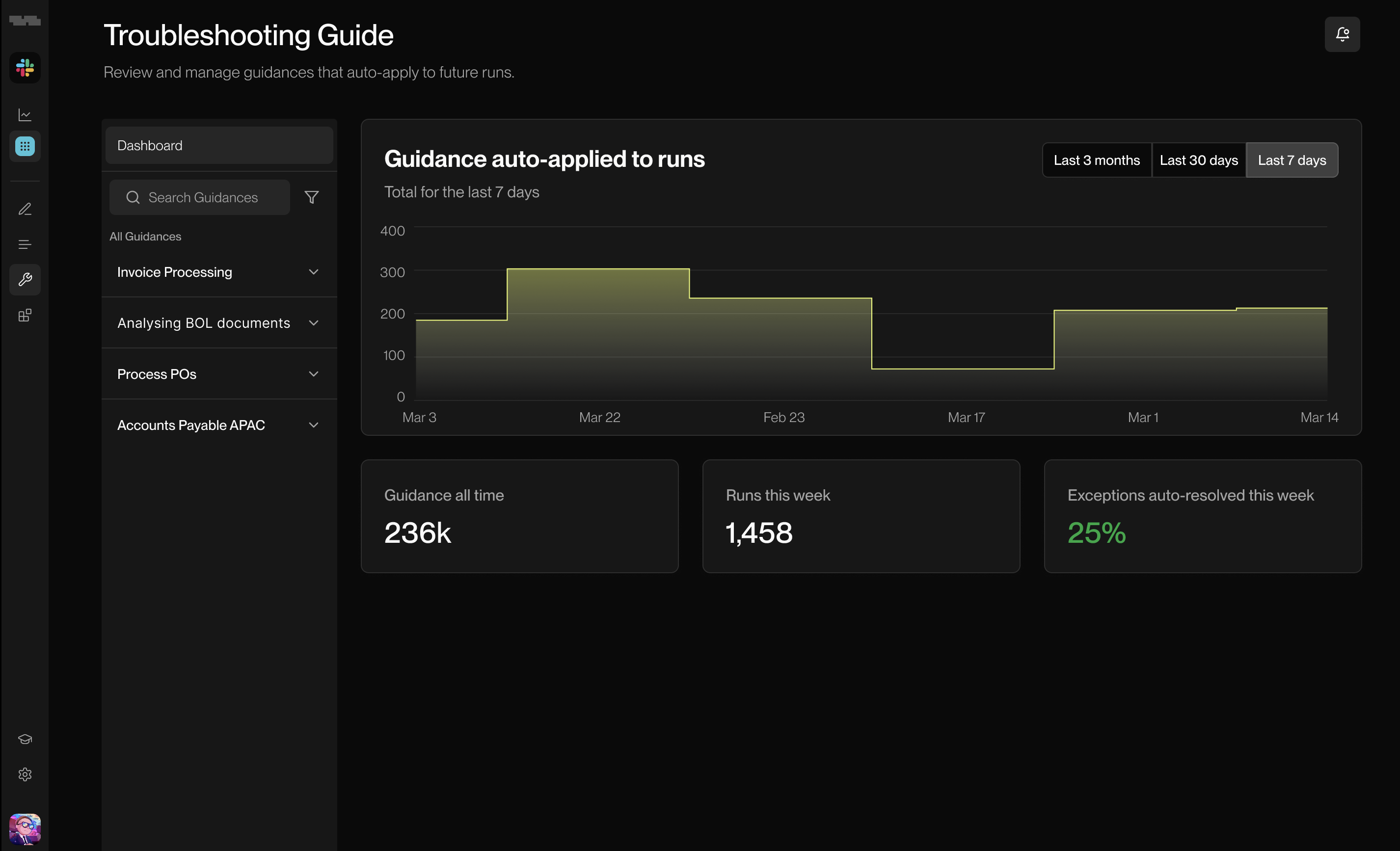
Access the **Troubleshooting Guide** from the left navigation menu. The main dashboard shows how your automated guidance performs across automations; use it to monitor auto-resolution rates and identify performance trends.

### Metrics

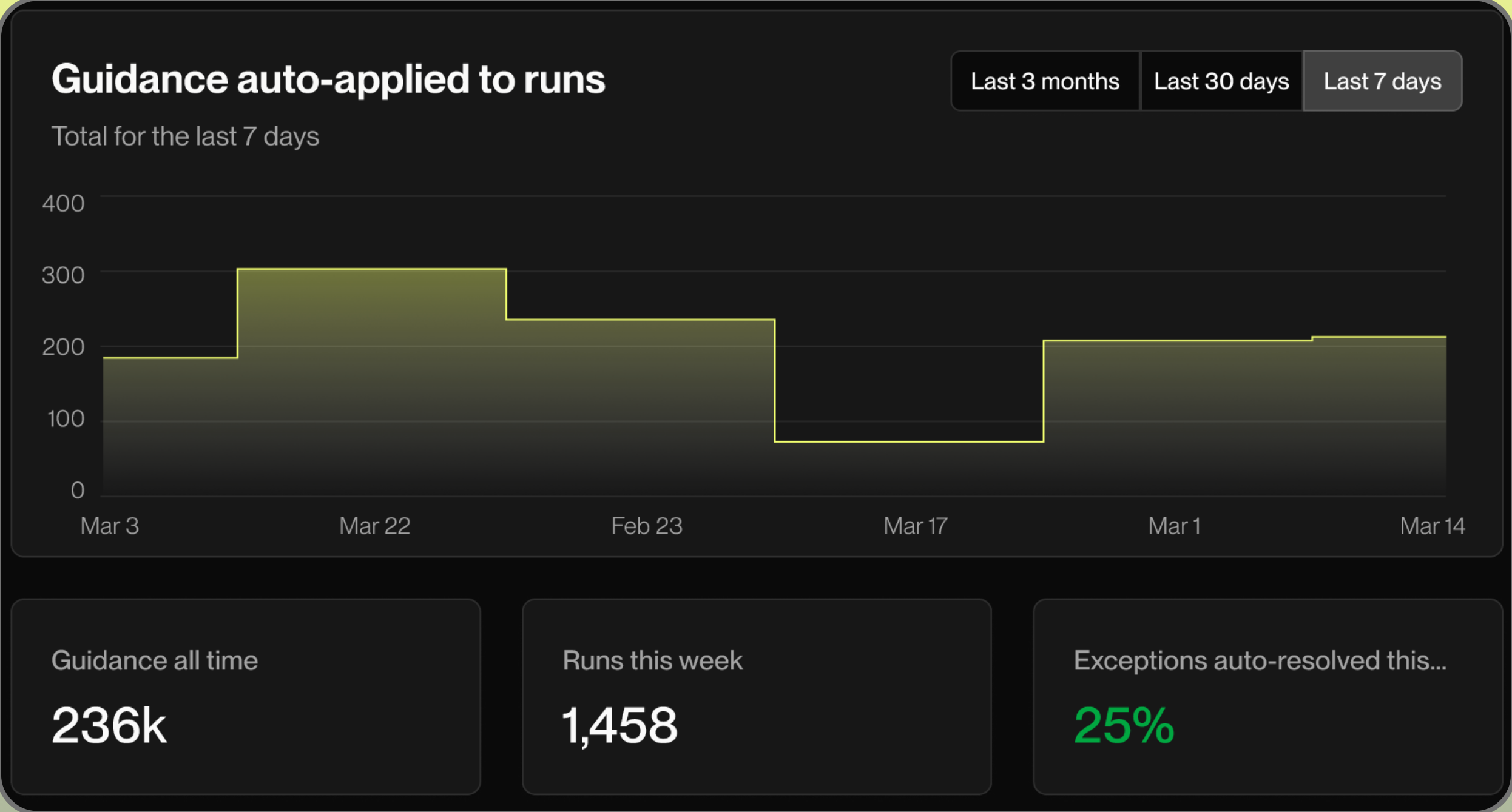
The chart shows how often guidance is automatically applied over time. Use the time selector to view activity for the last **7 days** *(default)*, **30 days**, or **3 months**.

<div data-with-frame="true"><figure><img src="https://4162850352-files.gitbook.io/~/files/v0/b/gitbook-x-prod.appspot.com/o/spaces%2Fx2dWUsD9HEagjfZqvgHO%2Fuploads%2Fgit-blob-d04bb24086acd4758bc053d9d95bdd178b1a0d8f%2Ftroubleshooting-guide-metrics.png?alt=media" alt=""><figcaption></figcaption></figure></div>

Below the chart, these metrics summarize how your guidance is performing:

<table><thead><tr><th width="227.78125">Metric</th><th>Description</th></tr></thead><tbody><tr><td><strong>Guidance (all time)</strong></td><td>Total number of times guidance has been auto-applied across all runs.</td></tr><tr><td><strong>Runs</strong></td><td>Number of automations executed during the selected time range.</td></tr><tr><td><strong>Exceptions auto-resolved</strong></td><td>Percentage of exceptions handled automatically without manual intervention. Higher values indicate that guidance rules are effectively preventing disruptions and keeping automations running smoothly.</td></tr></tbody></table>

## Entries

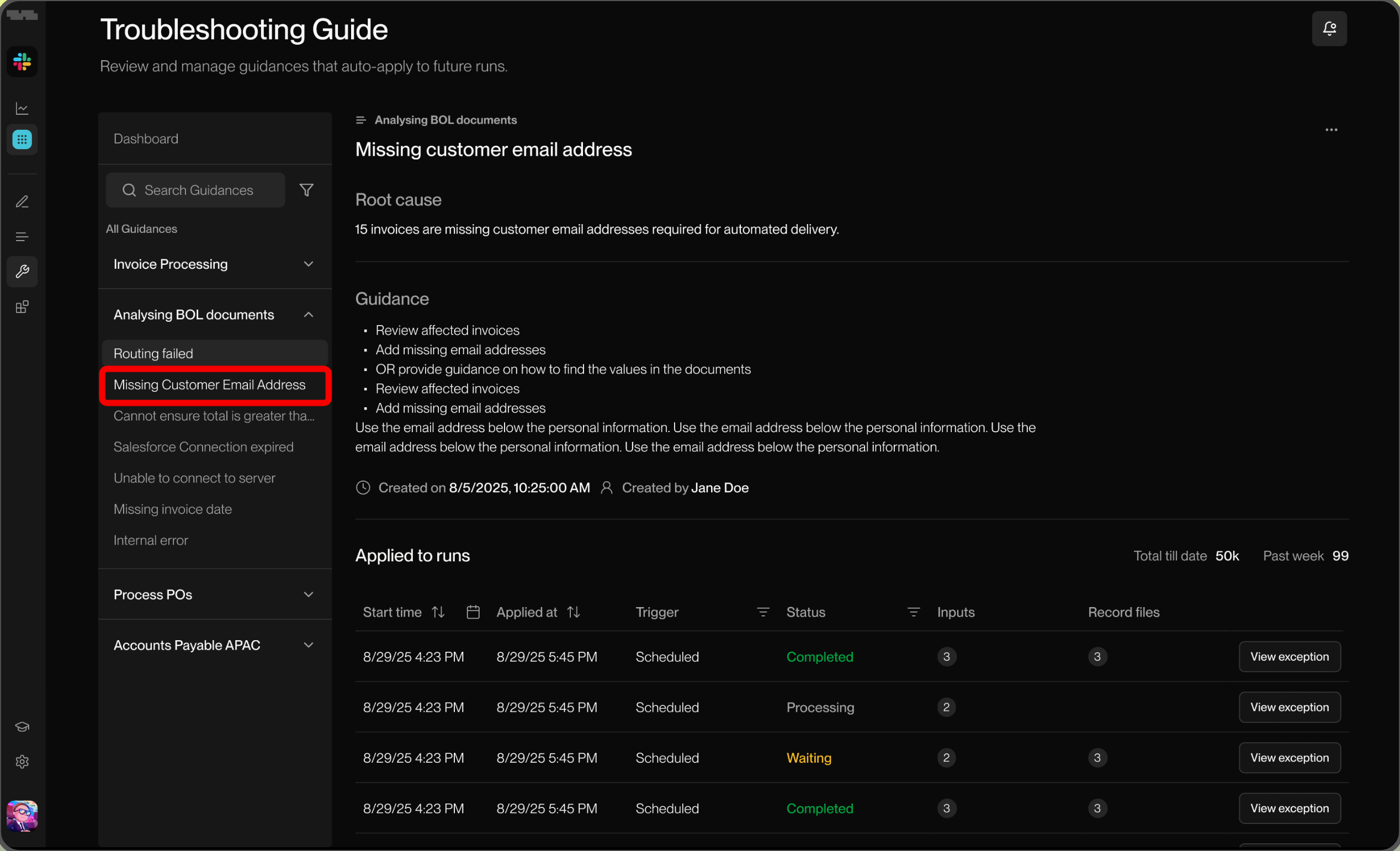
Your guidance entries are organized by automation in the left sidebar. Use the search bar to find specific guidance across all your automations. Click any entry to view its full details.

<div data-with-frame="true"><figure><img src="https://4162850352-files.gitbook.io/~/files/v0/b/gitbook-x-prod.appspot.com/o/spaces%2Fx2dWUsD9HEagjfZqvgHO%2Fuploads%2Fgit-blob-7b2e47a7cbe9eea9fb7046b4c00f73aa6065c9f9%2Ftroubleshooting-guide-select-entry.png?alt=media" alt=""><figcaption></figcaption></figure></div>

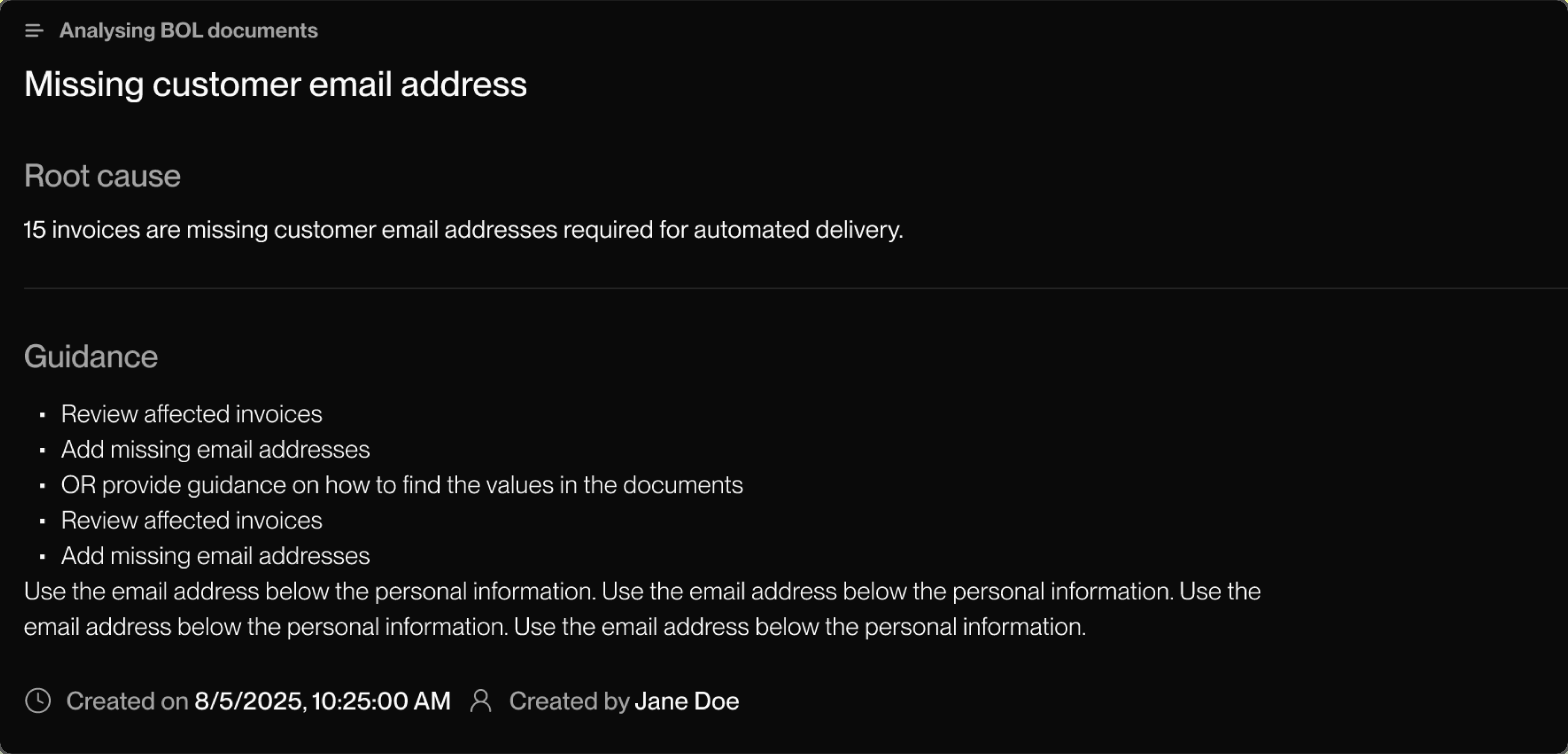
### Details

Here's what you'll find in each entry:

#### Root Cause

Describes the specific issue that triggered this guidance.

#### **Guidance**

Defines the resolution steps that are automatically applied when the same situation occurs again. This determines how the automation responds when it encounters this issue.

#### Created

Shows who created the guidance and when it was created.

<div data-with-frame="true"><figure><img src="https://4162850352-files.gitbook.io/~/files/v0/b/gitbook-x-prod.appspot.com/o/spaces%2Fx2dWUsD9HEagjfZqvgHO%2Fuploads%2Fgit-blob-84da1f14c2cd85e9d3f67cc20284277ca8914951%2FTSG-sample-entry.png?alt=media" alt=""><figcaption></figcaption></figure></div>

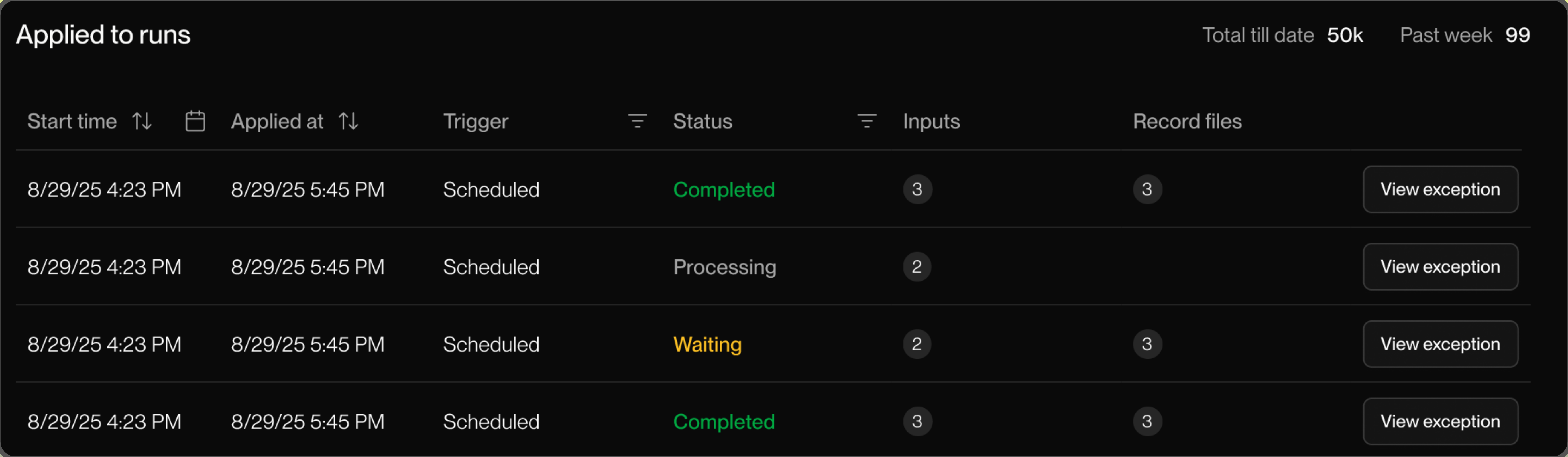
### Applied to Runs

Each row represents a specific run where this guidance was applied. The table shows:

* **Start time**: When the automation run began
* **Applied at**: When the guidance was applied during that run
* **Trigger**: How the run was initiated *(Scheduled, Manual, etc.)*
* **Status**: Current state of the run *(Completed, Processing, Waiting, etc.)*
* **Inputs**: Number of input items processed in this run
* **Record files**: Number of records or files involved

Click the filter icon next to any column header to narrow the results, or click <kbd>**View exception**</kbd> to see the full context for that specific run.

<div data-with-frame="true"><figure><img src="https://4162850352-files.gitbook.io/~/files/v0/b/gitbook-x-prod.appspot.com/o/spaces%2Fx2dWUsD9HEagjfZqvgHO%2Fuploads%2Fgit-blob-1032c490261fe23b5bfb461a013b18a684392511%2FTSG-applied-to-runs.png?alt=media" alt=""><figcaption></figcaption></figure></div>

### Deleting Guidance

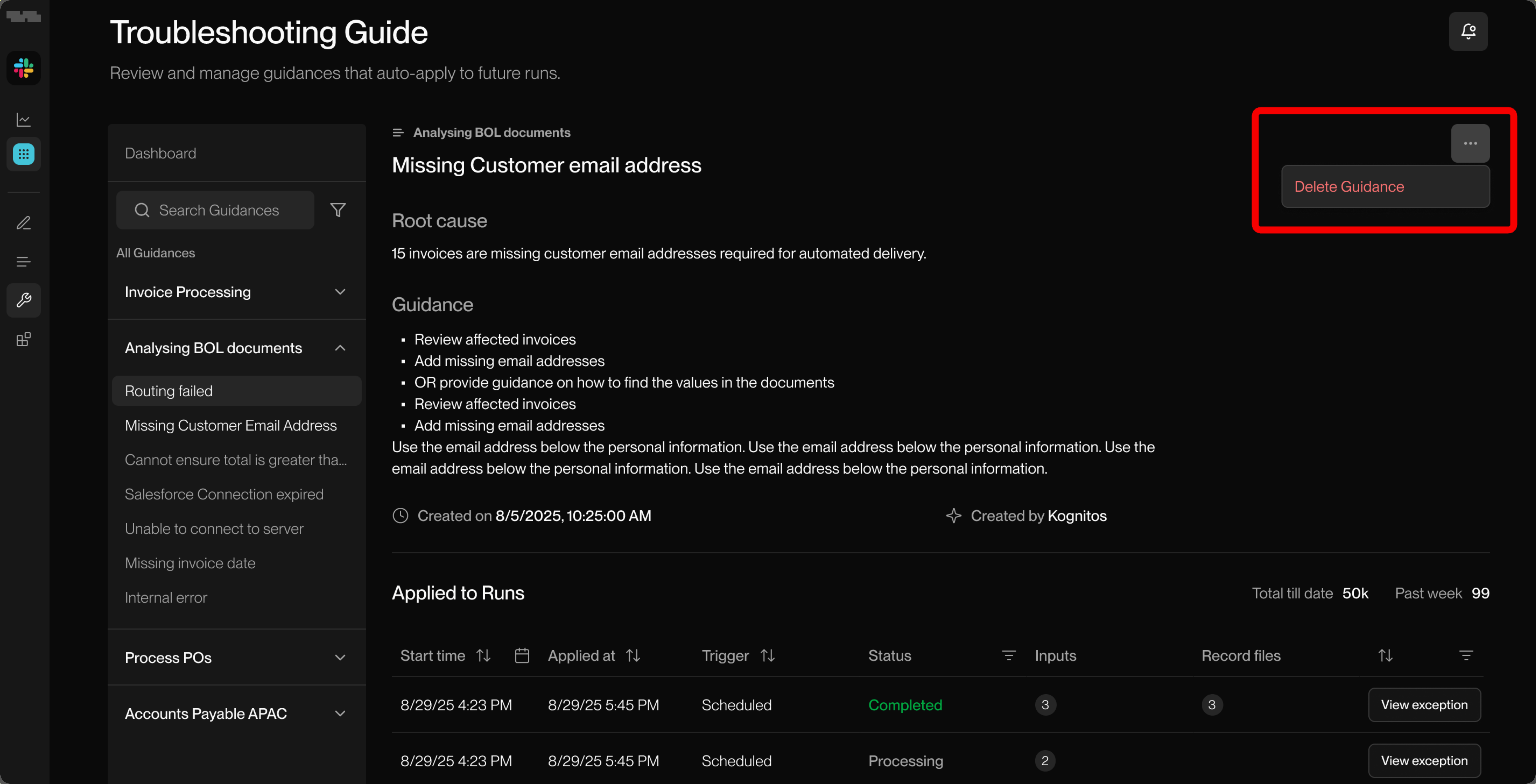
To delete guidance from the Troubleshooting Guide, click on the three-dot menu in the top right corner and select <kbd>**Delete Guidance**</kbd>. Deleting an entry removes it from your Troubleshooting Guide, but doesn't affect past runs where it was applied. This is useful when guidance is no longer needed or the resolution steps are outdated.

<div data-with-frame="true"><figure><img src="https://4162850352-files.gitbook.io/~/files/v0/b/gitbook-x-prod.appspot.com/o/spaces%2Fx2dWUsD9HEagjfZqvgHO%2Fuploads%2Fgit-blob-2ee1c0a863a5f8a39a387f061196fac895aad4e0%2Fdeleting-guidance.png?alt=media" alt=""><figcaption></figcaption></figure></div>

## Review Guidances

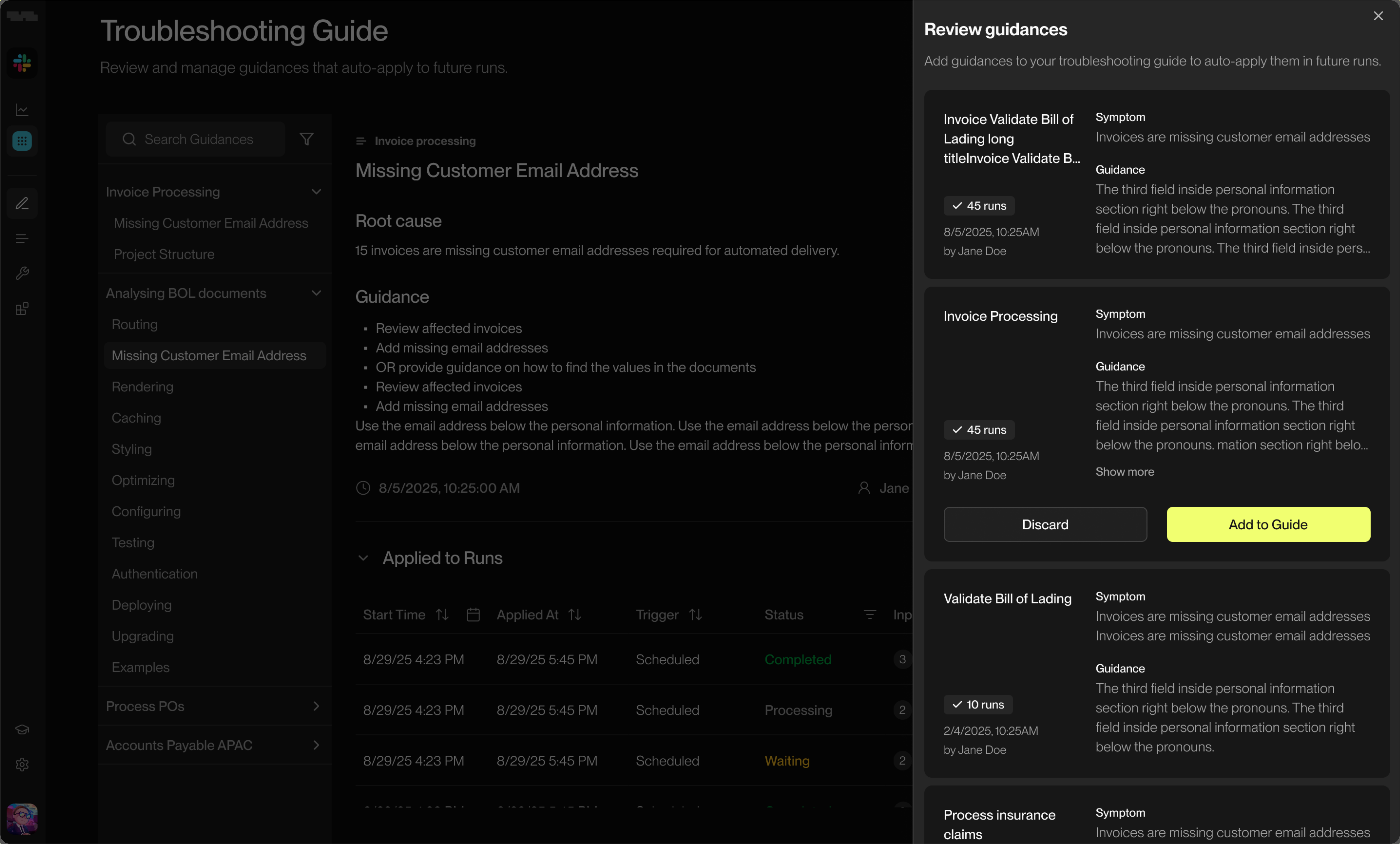
Kognitos identifies patterns in how you resolve exceptions and suggests adding them to your Troubleshooting Guide. When guidance suggestions are available, you'll be prompted to review them. Click <kbd>**Show more**</kbd> on any item to expand the full guidance text and see all the resolution details.

<div data-with-frame="true"><figure><img src="https://4162850352-files.gitbook.io/~/files/v0/b/gitbook-x-prod.appspot.com/o/spaces%2Fx2dWUsD9HEagjfZqvgHO%2Fuploads%2Fgit-blob-36b7ff23a92b5f525510d0b71f61292bd95c0fdb%2Freview-guidances.png?alt=media" alt=""><figcaption></figcaption></figure></div>

### Actions

Review each suggestion and take action:

* Click <kbd>**Add to Guide**</kbd> to save the guidance. It will auto-apply the next time this exception occurs.
* Click <kbd>**Discard**</kbd> if the guidance isn't relevant.

After reviewing all suggestions, close the panel. Accepted guidance entries will be added to your Troubleshooting Guide and begin auto-applying to future runs.

## Frequently Asked Questions

<details>

<summary><strong>How does guidance get created?</strong></summary>

Guidance is created when you or a team member resolves an exception and chooses to save the resolution steps. Kognitos may also suggest guidance based on patterns it identifies in how you resolve similar exceptions.

</details>

<details>

<summary><strong>Will guidance apply to all my automations?</strong></summary>

Each guidance entry is specific to the automation where it was created. If you encounter the same issue across multiple automations, you'll need to create guidance for each one separately.

</details>

<details>

<summary><strong>What happens if guidance fails to resolve an exception?</strong></summary>

If guidance can't resolve an exception, the run will pause and wait for manual intervention. You can then review what happened, adjust the guidance, or resolve the exception manually.

</details>

<details>

<summary><strong>What's the difference between "Root Cause" and "Guidance"?</strong></summary>

The **root cause** explains what triggered the exception - the problem your automation encountered. **Guidance** contains the specific steps your automation will take to fix that problem next time it occurs.

</details>